
Interface Guide
A tour of the PixAI interface. Get familiar with the home page, generation page, profile, and what each area does.
Home Page
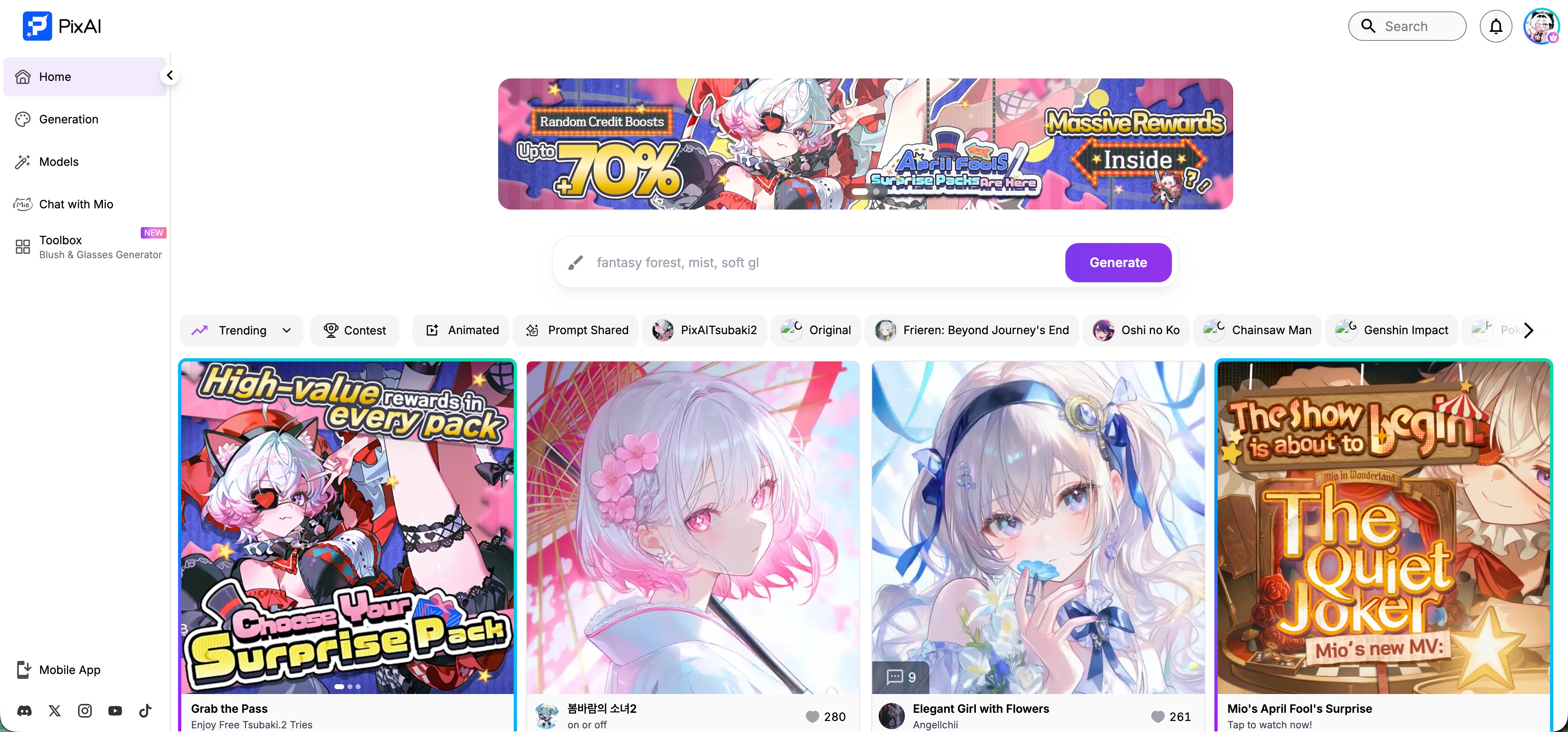
After you log in, you land on the home page. It's filled with work from creators across the community. Browse, like, and bookmark. Tap anything you like to see its prompts and settings.
The navigation bar on the left gives you access to all the main features:
| Option | Description |
|---|---|
| Home | Back to the home page to browse community work |
| Generate | Open the generation panel — the page you'll use most |
| Models | Browse and search models and LoRAs |
| Create with Mio.2 | Chat and create with the mascot Mio |
| Toolbox | Fun mini tools (like the Blush Glasses Generator) |
At the top center, there's a quick generation bar. Type a prompt, hit "Generate," and you're off. Below that, a feed of community work — filter by tag for what you want: recommended, contests, activity, public prompts, and more.

Hit "like" often so the algorithm learns your taste. The more you like, the more it recommends work you'll love!
Use as Template
Found something you love? Open it and tap "Use as Template." The system applies that work's model, LoRA, and all parameters in one click. Just swap the prompt for your own subject, and you can create in the same style.
A note: if the original creator used non-public prompts, LoRAs, or reference images, those won't load.
Generation Panel
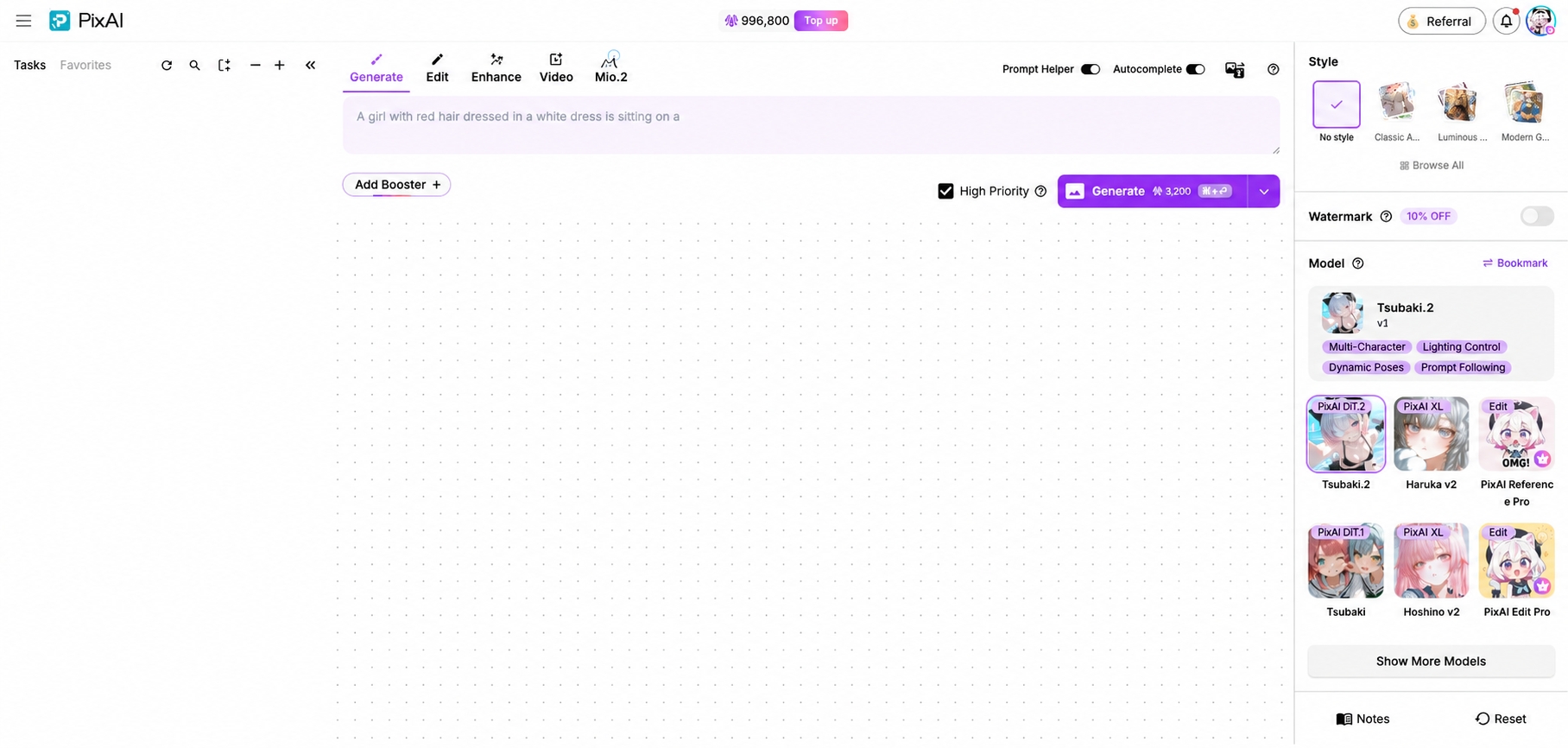
Click Generate on the left to enter the generation panel. This is where the magic happens.
Five tabs at the top switch between creation modes:
| Tab | Description |
|---|---|
| Generate Image | Create images from text — the most-used feature |
| Image Editing | Modify and adjust existing images |
| Image Enhancement | Boost image quality and detail |
| Generate Video | Turn images or text into video |
| Mio.2 | Create with Mio through conversation |
The generation panel breaks down into three areas:
Left — Generation History
Every generation on your account is saved here permanently. Come back anytime to revisit old work, download images, or reuse the settings.
Middle — Core Workspace

This is the most important section.
-
Prompt input — Type your description here
-
Prompt Helper — Turn it on and the system auto-expands and refines your prompt. Recommended if you write in a non-English language or you're new to AI art
-
Autocomplete — Get prompt suggestions as you type. Shortcuts:
↑/↓to pick,Tabto apply -
High Priority — Spend a few extra credits to skip the queue and generate much faster
-
Toolbar — Click "Tools +" to add advanced tools:
| Tool | Description |
|---|---|
| Face Fix | Auto-fix facial details |
| Detail Enhancement (HiRes) | Upscale and add more detail |
| Quality Tags | Auto-add quality-related prompts |
| Convert to Video | Turn the generated image into a video |
Results show up right under the Generate button.
Right — Parameters & Settings
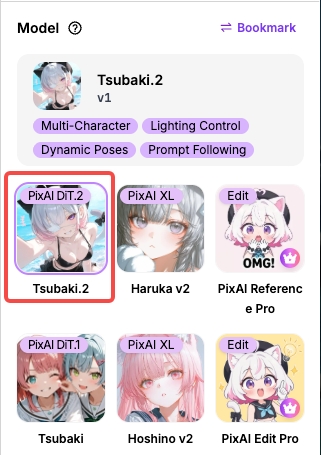
- Model — Picks the "artist" for your image. Different models, different styles
- LoRA — Add reference packs for characters, styles, and more to customize results
- Other settings — Size, steps, CFG, and other advanced parameters
The settings on the right may vary depending on the model you pick. Some models add their own dedicated options.
Want to dive in? Head to Quick Start and follow the tutorial to make your first image.
Profile Page
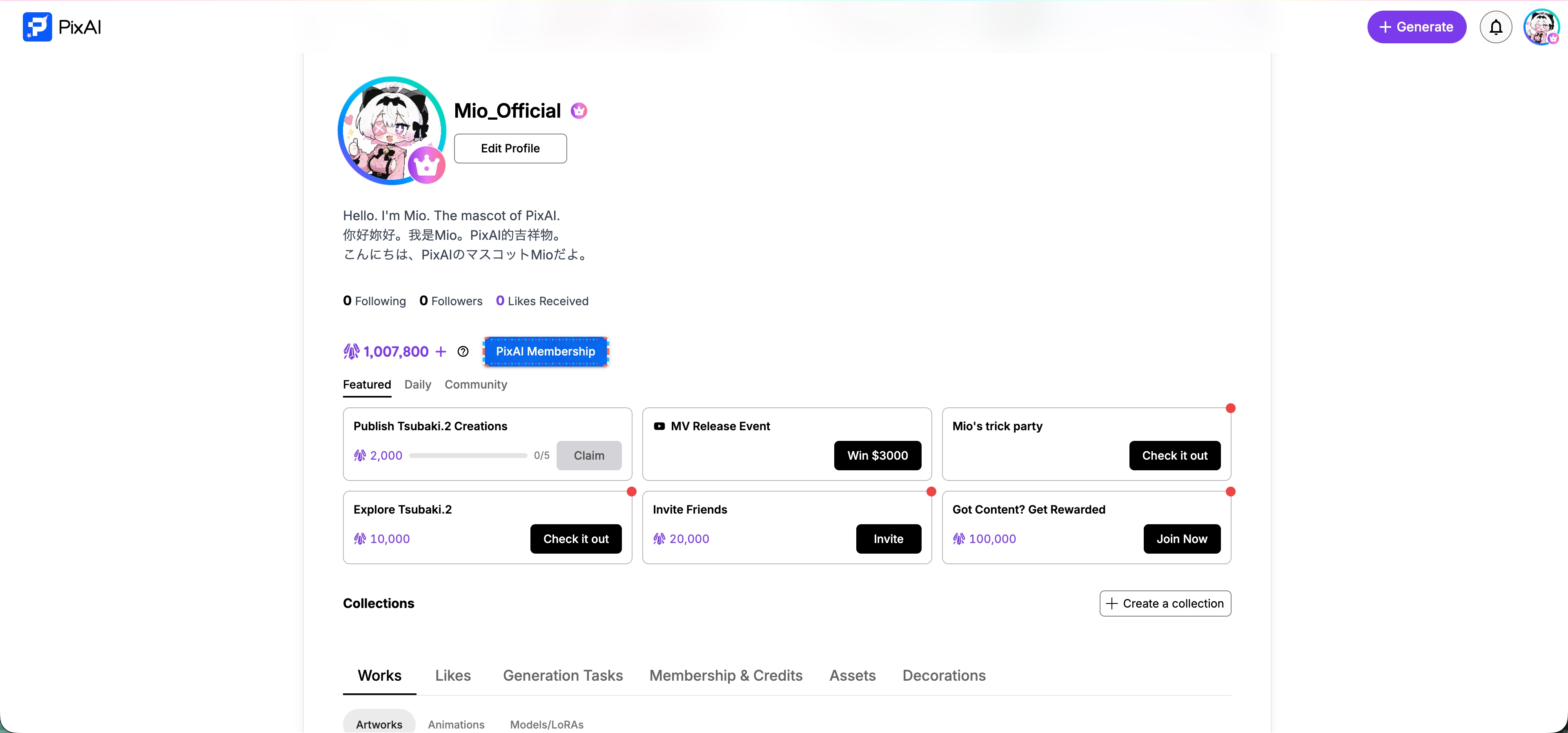
Click your avatar in the top right to open the profile page. You'll see your follower and like counts here, along with all the work you've published.
Most importantly — this is where you claim daily missions. Three tabs sit in the middle of the page:
- Featured Events — Limited-time events and promo missions. Complete them for bonus credits
- Daily Missions — Log in, publish work, get likes, and more. Come back daily to clear them
- Community Missions — Missions tied to community events
The bottom of the page holds all your content and settings:
| Tab | Content |
|---|---|
| Works | Work you've published (images, animations, models/LoRAs) |
| Likes | Work you've liked |
| Generation Tasks | Generation task history |
| Membership & Credits | Membership status and credit management |
| Assets | Resources you've uploaded |
| Decorations | Profile page decorations (member feature) |
Model Marketplace
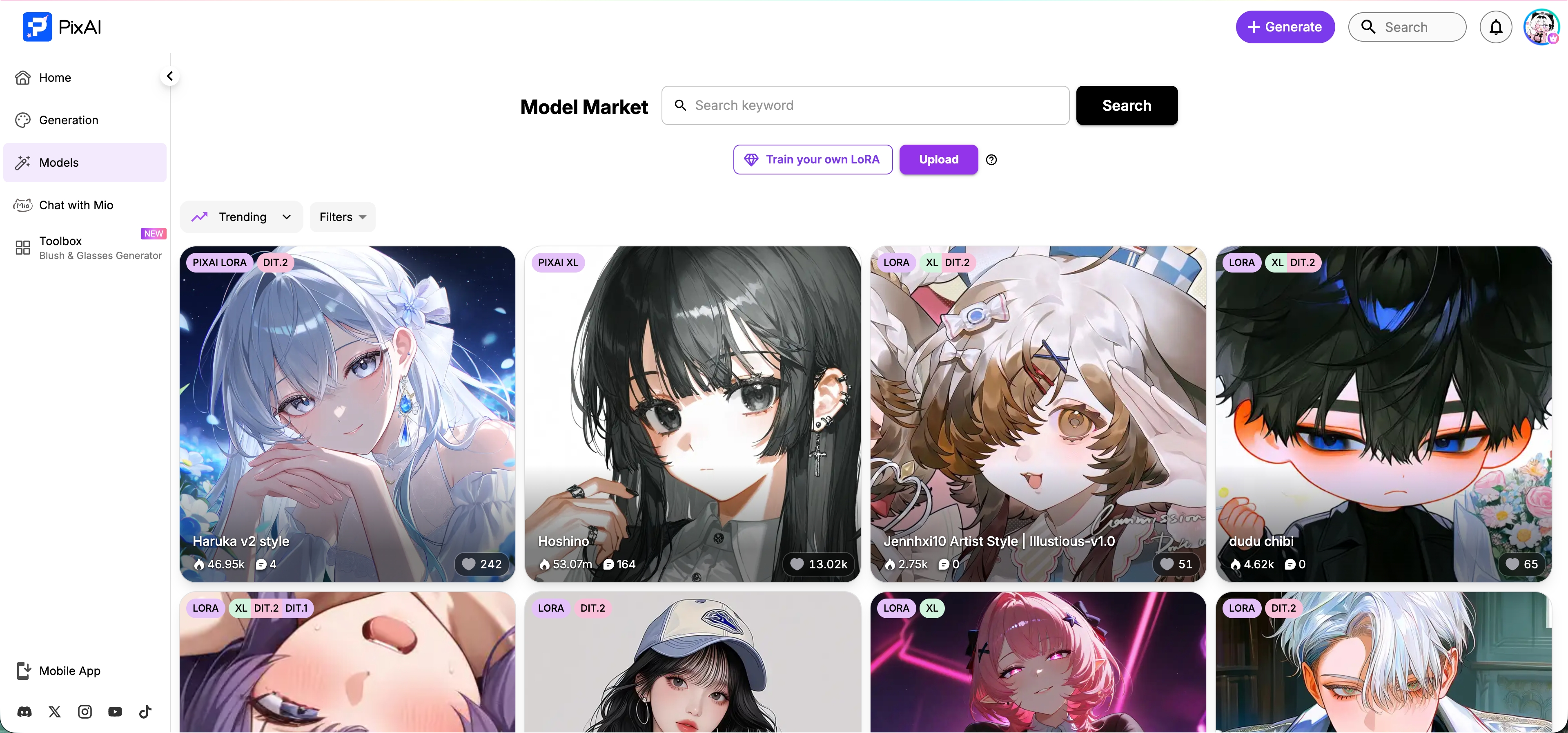
Click Models on the left to enter the marketplace. Every available model and LoRA lives here. Think of it as a "roster of AI artists" — every artist (model) has a style they specialize in.
You can search by keyword, sort by popularity, or filter by architecture. Each card shows the model name, supported architecture tags, usage count, and like count to help you spot the popular picks.
Click any model to view details, sample work, or jump straight into the generation panel to start using it.
As a member, you can also:
- Train your own LoRA — Train a custom LoRA from your own materials
- Upload — Upload your own models or LoRAs
Create with Mio.2

This page is still under construction! Stay tuned~
Toolbox
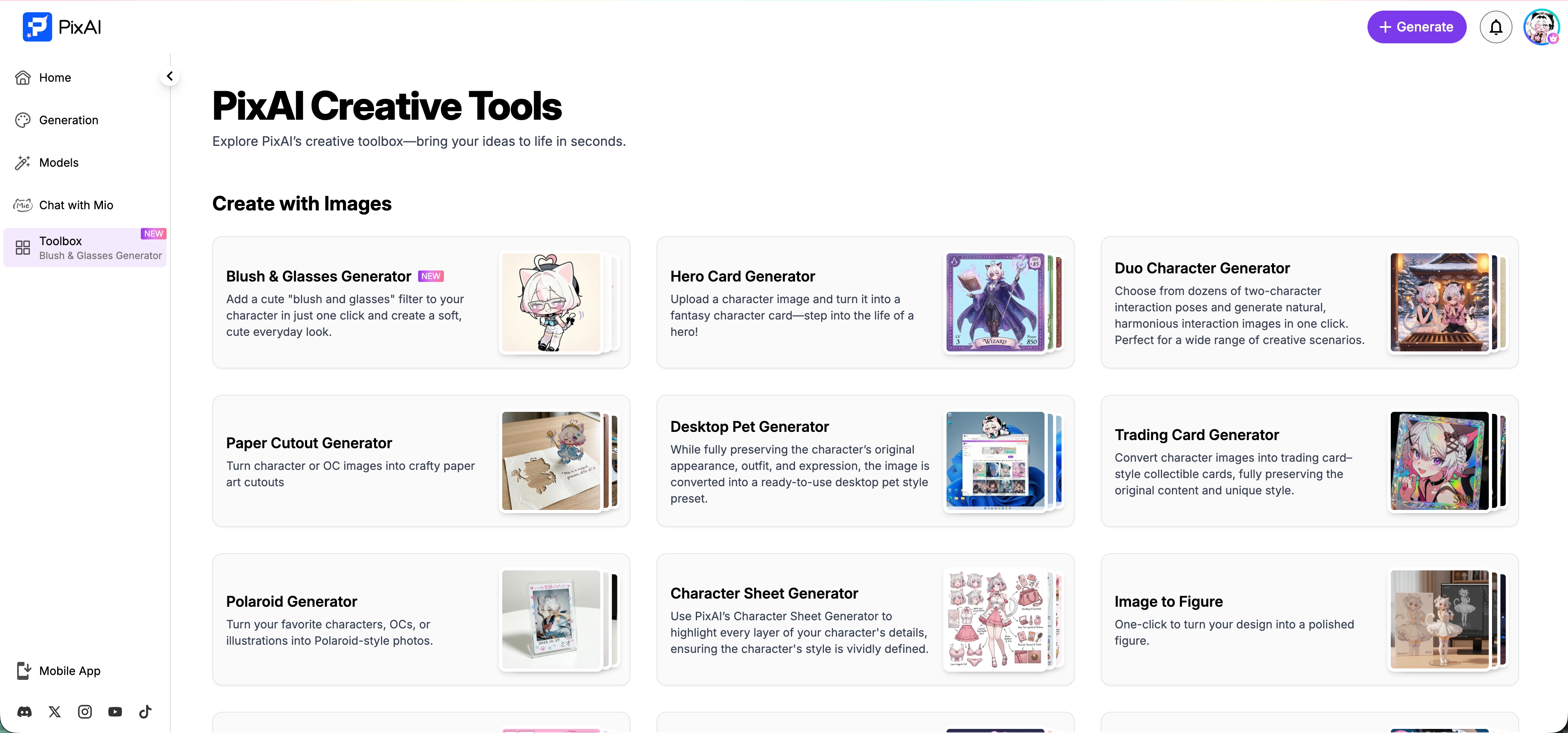
Click Toolbox on the left for the creative toolbox. Most tools just need one image upload — turn an idea into a finished piece in seconds.
Image Creation
| Tool | Description |
|---|---|
| Blush Glasses Generator | Add blush glasses to a character — instant natural, cute everyday look |
| Fantasy Character Generator | Upload an illustration to generate a fantasy character card |
| Two-Person Interaction Generator | Dozens of two-person poses to choose from. Generate natural interaction images in one click |
| Paper Cut Generator | Turn a character image into unique paper-cut art |
| Desktop Pet Generator | Keep the character's look intact, convert it to a desktop pet style |
| Collectible Card Generator | Turn a character illustration into a high-quality collectible card |
| Polaroid Generator | Instantly turn the character into a Polaroid photo |
| Character Sheet Generator | Show every layer of detail in a character sheet |
| Figure Generator | Turn a design into a polished figure in one click |
| Galgame UI Generator | Cast the character as the lead in a romance game |
| Magazine Cover Generator | Put the character on a magazine cover in seconds |
| Plushie Generator | Turn an illustration into a cute 3D plush doll |
| Giant Statue Generator | Cast the character as a 3D city landmark statue |
| Life-Size Body Pillow Generator | Turn an illustration into a life-size body pillow |
| Standee Generator | Make a custom acrylic standee |
| Tarot Card Generator | Generate a custom tarot card in one click |
| LEGO Minifigure Generator | Turn the character into a LEGO-style minifigure |
| Badge Generator | Turn an image into a custom badge |
Animation Creation
| Tool | Description |
|---|---|
| AI Kiss Video Generator | Upload two character images, generate a natural kiss clip |
| AI Hug Video Generator | Turn static character images into a warm hugging clip |
Other Tools
| Tool | Description |
|---|---|
| Image Upscale | Upgrade quality in one click — boost resolution while keeping detail crisp |
| Real-time Generation | Draw and generate at the same time. Your strokes turn into images instantly |
Tools update constantly. New ways to play keep showing up.
The toolbox is full of fun stuff — give it a try when you have a moment! You can share what you generate to the community gallery too.
Was this page helpful?
🎁 Adopted valid suggestions earn a 5,000 Credit reward!