
How AI Image Generation Works
An introduction to AI image generation — what models, prompts, and LoRAs are, and how they work together to produce an image.
How does AI image generation actually work? This page uses a restaurant analogy to break down the three core pillars — the model, the prompt, and LoRAs. Once you understand what each one does, you'll pick the right model, write more effective prompts, and combine LoRAs to land closer to the picture in your head. If you'd rather jump straight in, head to Prompt Basics for the syntax, or Other PixAI Models to choose a model.
The Three Pillars
Every AI image needs three things working together — a model, a prompt, and (optionally) LoRAs.
Picture walking into a restaurant:
The model is the chef. Some chefs specialize in sushi, some in ramen, some in Western cuisine — the chef you pick sets the basic style of what you're getting. AI models are the same. Each one is trained on different art styles and subject matter: some excel at polished Japanese-style anime, some at photorealism, some at characters, some at landscapes. Pick the right chef and everything downstream gets easier. PixAI's models are tuned for Japanese-style anime, with strong understanding and execution across a wide range of styles, tasks, and scenes.
The prompt is your order. Walking into the restaurant, you have to tell the chef what you want — pork-bone broth or miso? Soft-boiled egg? Noodles firm or soft? The more specific you are, the closer the dish lands to what you actually wanted. Prompts work the same way: the clearer you are about subject, action, scene, and mood, the better the AI can paint what's in your head.
A LoRA is a taste sample. Even within ramen, Hakata pork-bone broth and Sapporo miso taste completely different. If you tell the chef "I want that flavor," they might not get it. But hand them a bowl of the actual broth and they'll know instantly. A LoRA is that bowl — a small extra piece of training data that teaches the model what a specific style looks like, so the result lands closer to your target.
Model Architectures
The model sets the baseline style and the ceiling on quality. The same prompt sent to two different models can produce wildly different images.
| Architecture | Strengths | Prompt style | Recommended model |
|---|---|---|---|
| DiT | Best image quality, strong natural-language understanding | Natural language and tags both work | Tsubaki.2 |
| SDXL | Rich LoRA ecosystem, precise tag control | Tag-based | Haruka v2 |
| Edit model | Style transfer or edits driven by a reference image | Natural language + reference image | Reference Pro |
| SD 1.5 | Older architecture, being phased out | Tag-based | — |
DiT
DiT (Diffusion Transformer) is the highest-quality architecture available right now. Its biggest advantage is strong natural-language understanding — you can describe a scene in full sentences instead of relying only on tags.
- Lighting and atmosphere — Captures complex lighting cues like "backlit" or "warm sunset light" accurately
- Anatomy — Big improvements in fingers and poses; even multi-character scenes stay stable
- Composition — Understands spatial relationships like foreground/background or high/low angles
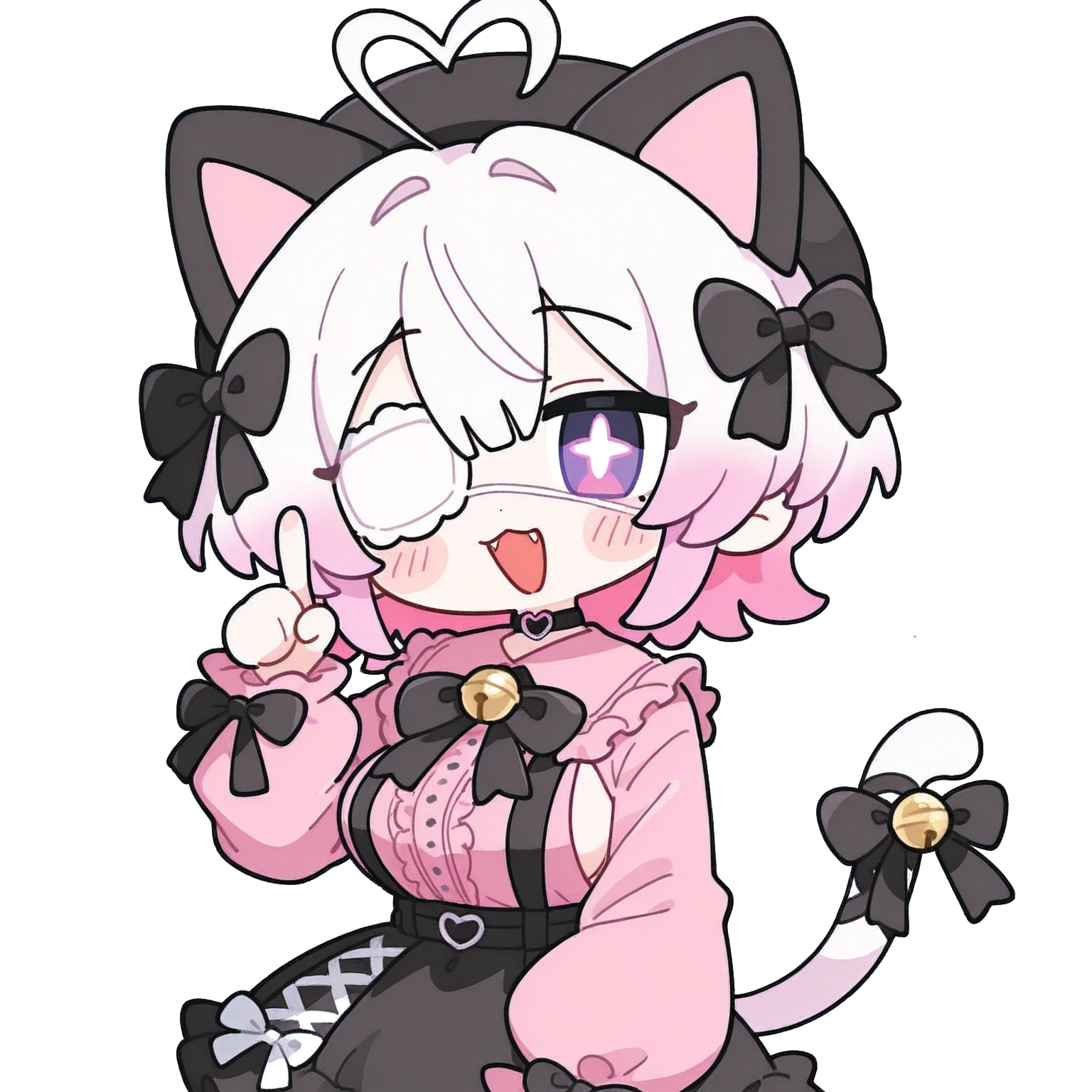
Not sure which model to pick? Mio recommends Tsubaki.2! It's PixAI's powerful DiT model.
SDXL
SDXL is the previous-generation mainstream architecture, with very precise understanding of tag-based prompts. Its strengths:
- Strong tag control — Each tag has a predictable effect, making fine-tuning easy
- Rich LoRA ecosystem — The community has built up a huge library of SDXL-specific LoRAs covering characters, styles, outfits, and more
- Flexible stacking — Multiple LoRAs combine well, making it good for mix-and-match experimentation
Compared to DiT, SDXL is weaker at natural language — the model handles complex scene descriptions and multi-character interactions less reliably. But if you're used to controlling every detail with tags, SDXL is still a great choice.
Edit Models
Edit models work differently from generation models — they don't paint from scratch. They take a reference image you upload and apply style transfer or local edits. Common uses:
- Style transfer — Turn a photo into anime, watercolor, etc.
- Local edits — Keep the composition but change a character's outfit, the background, etc.
- Multi-image reference — Upload multiple references at once so the model can combine them
SD 1.5
SD 1.5 was the first widely adopted architecture. Its native resolution is only 512×512, and both image precision and anatomy fall short of newer architectures. The community still hosts some SD 1.5 LoRAs, but new models and LoRAs rarely target it anymore. If you're new, start with DiT or SDXL.
Prompts
The prompt is how you tell the model what to paint — subject, action, scene, mood, all of it. Once you've picked a model, the prompt is the biggest variable in the result. Most PixAI models support a maximum prompt length of 4096 characters.
Natural-language Prompts
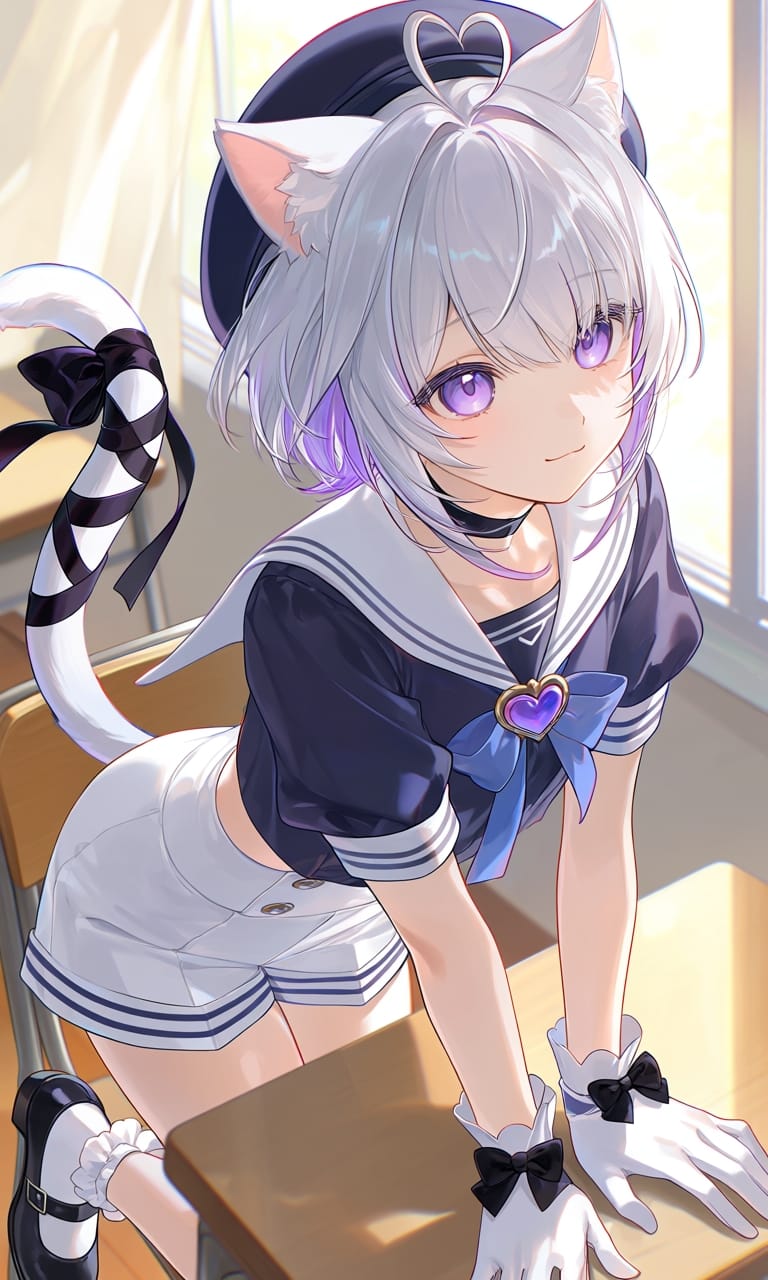
Natural-language prompts describe what you want in full sentences, like talking to a person. DiT models (like Tsubaki.2) are especially good at understanding them.
- Easy and intuitive: No tag rules to learn — just write the way you'd describe it to someone
- Great for complex scenes: Character relationships, mood, and storytelling come across more naturally
Tag-based Prompts
Tag-based prompts are a series of comma-separated keywords, where each tag corresponds to one element or detail in the image. Both SDXL and DiT support this style.
- Concise and direct: Use keywords to describe the main elements; the AI fills in the rest
- High control: Precise control over each detail and stylistic choice
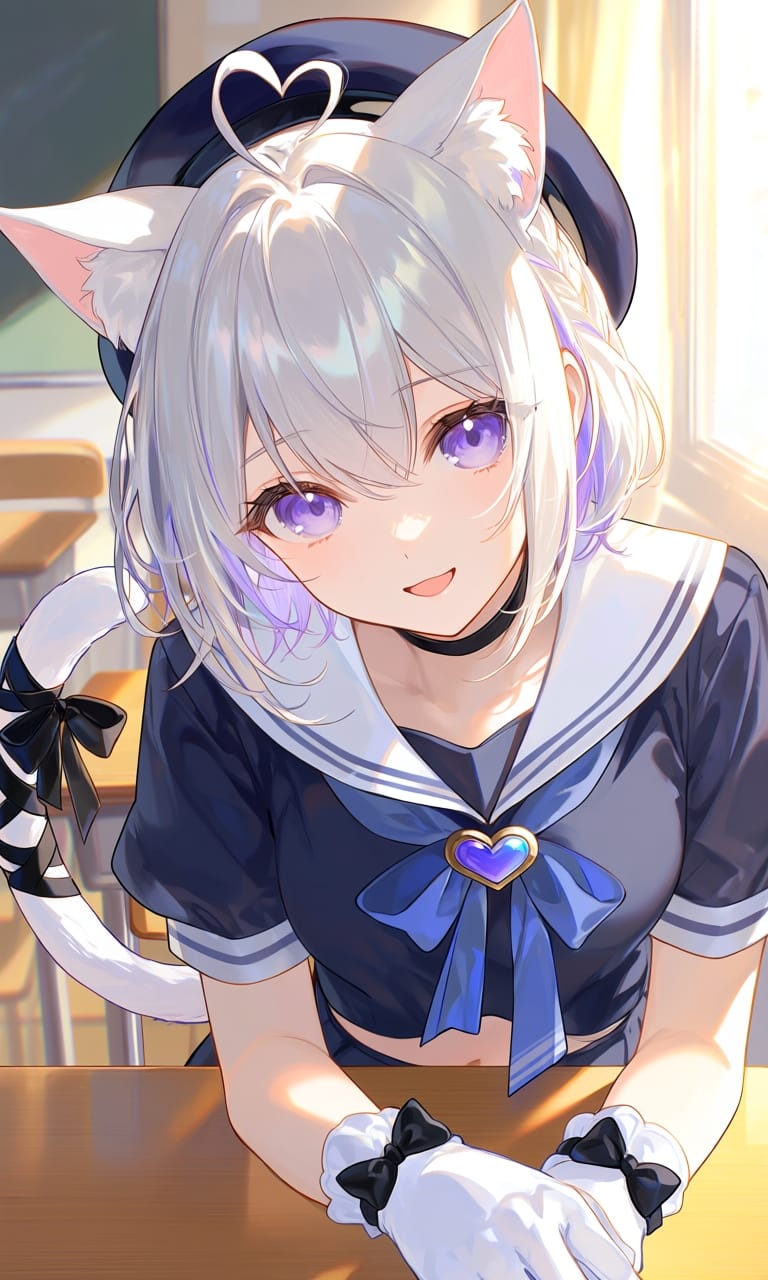
Not sure how to write prompts? PixAI's Prompt Helper can polish them for you!
LoRA
LoRA (Low-Rank Adaptation) is a lightweight model fine-tuning technique. Without swapping the base model, it adds a small extra piece of knowledge so the model can render a specific character, style, or concept. LoRAs are small files with very targeted effects.
Common LoRA Types
| Type | Use | Examples |
|---|---|---|
| Character LoRA | Render a specific character | Original characters |
| Style LoRA | Mimic a specific art style | Impasto, watercolor |
| Outfit LoRA | A specific outfit design | JK uniform, wedding dress, armor |
| Pose LoRA | A specific pose or composition | Combat pose, lying down |
| Concept LoRA | A specific concept or effect | Glow effects, special backgrounds |
| Speed LoRA | Reduce generation steps | LCM, DMD2, PCM, Hyper-SD |

Mio has her own LoRA too! Try it out.
Using LoRAs on PixAI
In the LoRA section of the generation panel, you can search for and add the LoRAs you want. The default lets you stack 3 LoRAs at once; members can use more — see Membership Plans for details.
Each LoRA has a Weight slider — the higher the value, the more the result reflects that LoRA's traits. PixAI lets you push it up to 2, but going above 1 usually isn't recommended. If the LoRA author hasn't said otherwise, the default is fine.
PixAI's Model Marketplace has a huge selection of LoRAs to explore.
Was this page helpful?
🎁 Adopted valid suggestions earn a 5,000 Credit reward!