
Prompt Basics
How to write AI image prompts — natural language, tag-based syntax, and two simple formulas to get the result you want.
How do you write good AI image prompts? This page builds on How AI Image Generation Works and walks through both natural-language and tag-based syntax, how negative prompts work, and two practical prompt formulas. Once you're comfortable, head over to Advanced Prompting for composition thinking.
Different models interpret prompts differently and have different default styles, so all examples on this page use Tsubaki.2 as the model and were generated with the Prompt Helper turned off, so you see exactly what the raw prompt produces. If you're using a different model or have the Prompt Helper enabled, your results may vary.
Basic Formula: Natural Language
Great for first-timers, or anyone using AI images as creative inspiration. Loose, simple descriptions often produce the most imaginative results.
Prompt = Subject + Action + Scene
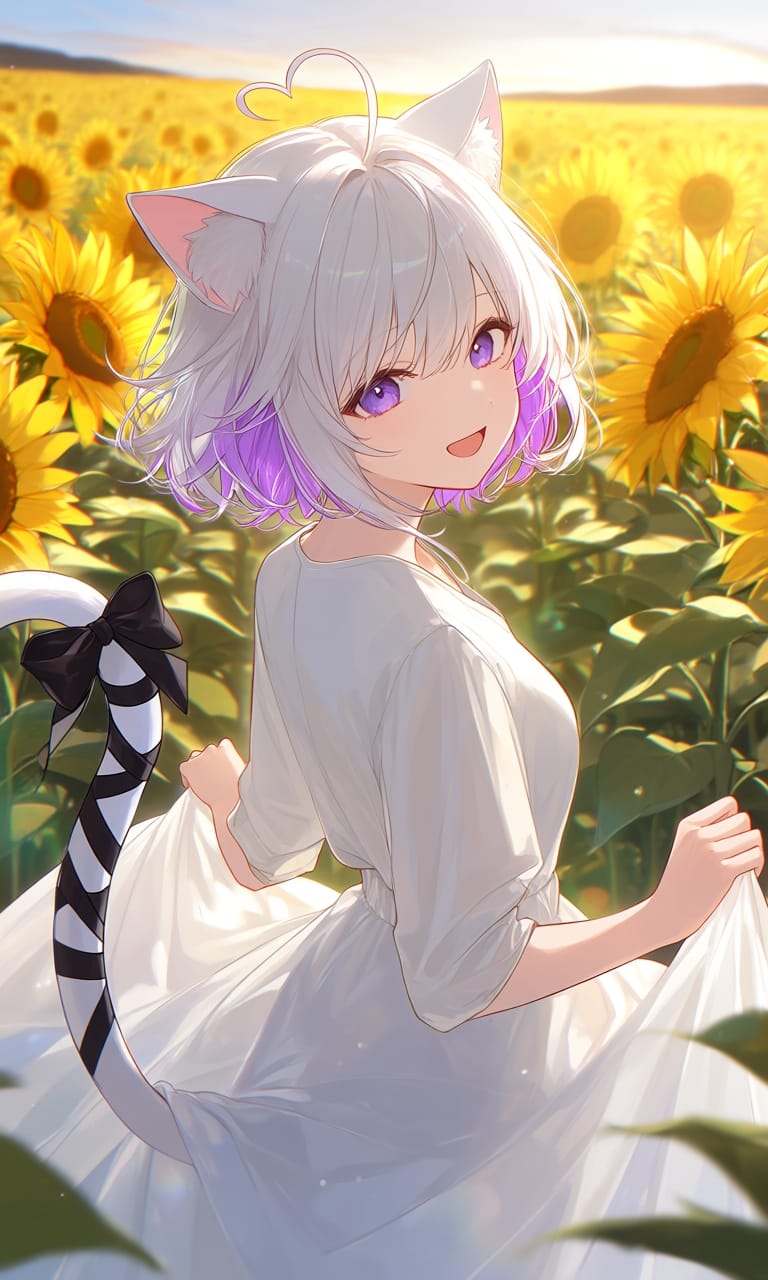
- Subject — The main thing in the image: character, outfit, defining features
- Action — What the subject is doing, including environmental motion (wind, rain, smoke, etc.)
- Scene — Where the subject is — a real-world setting or a made-up one

Start with one or two sentences describing the picture in your head. Tsubaki.2 will fill in the rest!
Advanced Formula: Layered Description
Once you've nailed down the elements, you can layer in richer, more abstract description to make the image feel more cinematic and evocative.
Prompt = Subject + Action + Scene + Mood + Style
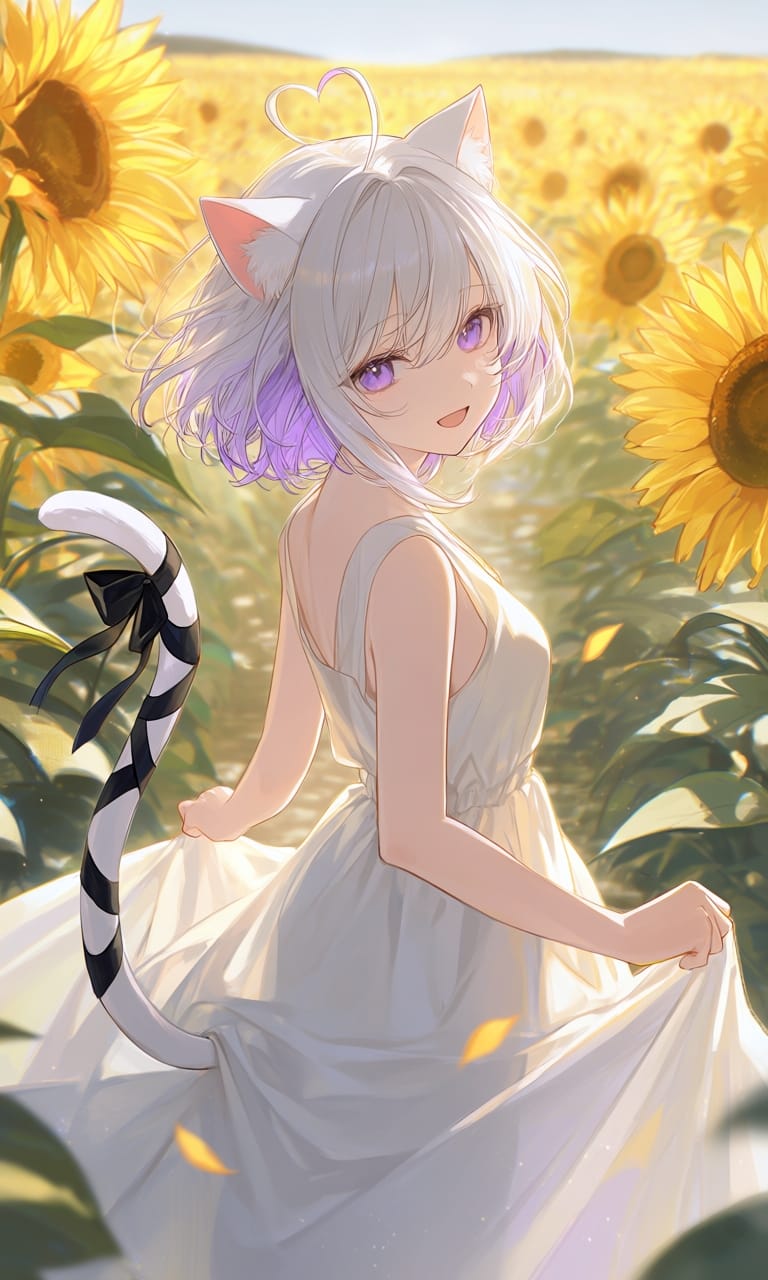
Compared to the basic formula, the advanced version adds two more layers:
- Mood — Phrases like "golden hour warmth" and "dreamy haze" turn the scene from a flat description into something with feeling and atmosphere
- Style — Calling out things like "painterly anime style," "soft pastel tones," and "cinematic shallow depth of field" gives you direct control over the artistic and photographic look
Same character, same scene — adding mood and style descriptions makes the image feel much more polished and story-driven!
Negative Prompts
A negative prompt tells the AI what you don't want in the image — things like wrong finger counts, deformed faces, blurry output, and other common issues. PixAI models all come with a built-in default negative prompt! For most cases, the defaults are enough.
Tsubaki.2's negative prompt is only editable in Pro and Ultimate modes. Standard mode applies the system default and can't be changed manually.
How negative prompts work: A negative prompt only suppresses a term when that term isn't already in your main prompt. For example:
- Prompt:
many animals, Negative:cat→ You'll get a variety of animals, but no cats - Prompt:
many animals, cat, Negative:cat→ Both prompt and negative includecat. The prompt wins, so cats still appear
lowres, bad anatomy, bad hands, text, error, missing fingers, extra digit, fewer digits, cropped, worst quality, low quality, jpeg artifacts, signature, watermark, blurryYou can also add scene-specific terms:
| Scenario | Try adding |
|---|---|
| Character images | bad anatomy, bad hands, missing fingers, extra limbs, deformed |
| Face close-ups | bad face, ugly face, deformed eyes, asymmetric eyes |
| Landscapes | human, person, text, watermark |
| Want anime style | photorealistic, 3d render, photo |
| Want photorealism | anime, cartoon, illustration, drawing |
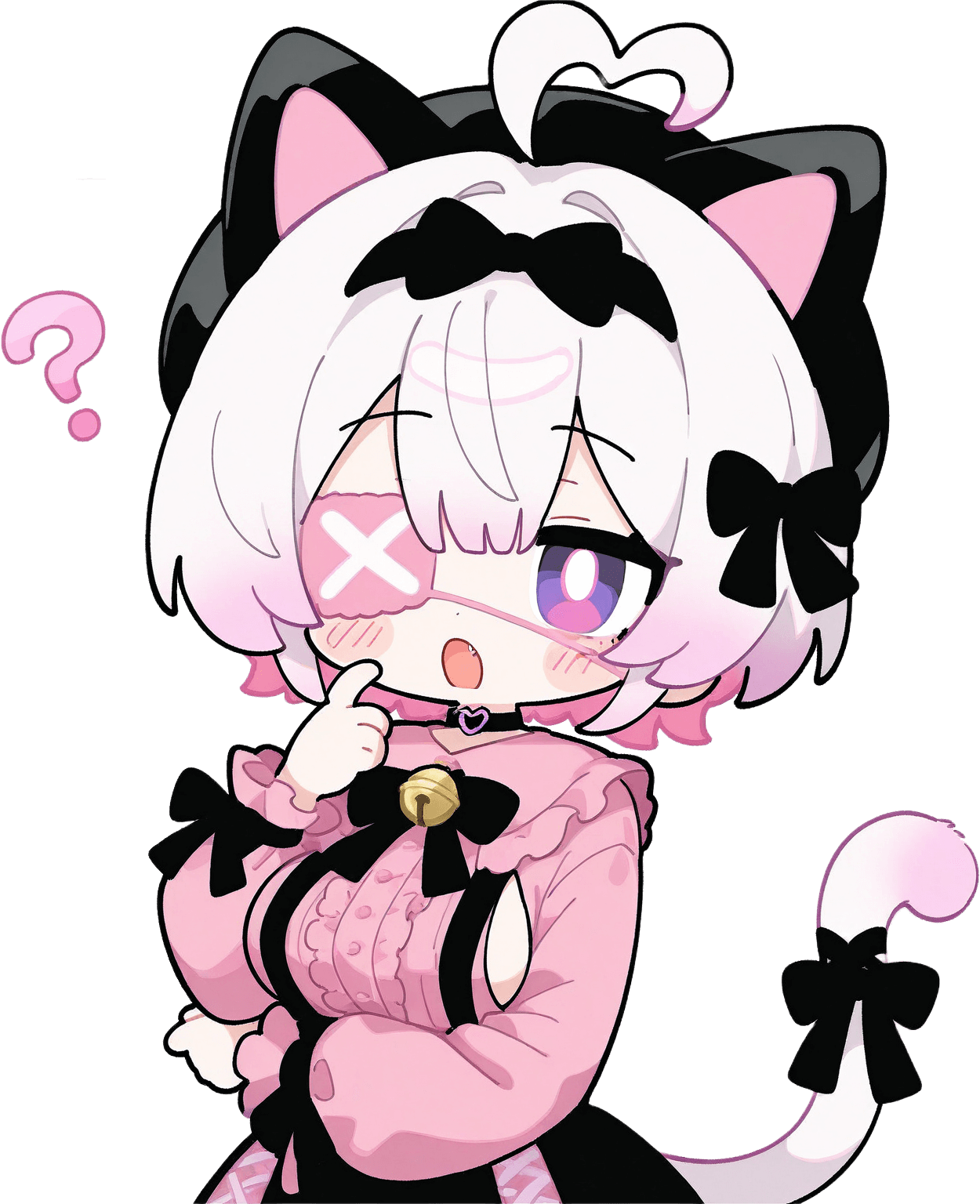
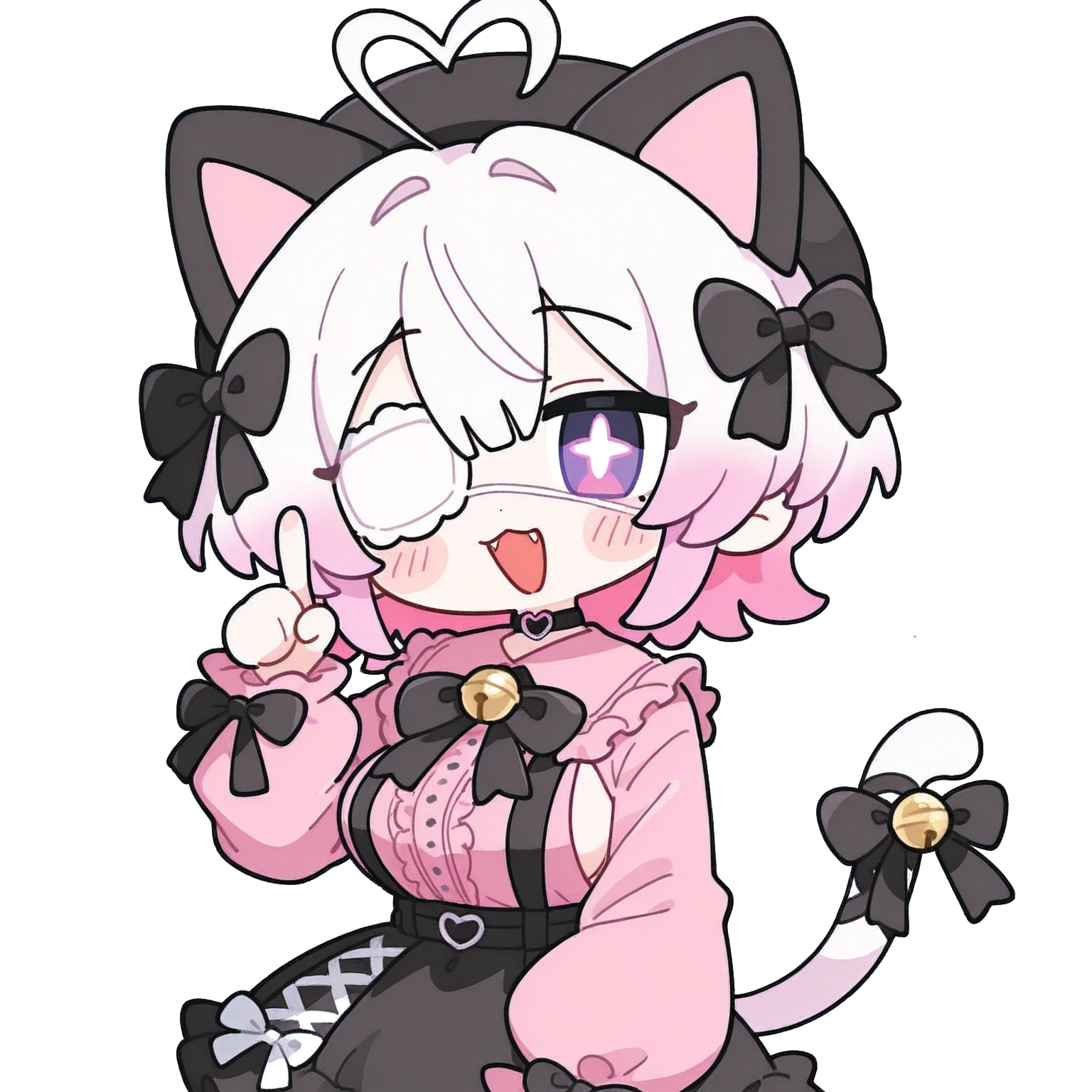
More negative prompts isn't always better! Pile on too many and the AI gets over-constrained, leaving you with stiff, lifeless results.
Was this page helpful?
🎁 Adopted valid suggestions earn a 5,000 Credit reward!
How AI Image Generation Works
An introduction to AI image generation — what models, prompts, and LoRAs are, and how they work together to produce an image.
Advanced Prompting
Advanced prompt techniques — composition thinking, layering control, lighting and depth-of-field description for more polished AI art.