
Panel Tools
A complete guide to PixAI generation panel tools — quality boosters, ControlNet, reference images, post-generation editing, and every helper feature.
Panel tools are helpers that wrap around the image generation flow. They split into two groups: pre-generation tools that add effects during generation, and post-generation tools that build new work on top of an image you already made.
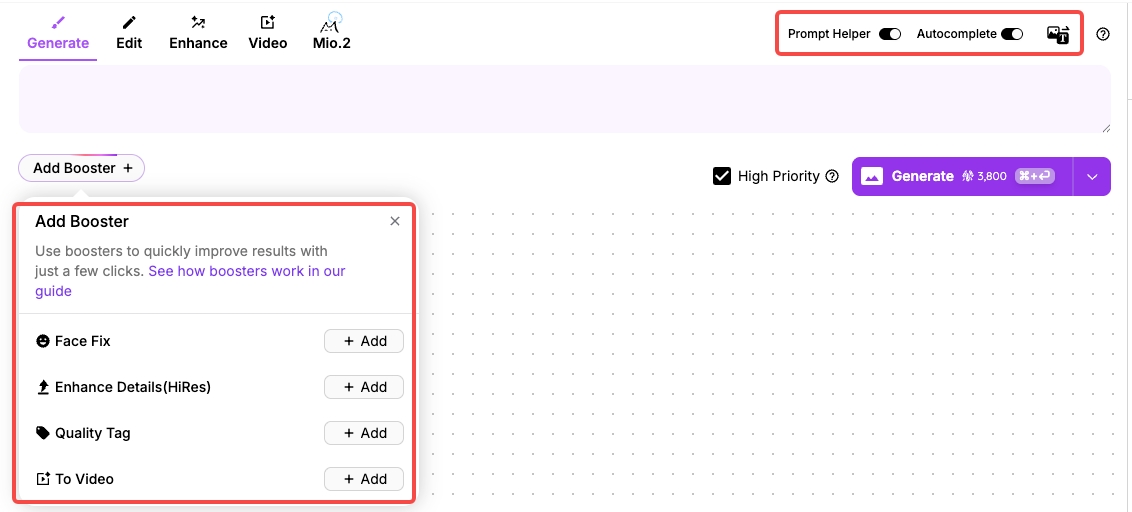

Each tool costs extra credits. Double-check before you turn it on!
Pre-generation Tools
Pre-generation tools are helpers you switch on before clicking Generate. They apply automatically during the run — optimizing your prompt or boosting output quality. Different models support different tools. See the model overview for the full list.
High Priority
You can pay extra credits to speed up your generation job.
| Mode | Speed | Cost |
|---|---|---|
| 🚀 High Priority | ~10x faster | Extra 1,000 credits |
| 🐢 Low Priority | Standard speed, may wait tens of minutes | No extra cost |
Turbo mode 🏎️ ~7.6x faster generation — members only, no upcharge!
Prompt Helper
The Prompt Helper, built by PixAI, is a large language model tuned for the PixAI prompt format. Once enabled, it expands and optimizes your input automatically, making generations more stable and higher quality. After using the Prompt Helper, you can find the rewritten prompt under View Task Details in the bottom-right of the generation panel. The Prompt Helper does not cost extra credits.
Since the model is optimized for English, we recommend turning the Prompt Helper on whenever you write in a non-English language — it will translate and optimize the prompt for you. If you're confident in your prompt writing and want precise control over the output, consider writing pure English prompts and turning the Prompt Helper off.
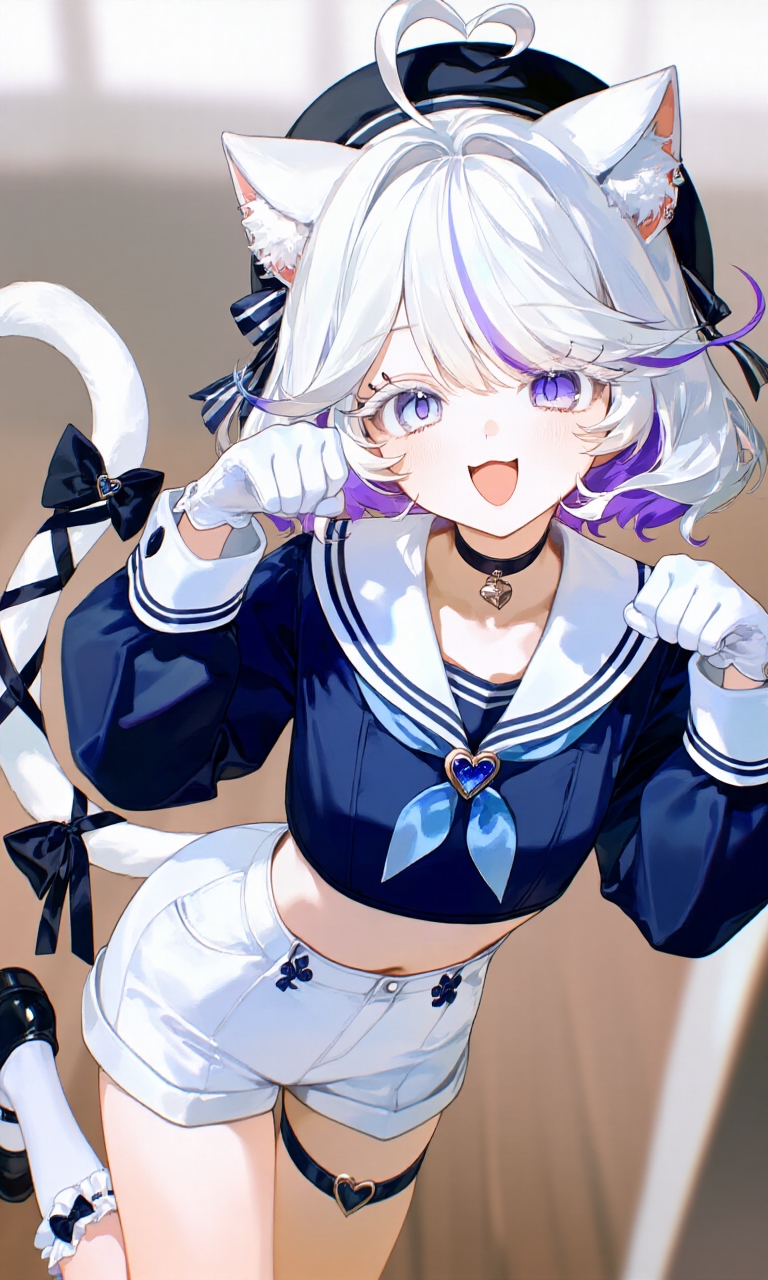
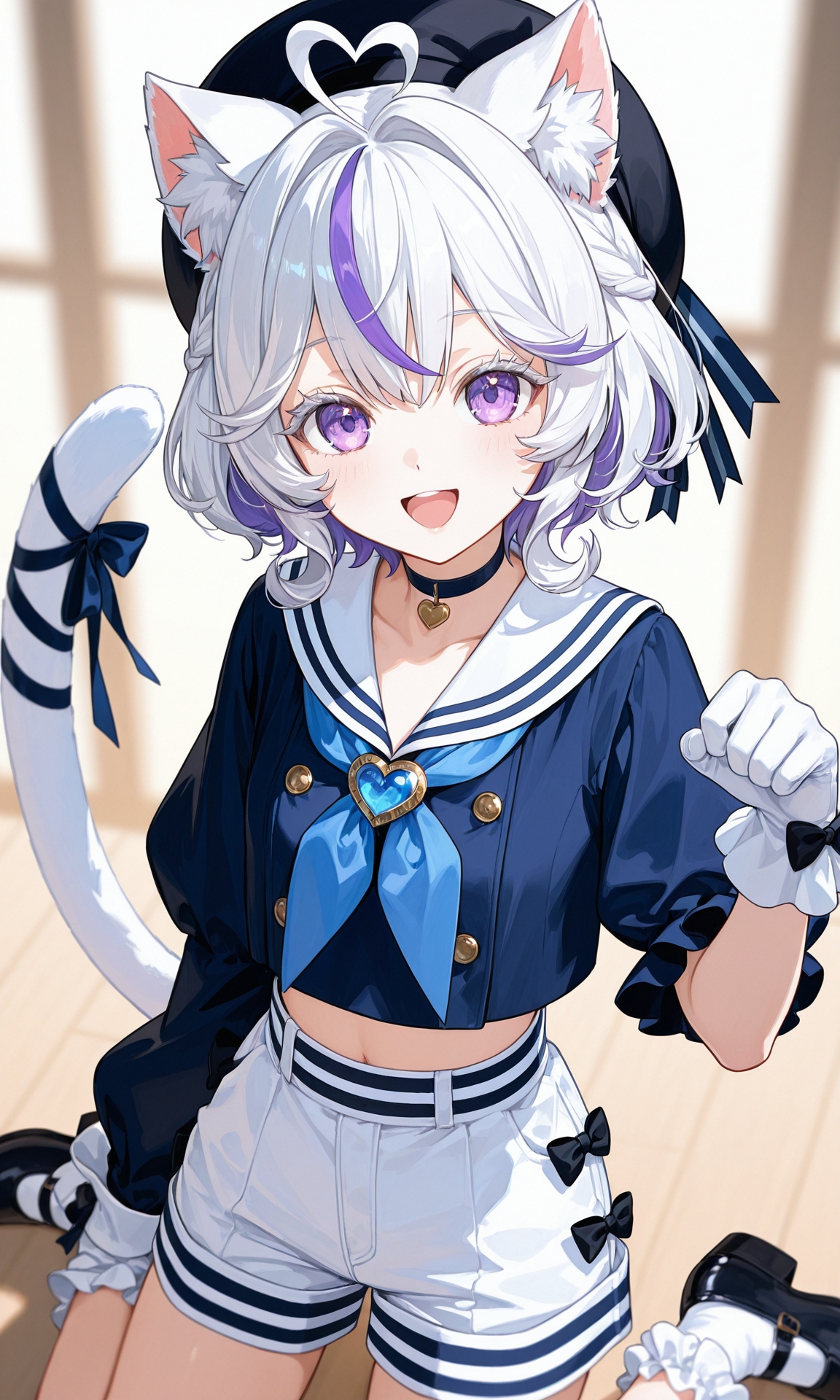
Here's an example of how the Prompt Helper rewrites a prompt.
Autocomplete
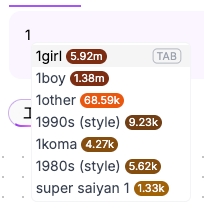
As you type, the system predicts your tags and shows a list of matches. Press Tab to insert one instantly. Type and pick — write prompts much faster.
- Supports character names, style words, action descriptors, and other tag types
- Especially handy if you're not familiar with English tags
Face Fix
Optimizes facial features for characters in the image.
Detail Enhancement (HiRes)
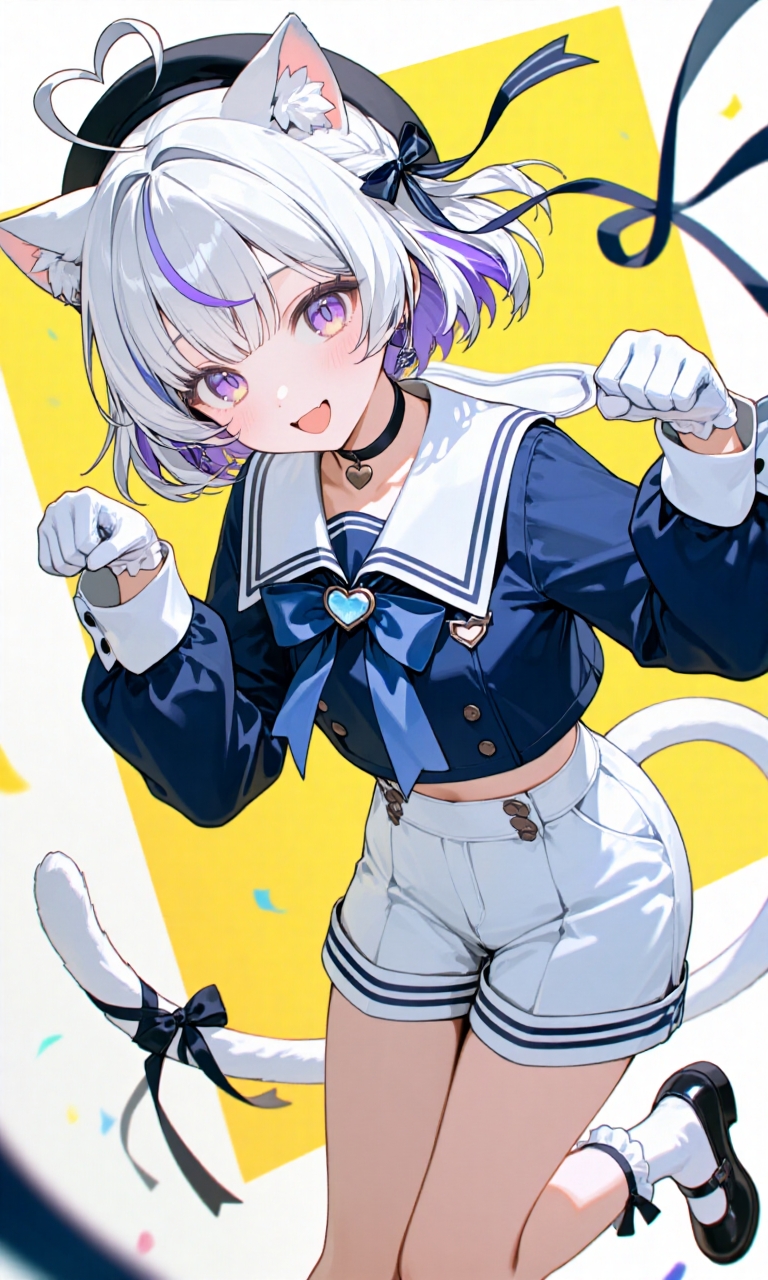
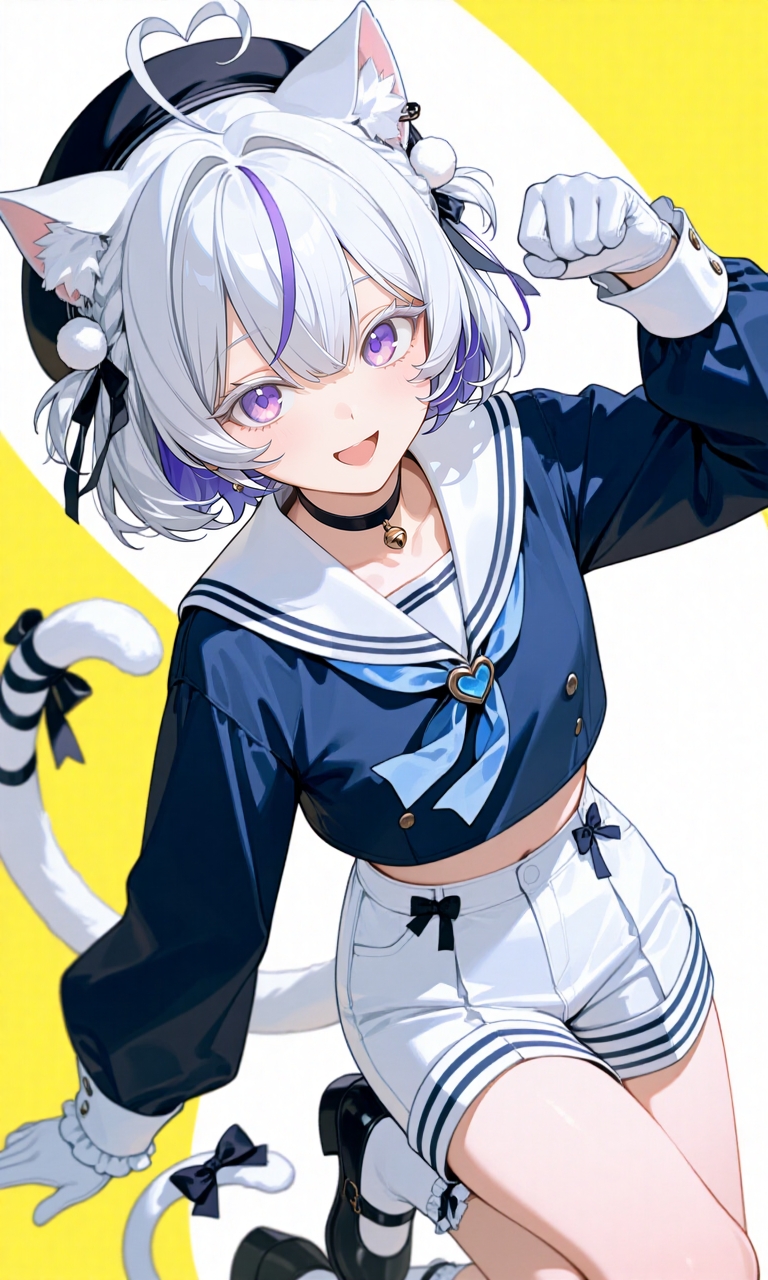
HiRes is a technique for boosting image clarity. It first generates a low-resolution image, then adds further detail on top using your prompt — raising the resolution in the process. With HiRes on, batch generation is disabled — you can only generate one image at a time.
PixAI's HiRes settings panel exposes four parameters.
- Resolution — How much to upscale. For example, 1.5x turns 768×1280 into 1152×1920.
- Denoise strength — How much the original gets changed during the redraw.
- Denoise steps — Number of iteration steps in the redraw.
- Resolution sampler — The upscaling algorithm. Usually leave blank (default).
Quality Tags
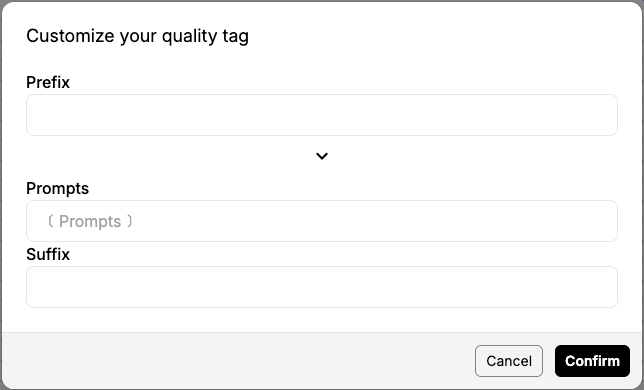
Automatically prepends or appends common quality-related tags (like masterpiece, best quality) to your prompt, lifting the overall image quality.
- Choose to add them before or after your prompt
- Custom tag content supported
Convert to Video
After generation, jump straight into the video flow and turn your still image into a short animated clip.
- Fixed cost: 28,000 credits
- Currently members-only
Post-generation Tools
Tools that build on top of an image you've already generated. The available tools depend on the model. Each tool below notes which models support it.
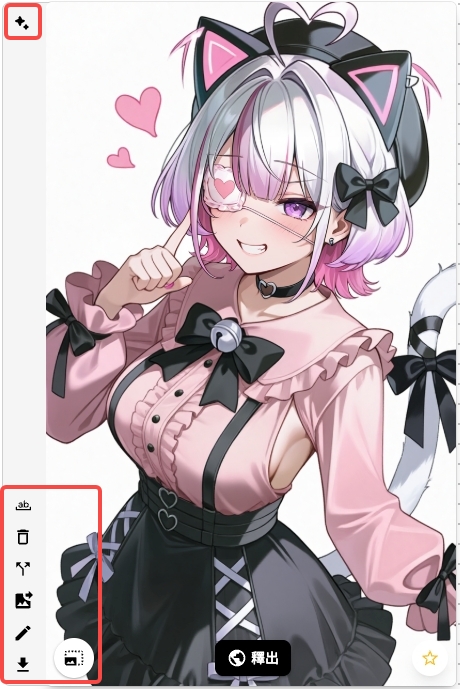
Variation
Use the current image as a reference and generate new images with similar composition but different details. Great for trying out new looks and styles on a composition you like.
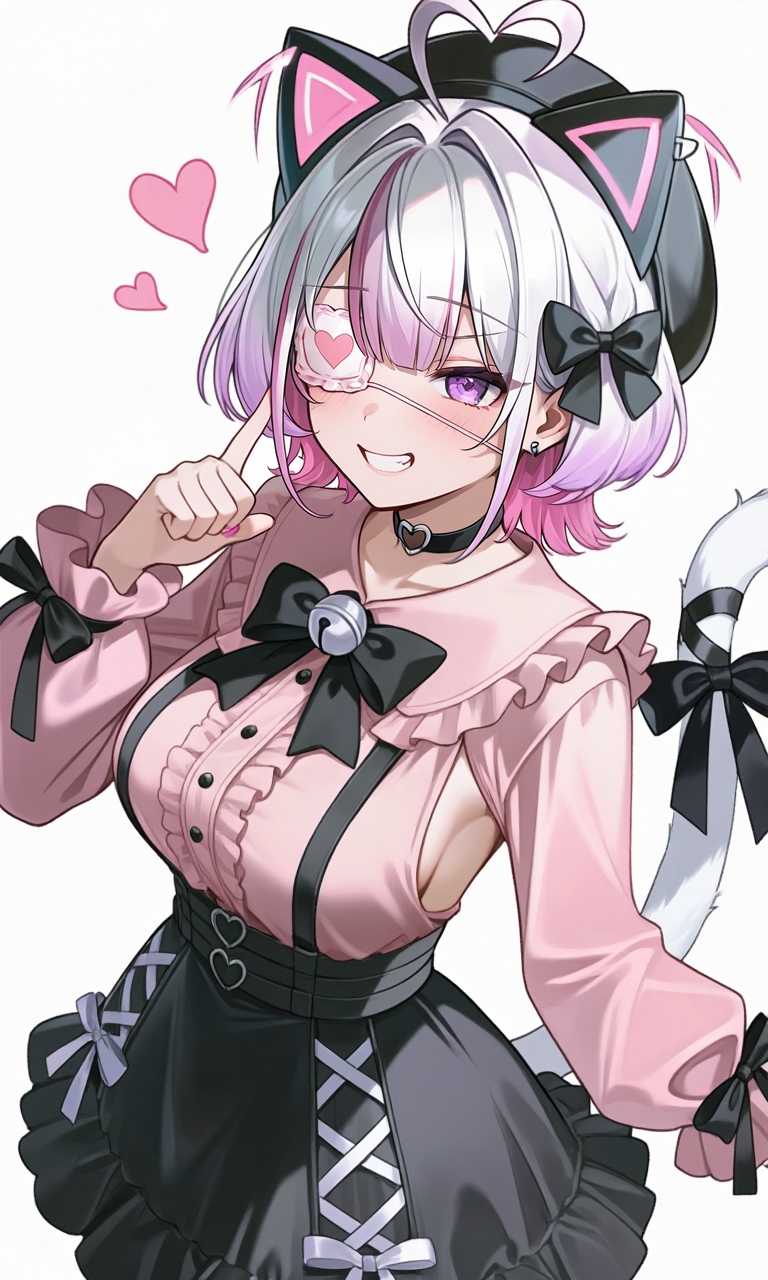
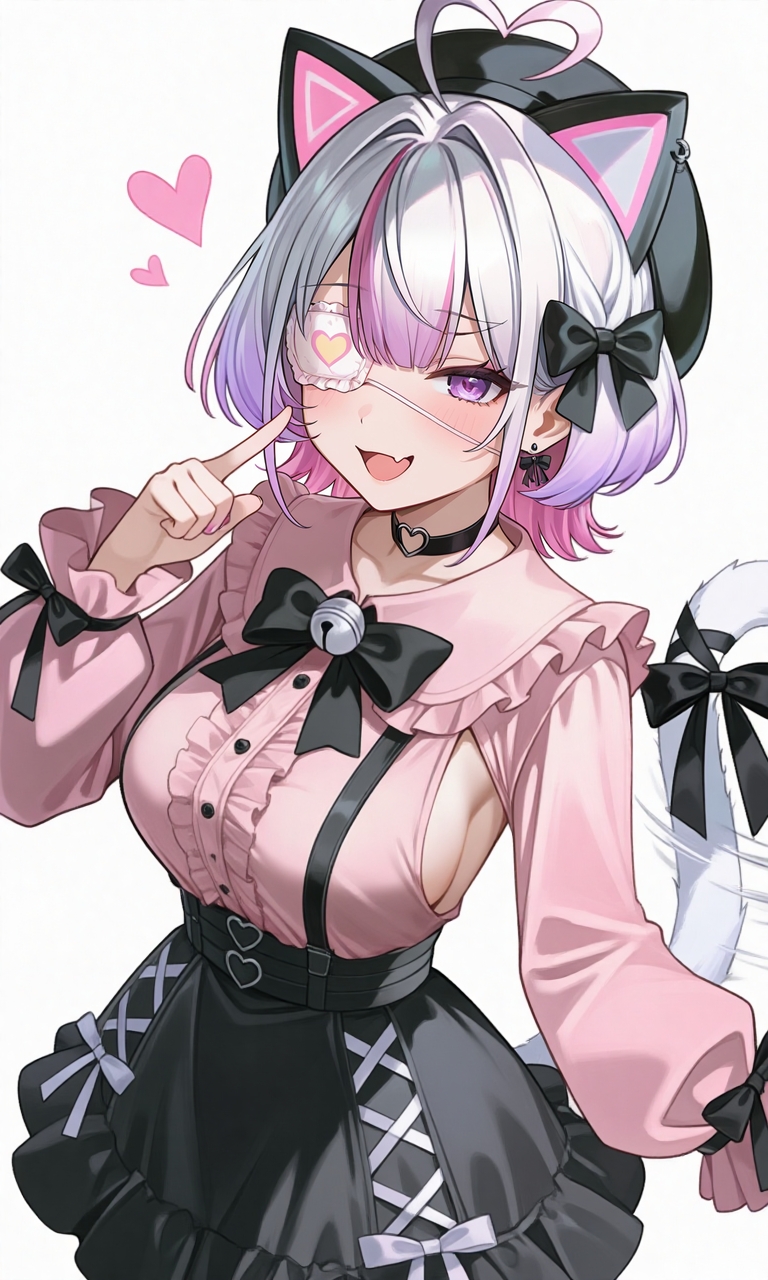
Edit
Use the edit model to modify the image with natural language. Describe the change like you're chatting. Swap outfits on your favorite character!
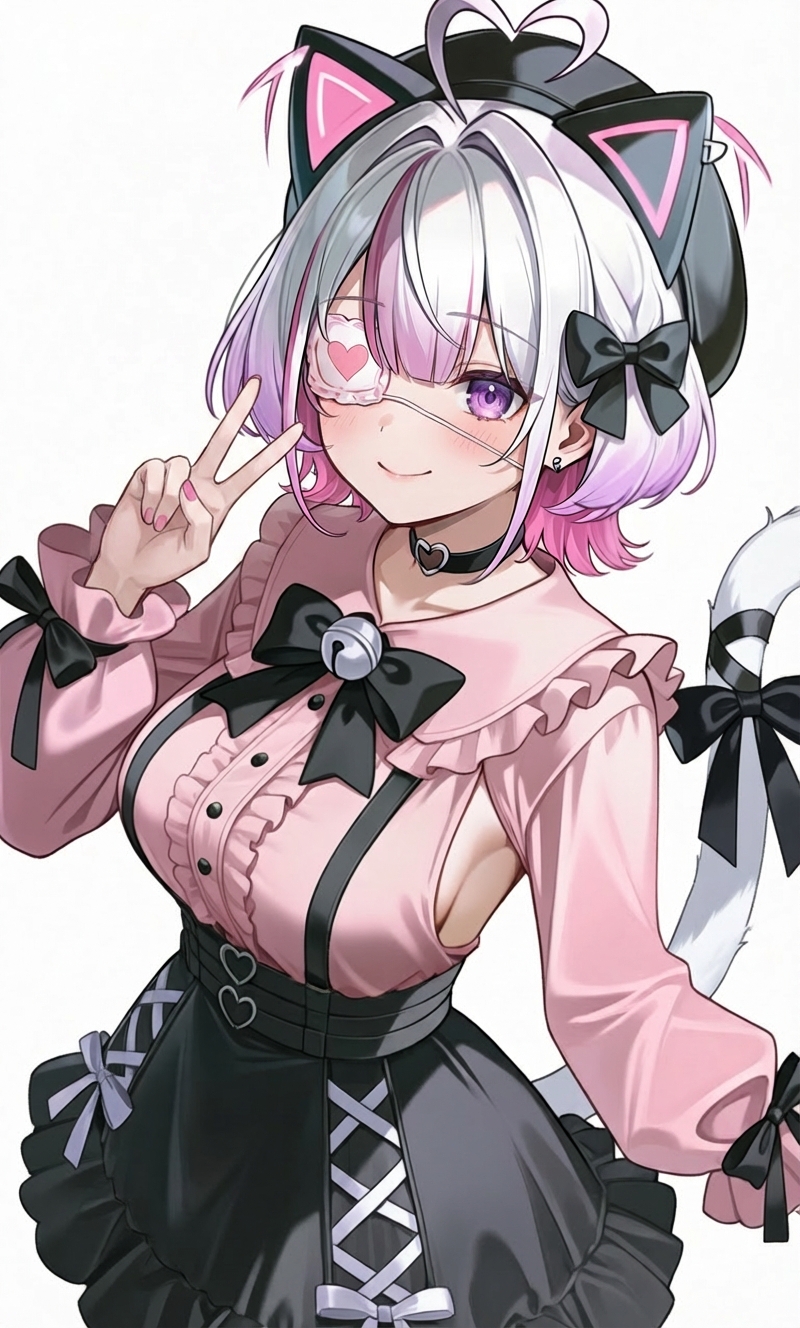
Use as Reference Image
Upload a target image for the AI to reference. Lower strength means closer to your reference. The output keeps the same dimensions as the reference, and credits are calculated accordingly.
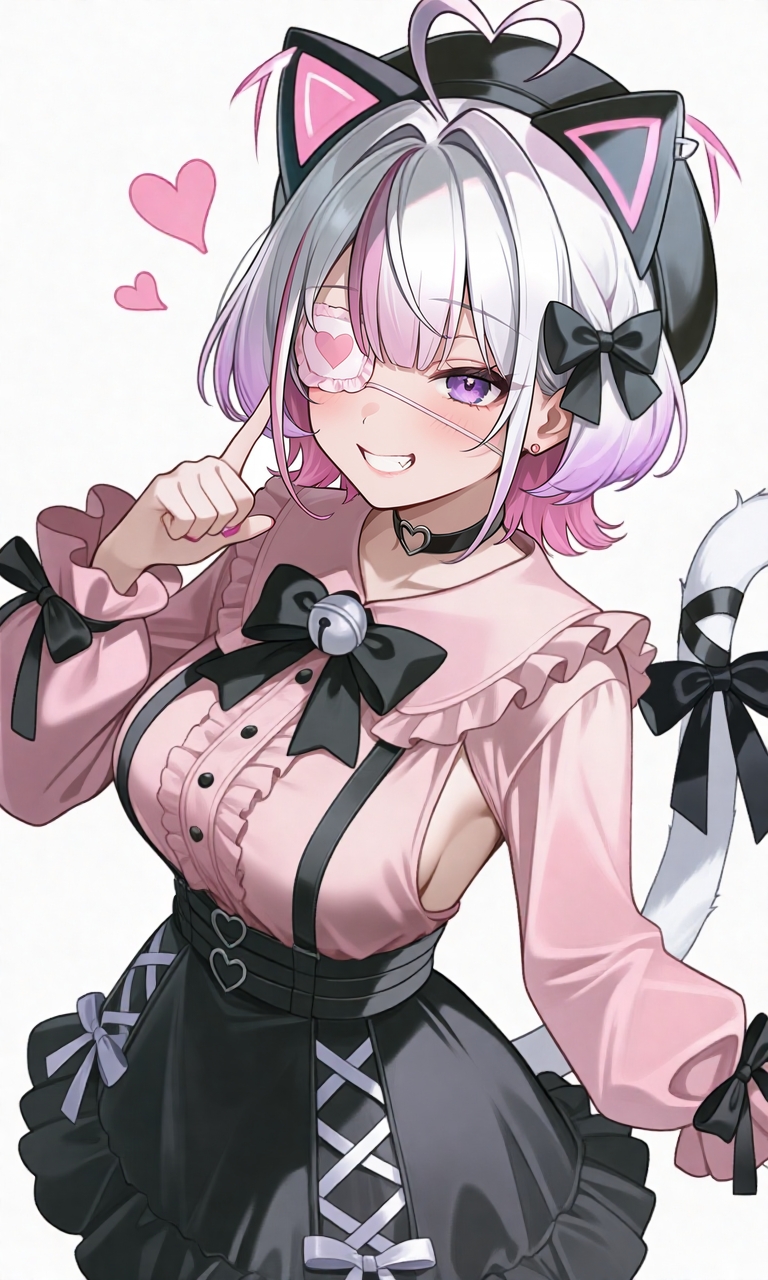
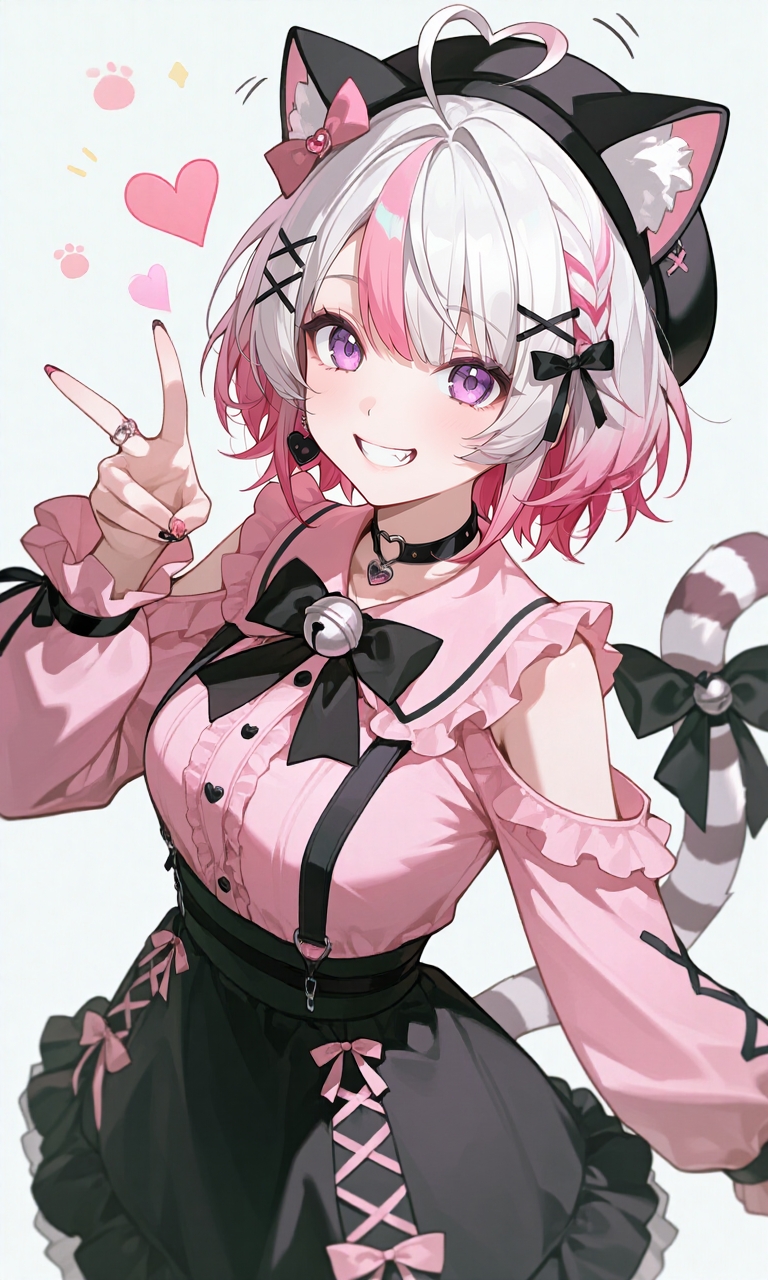
Convert to Animation
Turn a still image into a short animated clip.
- Clicking enters the video generation flow
- Requires Starter+ membership or higher
Image to Prompt
The AI analyzes the current image and generates matching prompts for you. Drop the extracted prompts straight into a new generation.
Publish
Publish your image to the PixAI community gallery. Other users can view, like, and use it as a template — and you choose whether to share your prompt.
Favorite
Add the image to your favorites for easy access. Manage everything from the favorites tab on your profile.
Was this page helpful?
🎁 Adopted valid suggestions earn a 5,000 Credit reward!
LoRA Advanced
Advanced LoRA techniques — stacking and combining multiple LoRAs, weight-tuning strategies, and LoRA compatibility across model architectures.
Image Editing
AI image editing guide — use masks for local inpainting and brushes to paint color hints, precisely controlling which areas the AI redraws.