
Credit Costs
PixAI credit cost breakdown — see how model choice, resolution, batch size, and tools affect what you spend per generation.
How are PixAI credits spent? Credits are the platform's universal currency, used mainly for generating images, training LoRAs, and buying cosmetics. This page lists the six main factors that affect cost per generation — model, aspect ratio, batch size, tools, parameters, and priority — so you can spend smart. Want to know how to earn credits? See Earning Credits. Members also get daily boosts and purchase bonuses — see Become a PixAI Member.
Generating Images
Image generation is the main use of credits. Cost per generation depends on several factors:
| Factor | Description | UI |
|---|---|---|
| Model | Spend more credits to use newer or higher-quality models; base models cost less | 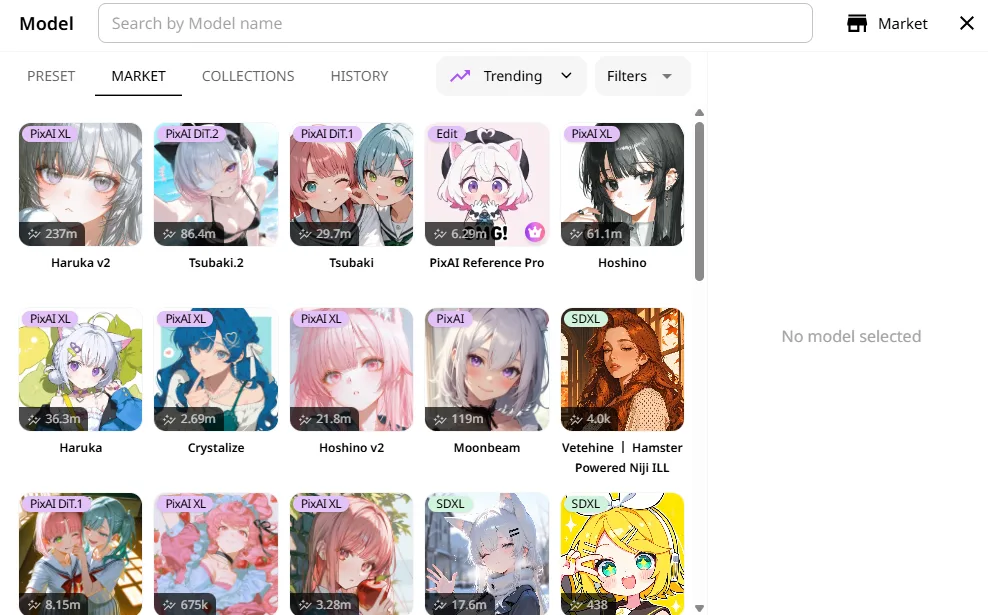 |
| Aspect ratio | Spend more credits for larger sizes; smaller sizes cost less (squares cost the most; wide or tall rectangles cost less) | 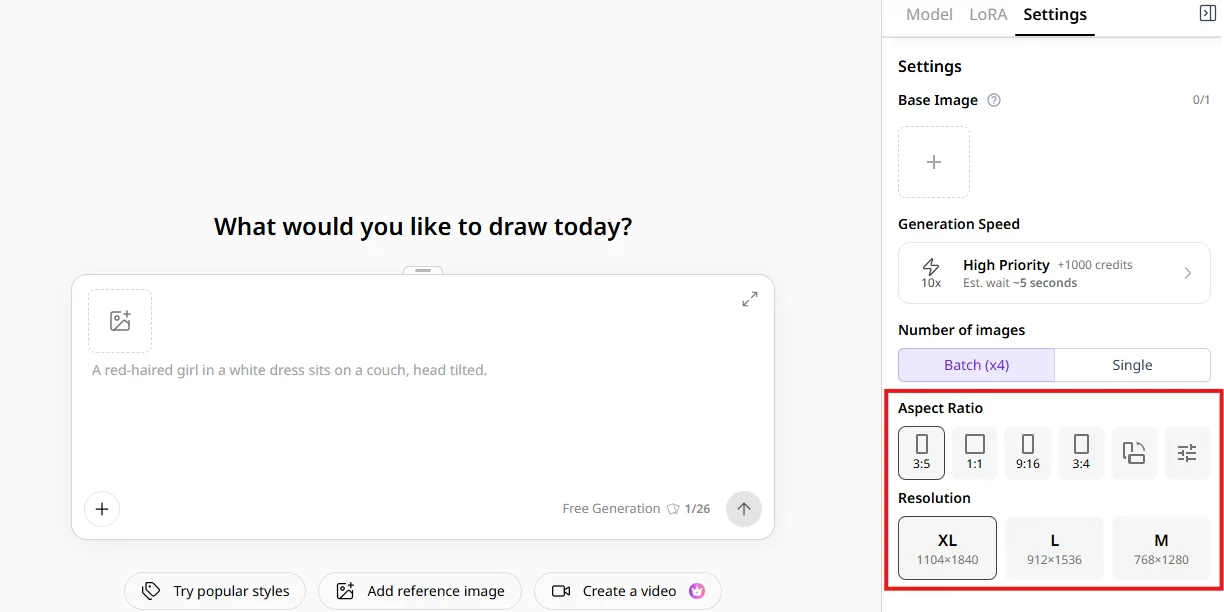 |
| Batch size | Spend more credits to generate 4 at once for better odds of a keeper; generate 1 at a time to save | 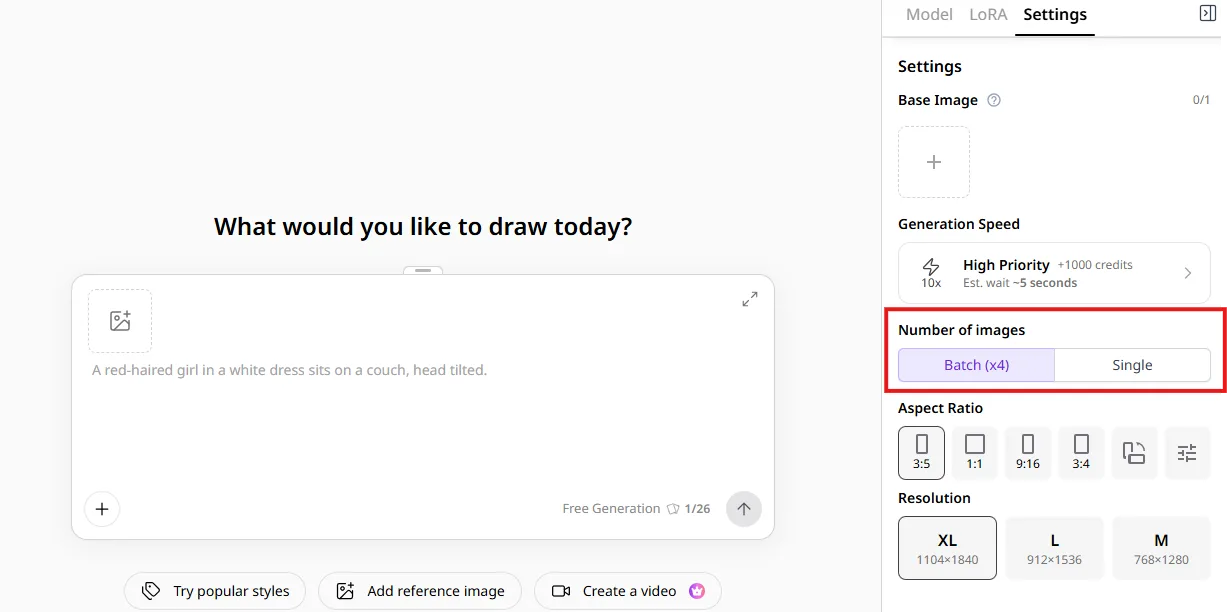 |
| Tools | Spend more credits to enable HiRes detail enhancement, Face Fix, and other tools for a more polished result | 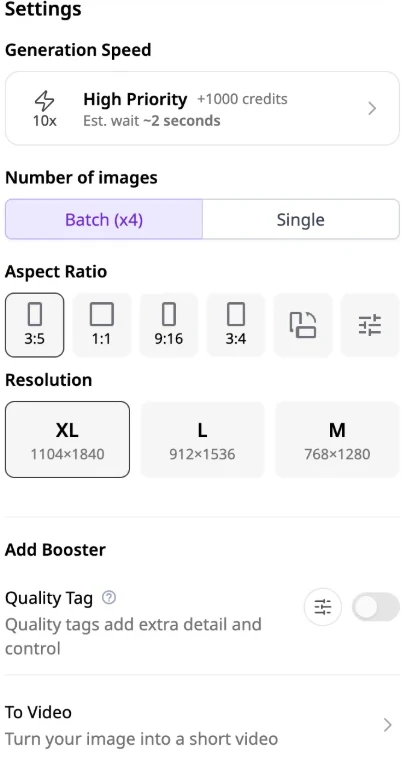 |
| Model parameters | Spend more credits by raising resolution, Steps and similar parameters for finer rendering | 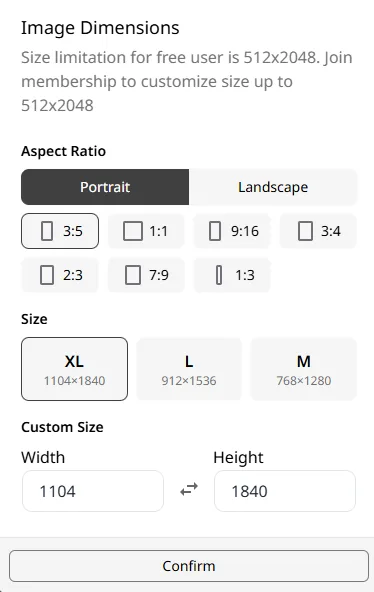 |
| Priority | Spend more credits for faster generation (on by default); turn it off to wait in the standard queue and save credits | 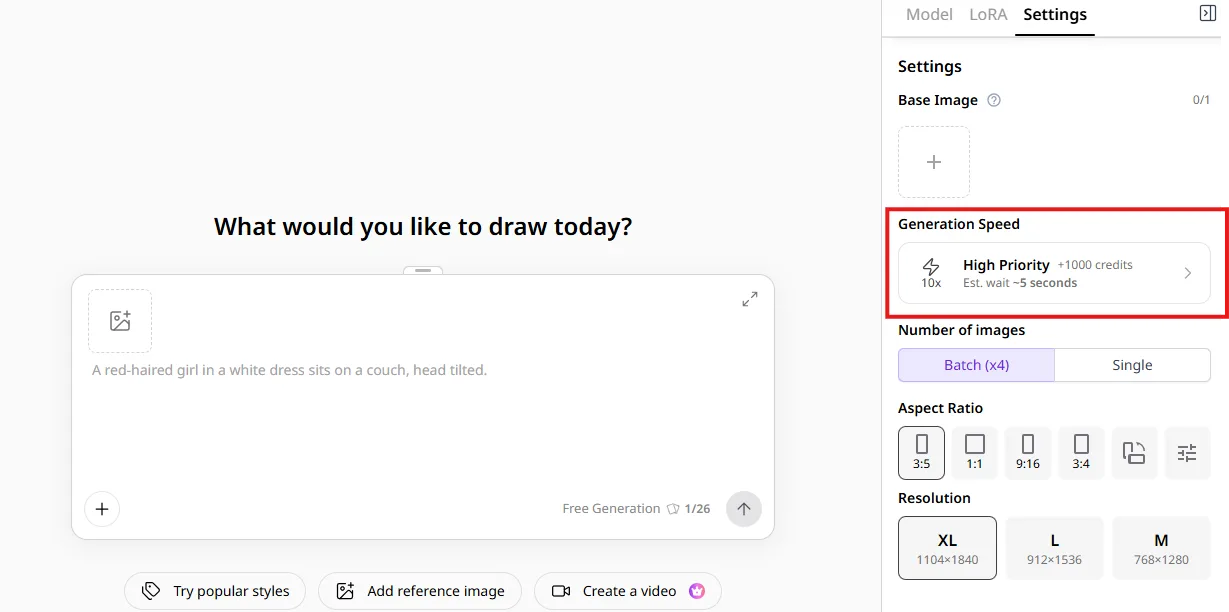 |

No need to memorize credit costs! You'll get the hang of it after a few generations!
Other Tools
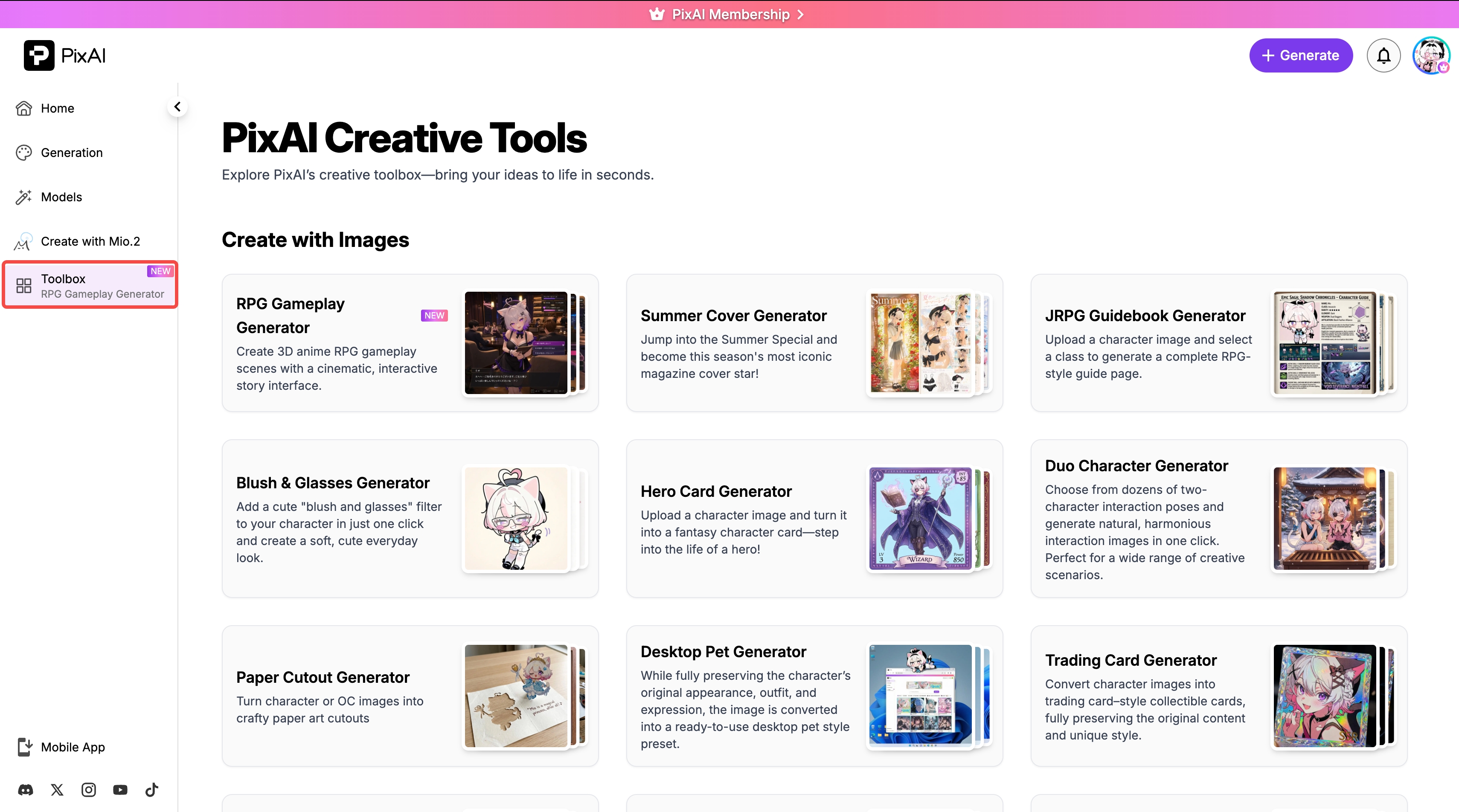
Beyond generating from scratch, PixAI's image editing, image enhancement, video generation, and Toolbox (one-click tools like blush glasses, fantasy character, desktop pet) also use credits.
For tool details, see Panel Tools and Toolbox.
Training LoRAs
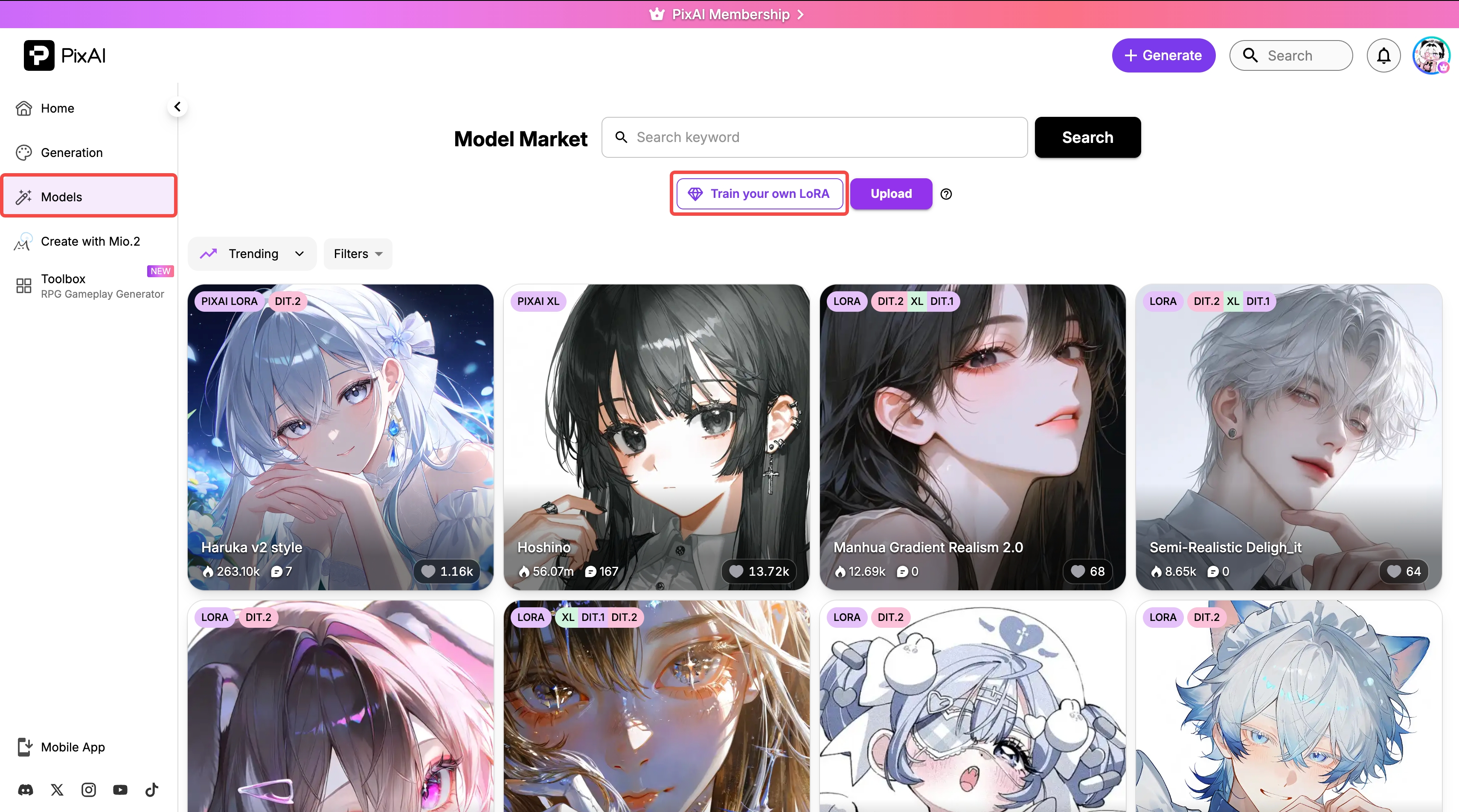
Training a custom LoRA also costs credits. The cost depends on the base architecture. A trained LoRA only works on its matching architecture.
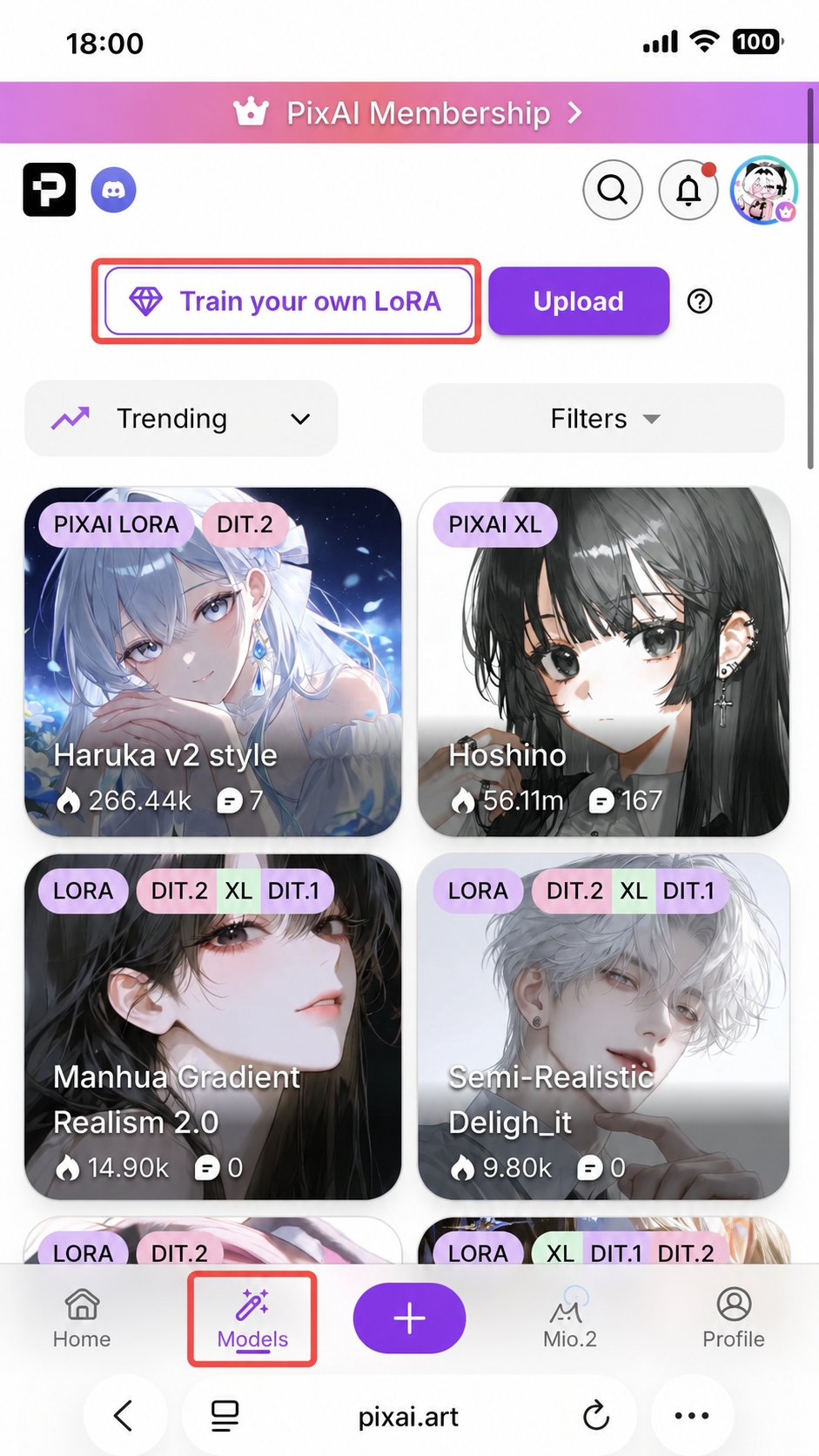
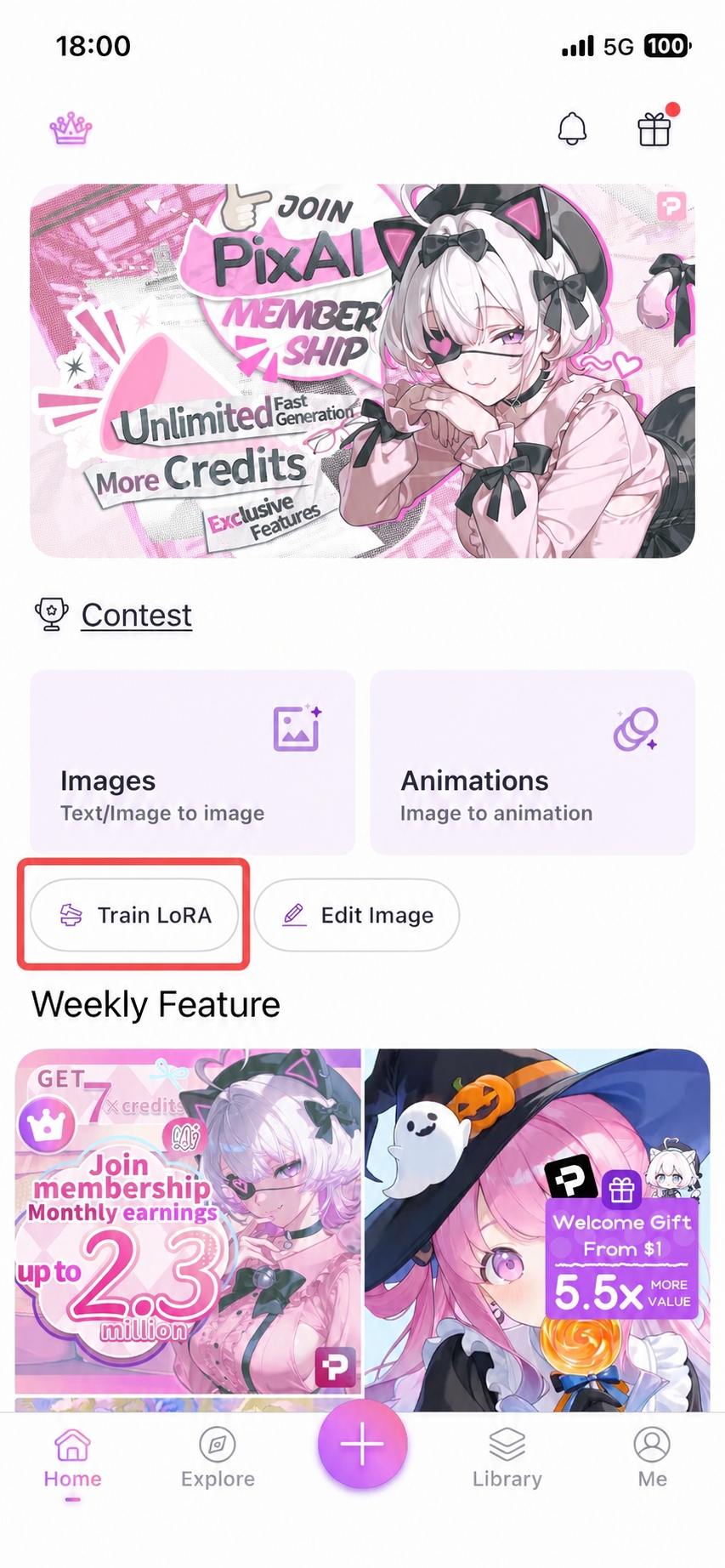
| Architecture | Example Model | Credit Cost |
|---|---|---|
| DiT.2 | Tsubaki.2 | 200,000 |
| DiT.1 | Tsubaki.1 | 150,000 |
| SDXL | Haruka v2 | 75,000 |
| SD 1.5 | Moonbeam | 25,000 |
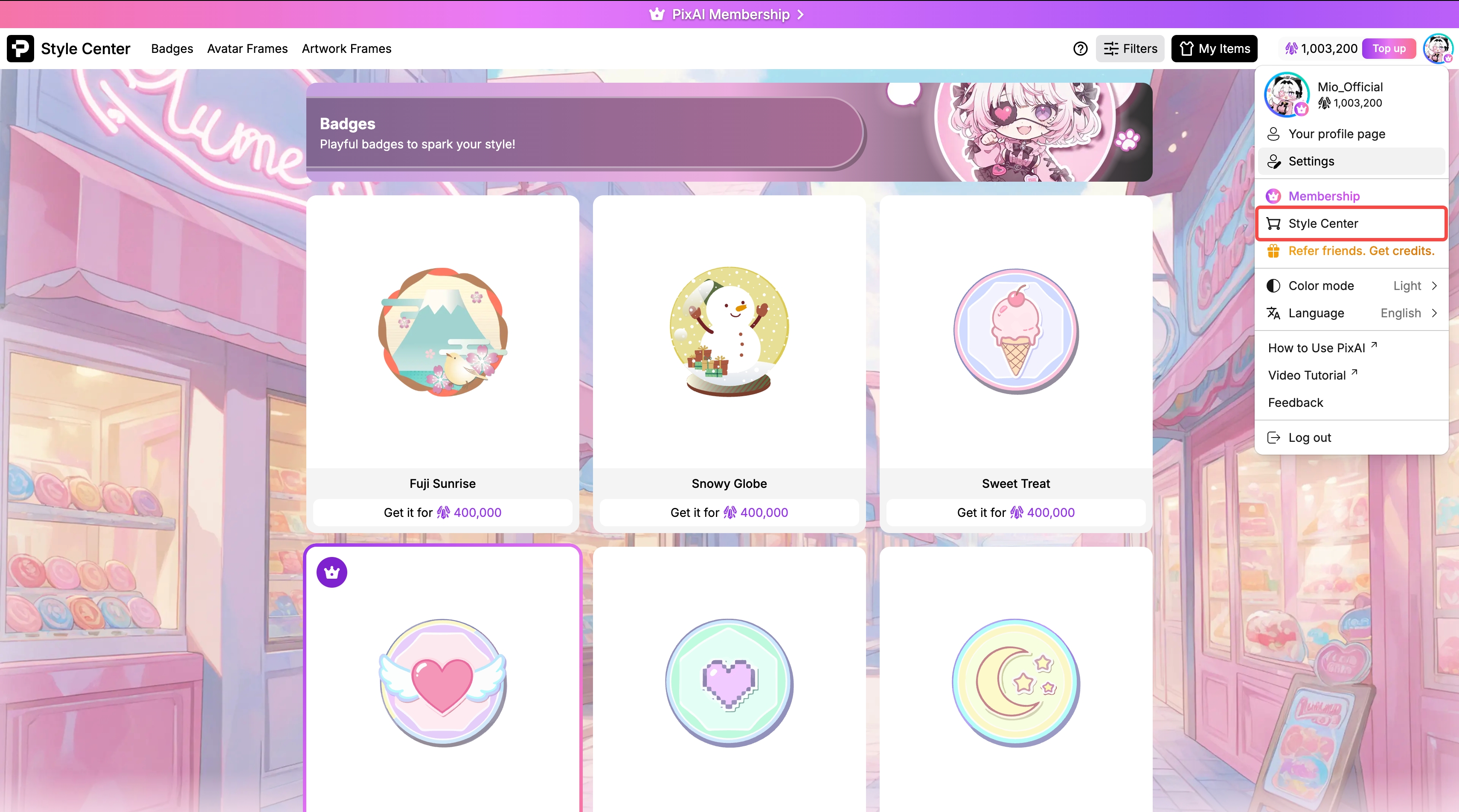
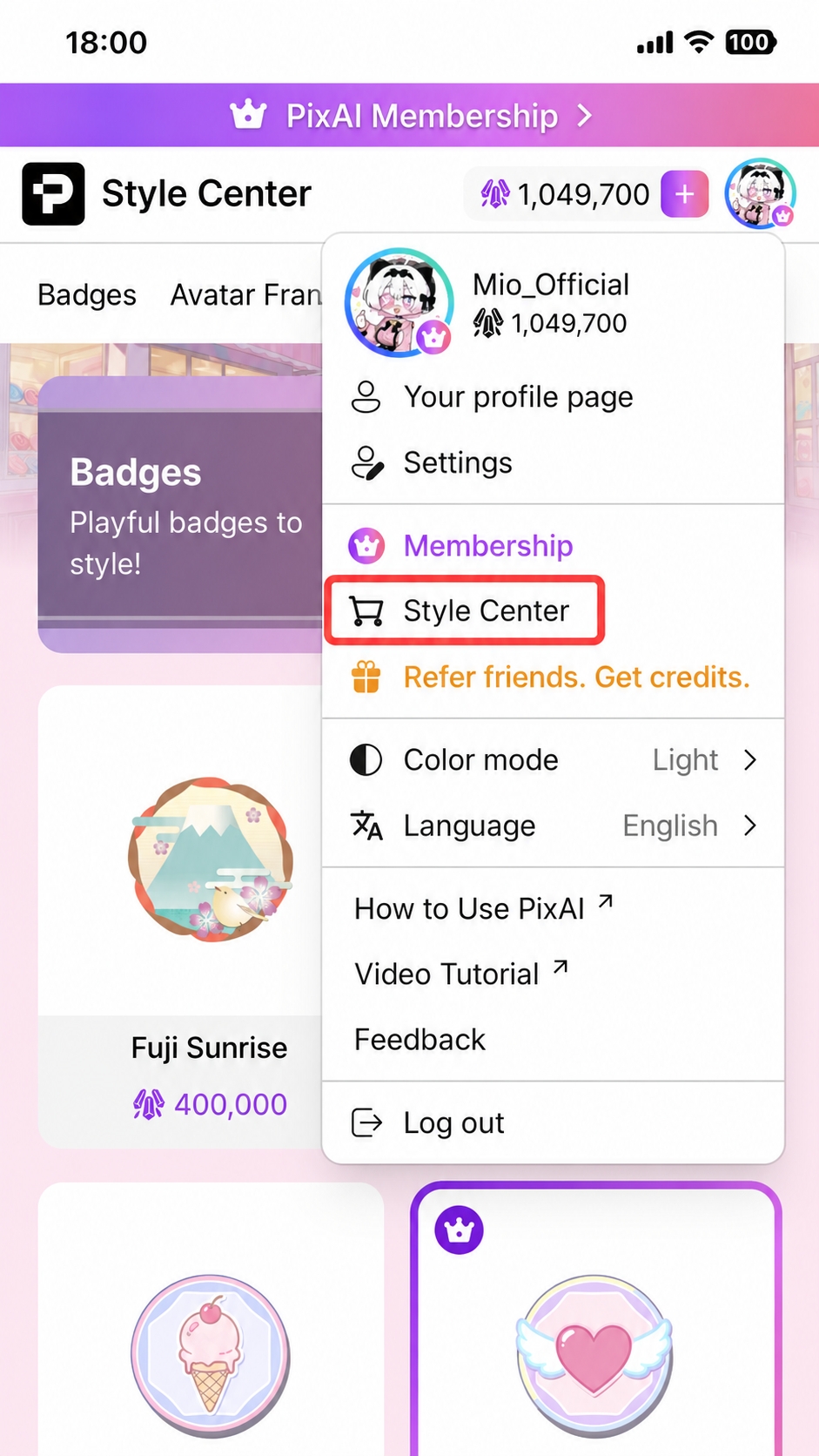
Buying Cosmetics
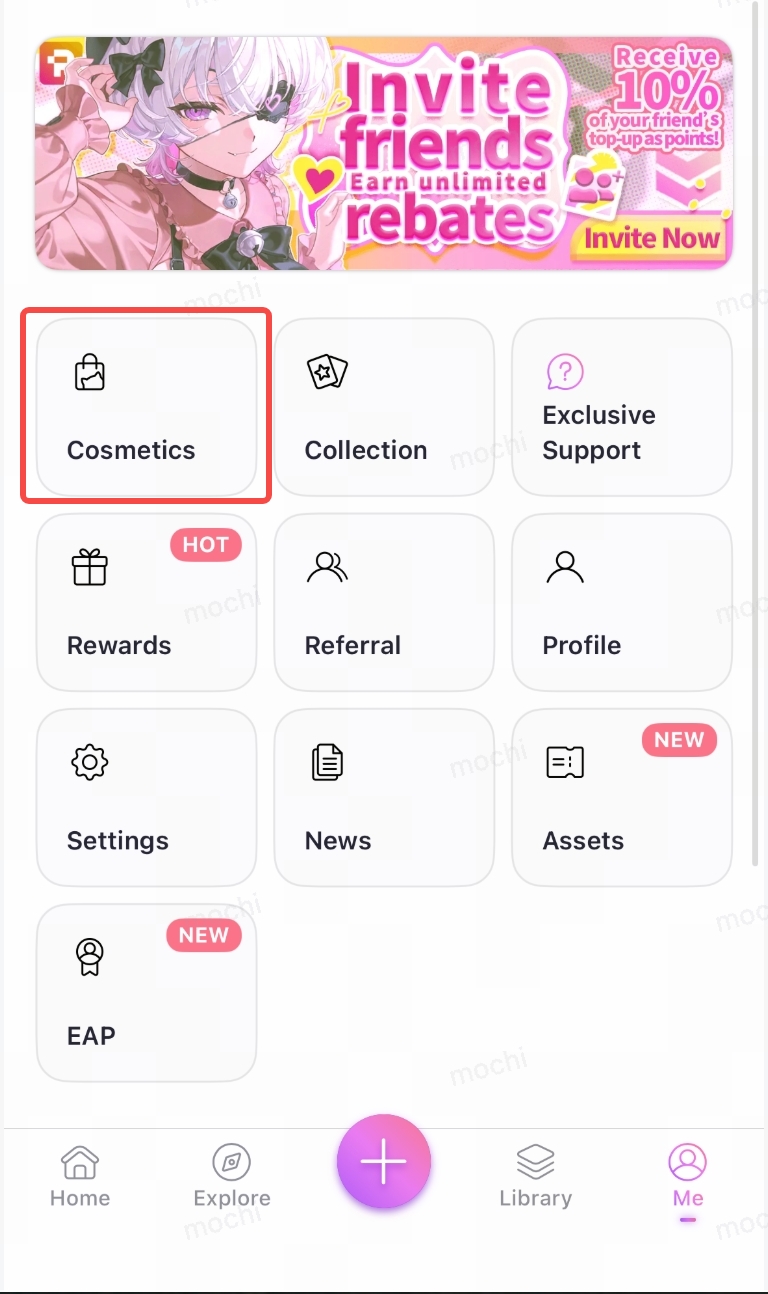
Spend credits in the Style Center on cosmetic items like avatar frames and profile backgrounds — make your profile your own.
Was this page helpful?
🎁 Adopted valid suggestions earn a 5,000 Credit reward!