
Other PixAI Models
PixAI model overview and archive — compare Tsubaki.2, Haruka V2 and Reference Pro at a glance, with parameter and tool support for each.
Tsubaki.3 is PixAI's current flagship. This page puts the other models that remain fully available side by side — a comparison table to answer "Which model fits my needs?", followed by an archive of each model's details. New to model architectures? Start with How AI Image Generation Works for the fundamentals; for parameter and tool support, see the comparison tables at the bottom of this page, or the Model Parameters page.
Common Models at a Glance
PixAI provides multiple models trained for anime, and also lets you upload your own local models to the community. Here's an overview of six commonly used official models.
| I want… | Recommended model | Architecture |
|---|---|---|
| Top-quality anime, multi-character scenes, natural language prompt following | Tsubaki.2 | DiT |
| Entry-level DiT, fine-grained prompt following | Tsubaki.1 | DiT |
| Classic anime, more refined hands and eyes | Haruka v2 | SDXL |
| Retro anime aesthetic, good results from simple prompts | Hoshino v2 | SDXL |
| Mature, natural look; male characters; artist tags | Hoshino v1 | SDXL |
| Edit existing images, multi-image composition | PixAI Reference Pro | DiT |
In most cases, we recommend the three models below. Whether you're new or experienced, these three cover most of what you'll want to create:
Tsubaki.2 — DiT Model
Natural language prompts, one-click style switching, multi-character scenes — a great starting point and an essential tool for power users.
Haruka v2 — Classic Anime Model
Refined hand and eye rendering with a clean anime style — the best pick if you want classic anime aesthetics.
Reference Pro — Image-to-Image Editing
Upload an image plus a natural language instruction — no editing software needed. Pick this when you want to modify an existing image.
Tsubaki.2
Tsubaki.2 is a DiT model released by PixAI in March 2026.
Why Tsubaki.2?
Compared to traditional SDXL models, Tsubaki.2 is a genuine leap forward:
| Aspect | SDXL models | Tsubaki.2 |
|---|---|---|
| Prompt style | Need to learn tag syntax | Plain natural language, like chatting |
| Multi-character scenes | Often mixes up character traits | Reliably keeps characters distinct in looks and actions |
| Visual detail | Good | Sharper, richer |
| Learning curve | Some ramp-up needed | Beginner-friendly with quick wins |
Exclusive Features
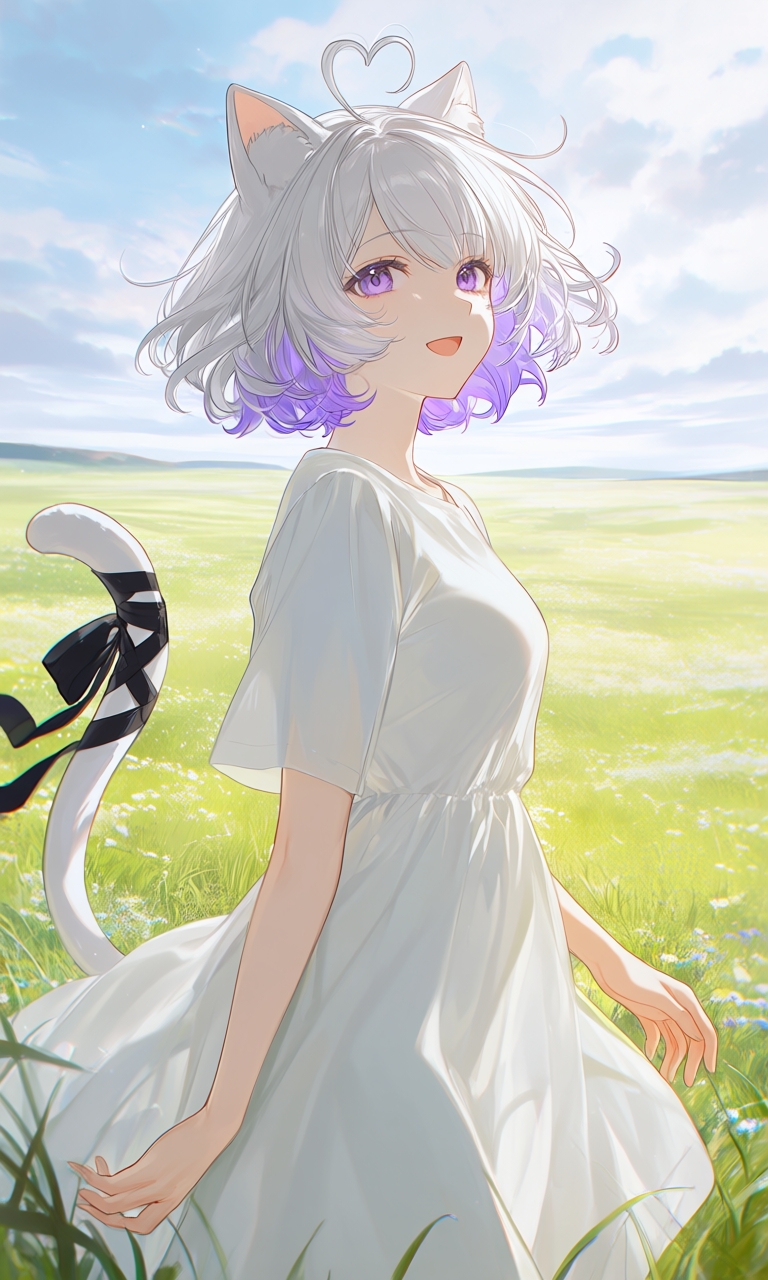
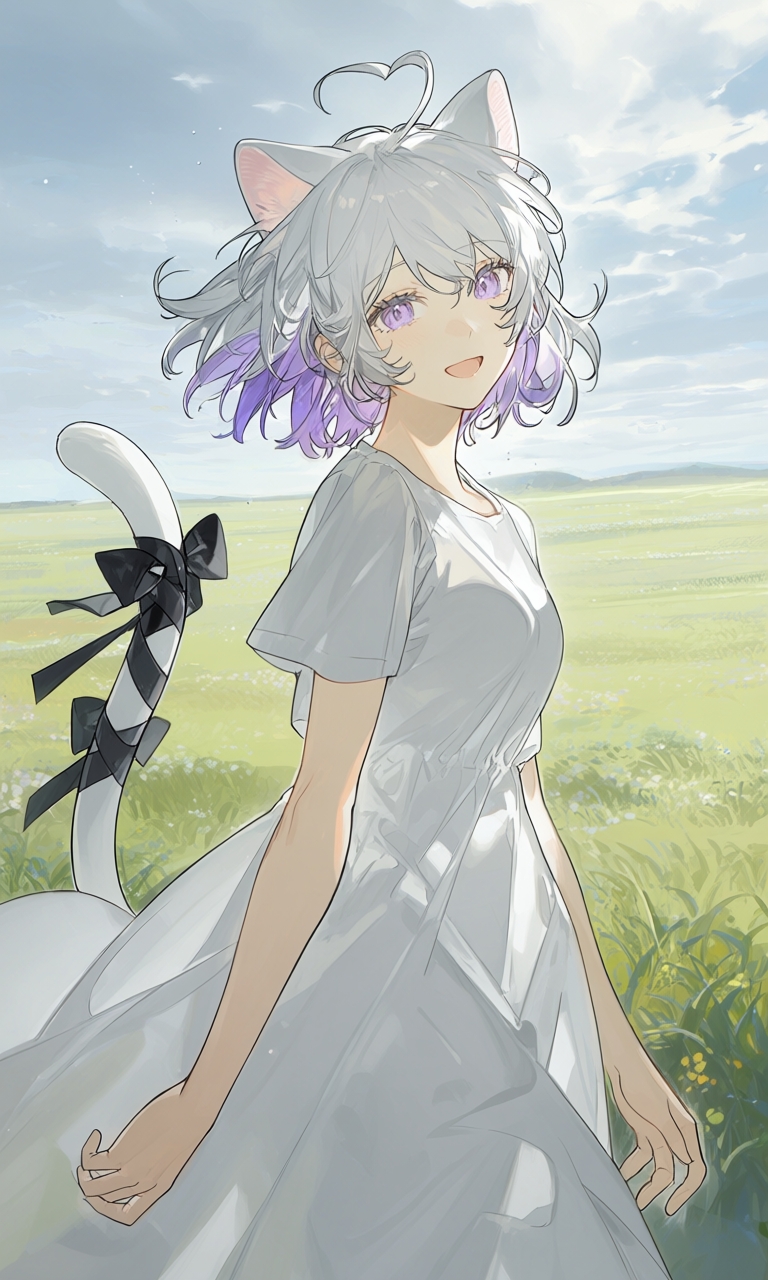
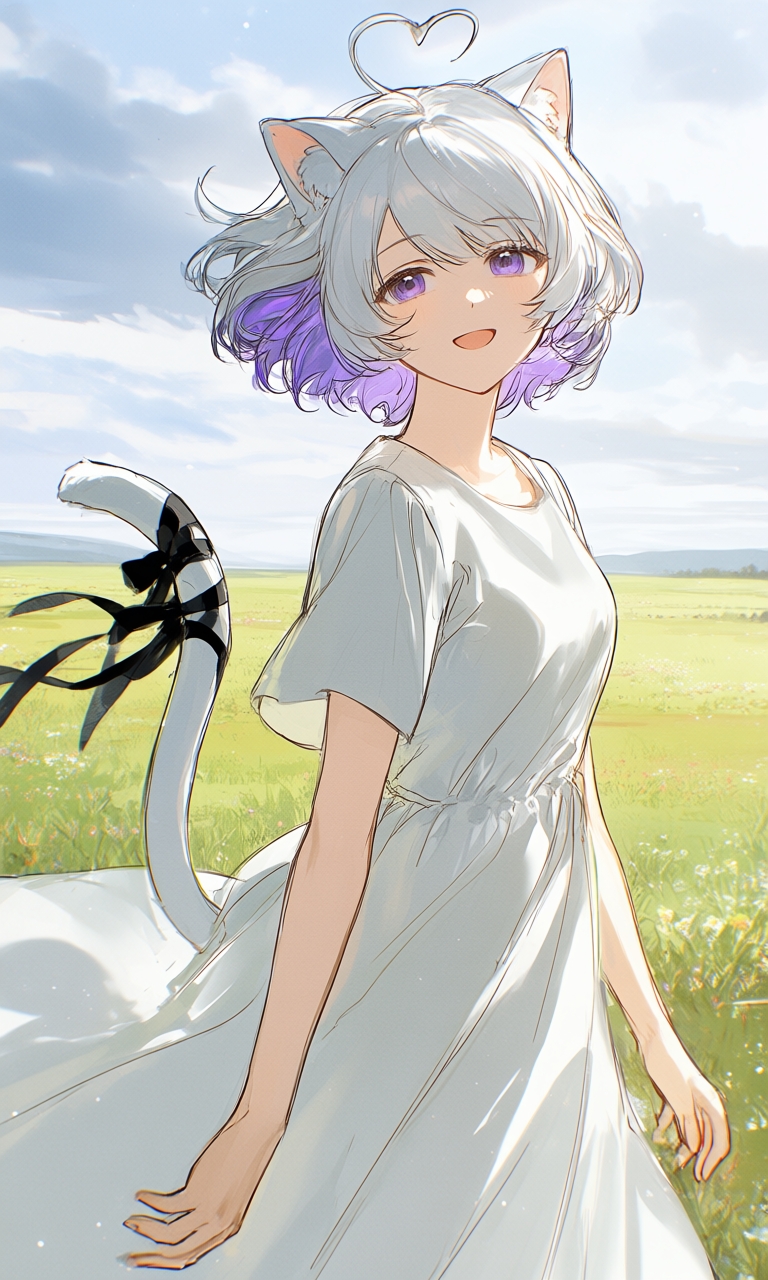
One-Click Style Presets
A Tsubaki.2-only feature — pick a style preset on the right side of the generation panel and switch art styles instantly.
The four images below use exactly the same prompt (Standard mode); only the style preset changed:

Four Generation Modes
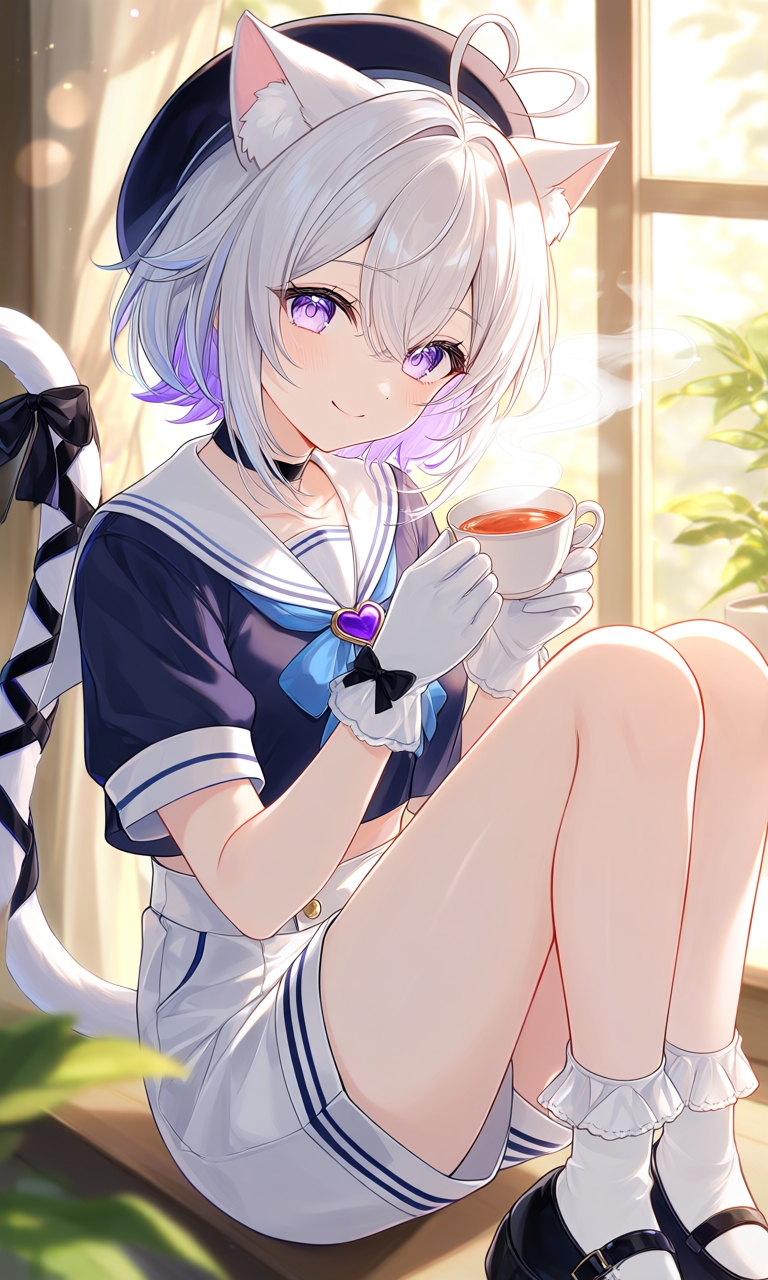
Tsubaki.2 offers four generation modes. They're essentially four different models, each with its own texture and feel — not just a speed-vs-quality slider. The price difference reflects how much compute each mode uses. The four images below use exactly the same prompt; the differences come from the modes themselves.
| Mode | Speed & cost | Credit cost |
|---|---|---|
| Lite | Fastest, fewest credits | 2,200 |
| Standard | Balanced speed and credits | 3,200 |
| Pro | Slower, higher credit cost | 6,800 |
| Ultimate | Member exclusive, highest credit cost | 7,000 |
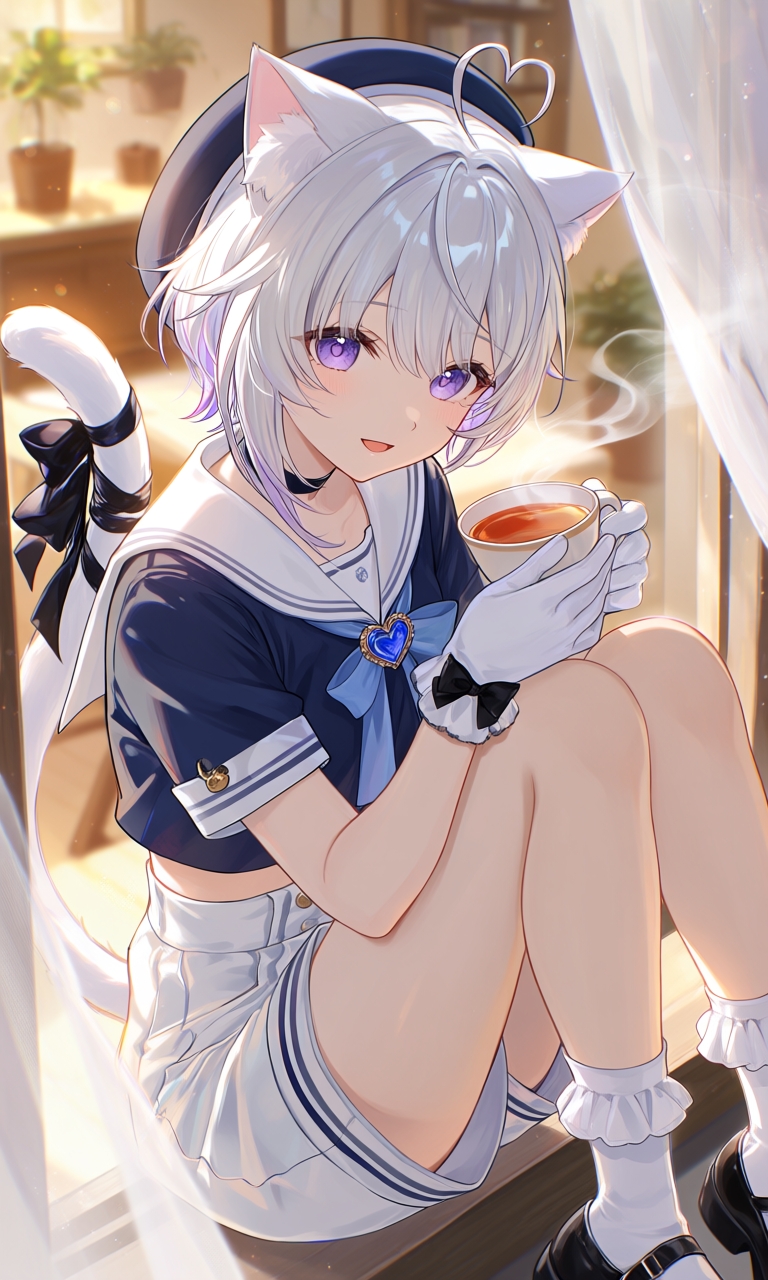
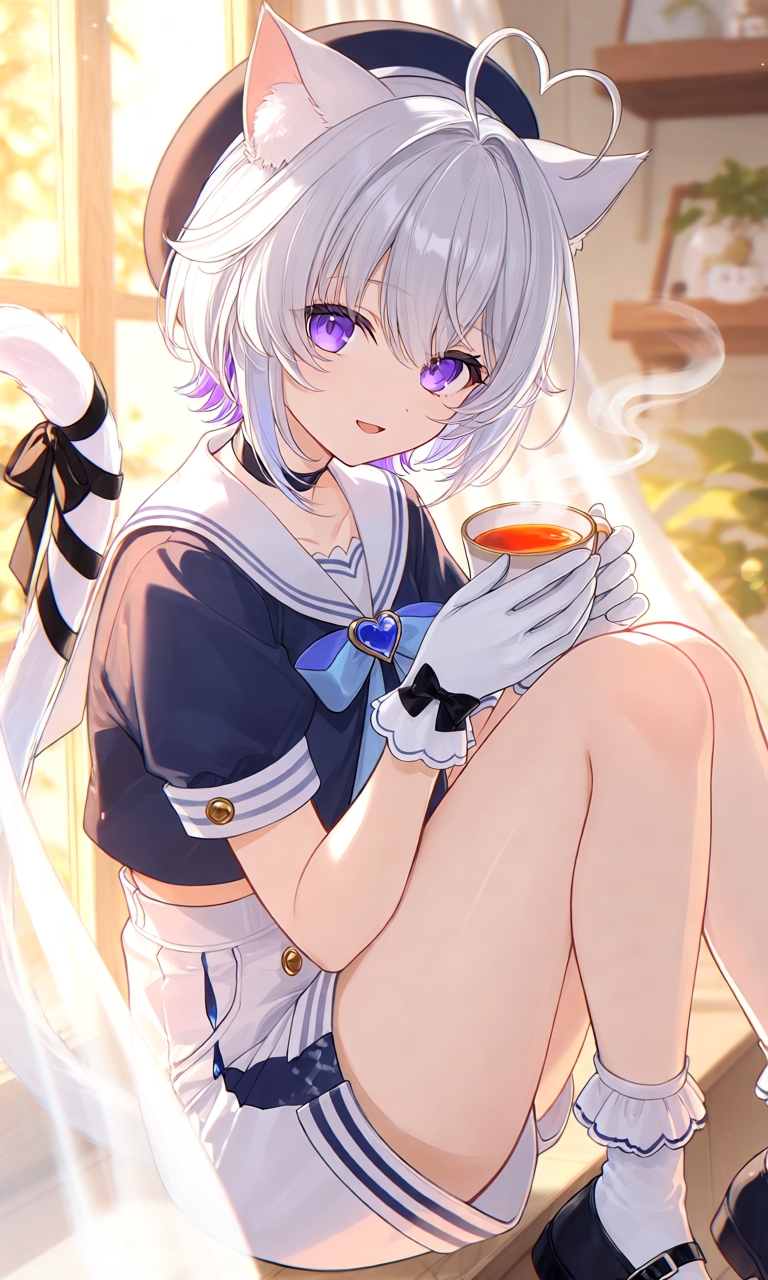
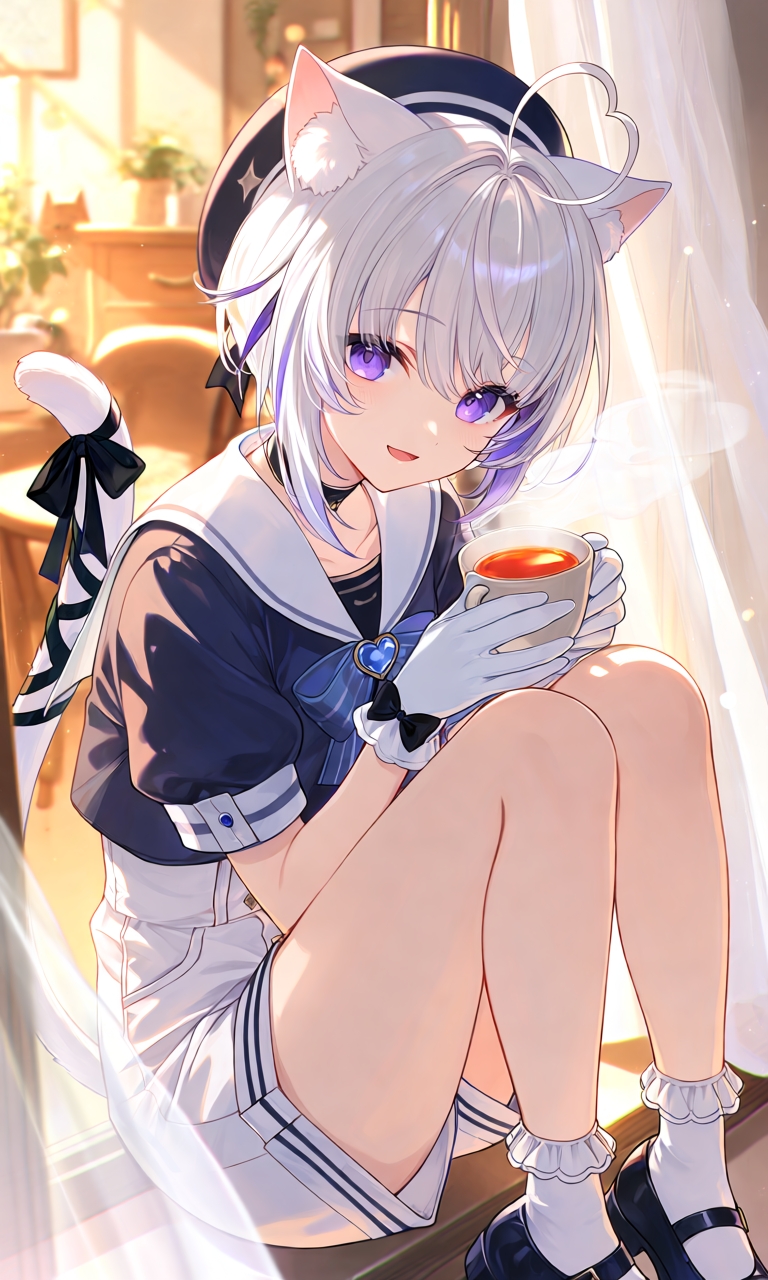
Negative prompts are only available in Pro and Ultimate modes. Lite and Standard modes don't support custom negative prompts.

For more about Tsubaki.2, check out the Tsubaki.2 landing page!
Haruka V2
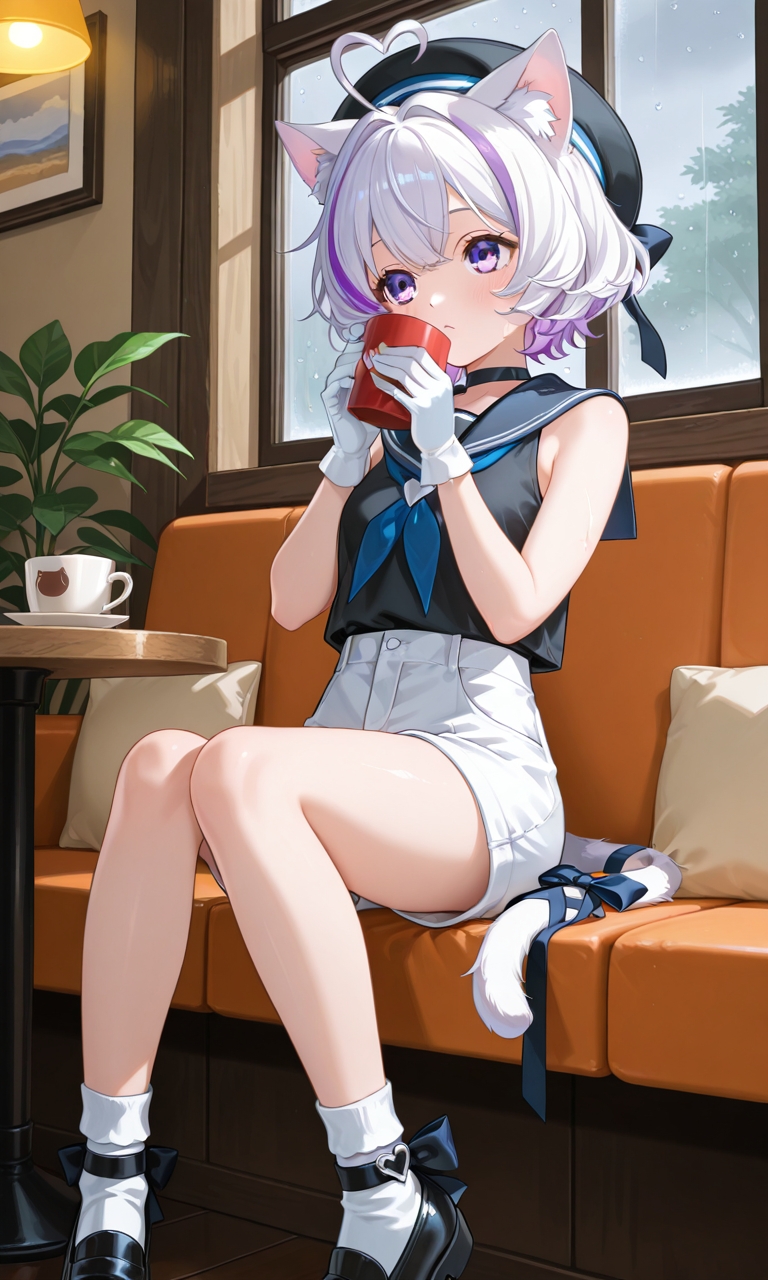
Haruka v2 is PixAI's classic anime SDXL model. Its clean anime art style paired with refined hands and eyes has made it a long-time favorite. If you prefer traditional tag-based prompts or want to layer styles freely with the rich SDXL LoRA ecosystem, Haruka v2 is a great fit.
Key Strengths
- Major improvements to hand rendering — handles common AI hand issues much better, with accurate gestures and correctly held objects
- More expressive eyes — refined pupil highlights, eyelash layering, and eye lighting make characters come alive
- Optimized specifically for anime style — better hair sheen transitions and smoother fabric folds for cleaner, more polished characters
- SDXL LoRA compatible — full support for the SDXL LoRA ecosystem, so you can freely stack artist styles and character LoRAs
Reference Pro
PixAI Reference Pro is PixAI's multi-image editing model. Upload one or more reference images, then describe the changes you want in plain text — the AI parses the characters, poses, outfits, style, and composition in your images and transforms them based on your instructions.
Core Features
- Multi-image input — upload up to 10 images as references
- High-resolution output — supports 2K and 4K
- Flexible aspect ratios — 16:9, 9:16, 1:1, 2:3, 3:2, 3:4, 4:3, 4:5, 5:4
- Visual understanding — automatically parses characters, poses, outfits, style, and composition
Editing Example
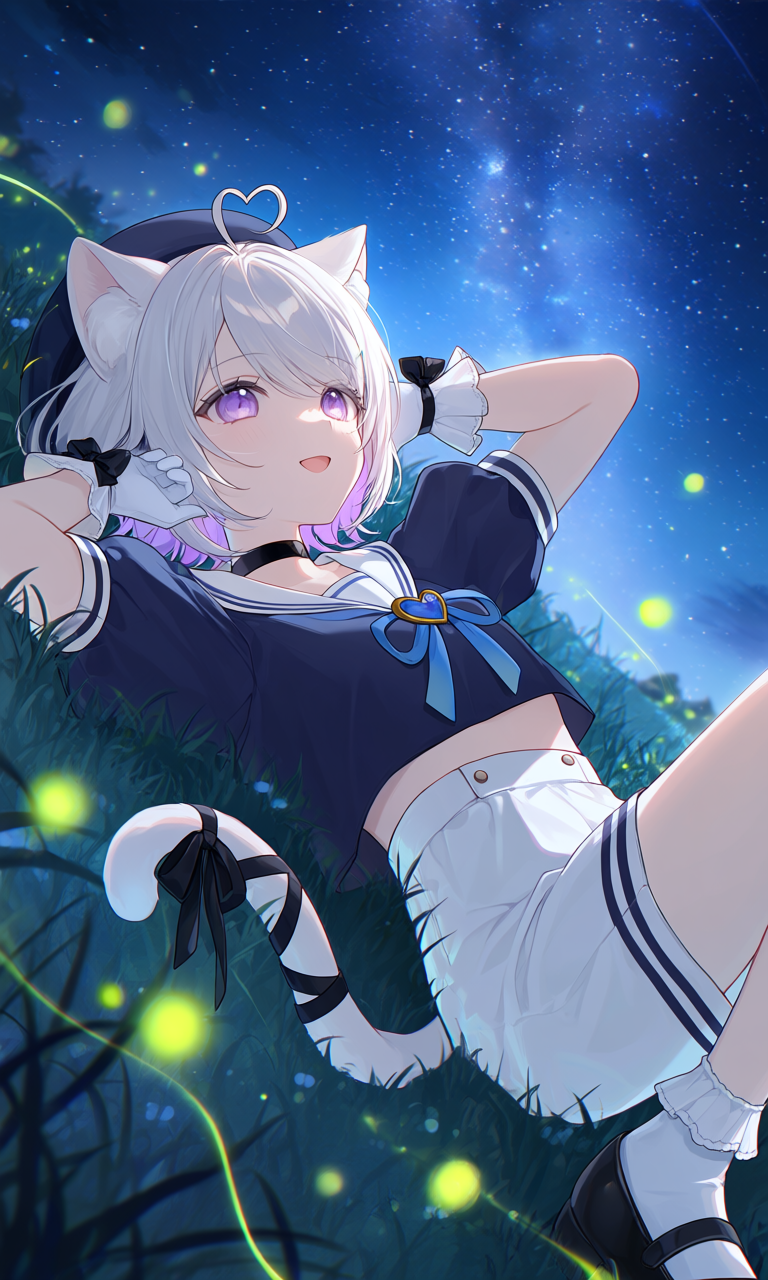
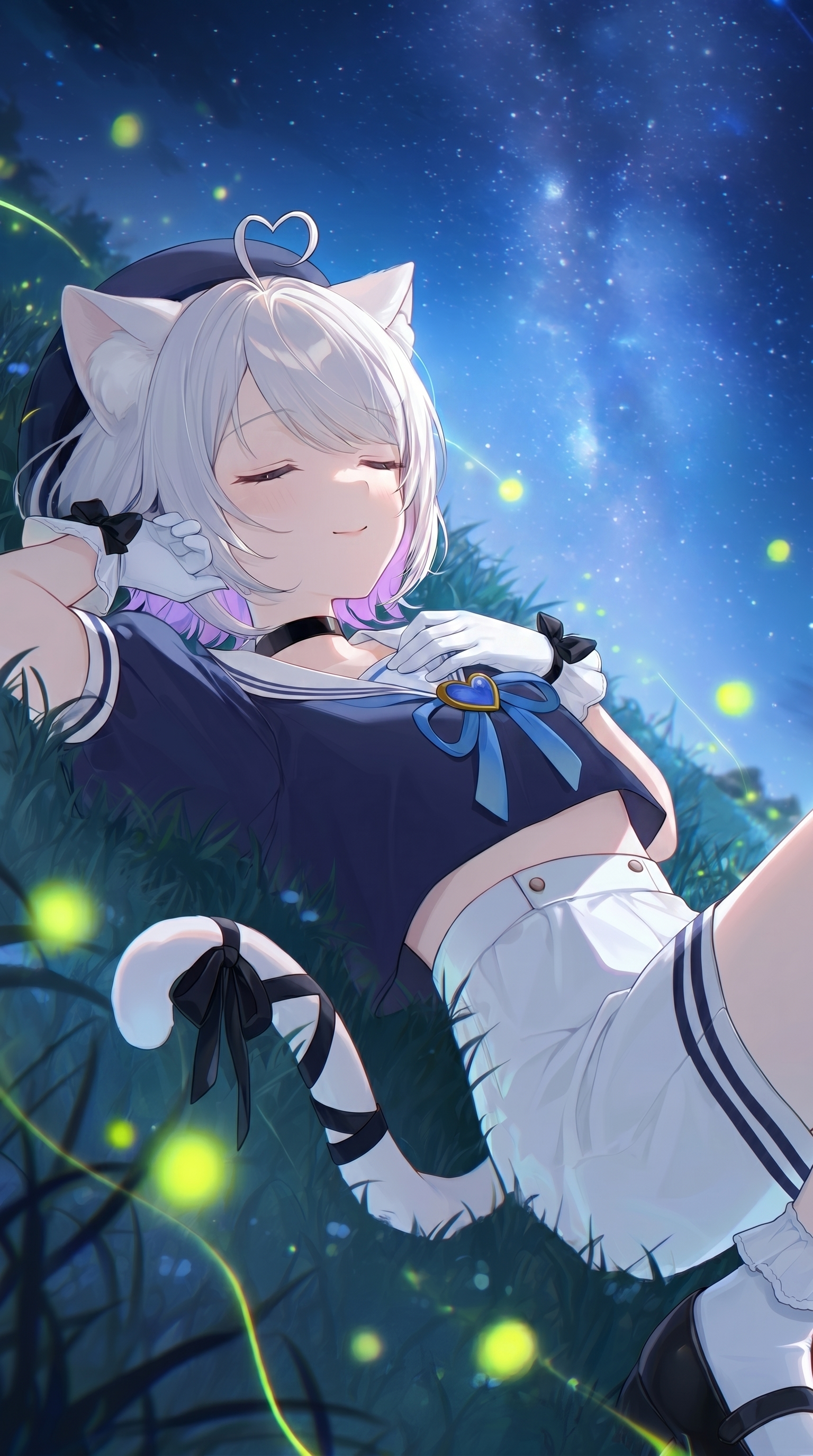
Upload a reference image and tell Reference Pro what to change in a single sentence. The example below uses just one sentence to turn a standing pose into a sleeping pose, while keeping the character's looks, outfit, and overall mood intact. The right image below is the result of applying "Change it to a sleeping Mio" to the left image.
Parameter Differences Between Models
Different model architectures expose slightly different settings on the generation panel. The table below compares the four main PixAI models — Tsubaki.2, Tsubaki.1, Haruka v2, and Reference Pro.
| Feature | DiT (Tsubaki.2) | DiT (Tsubaki.1) | SDXL (Haruka v2) | Reference Pro |
|---|---|---|---|---|
| Prompts | Natural language | Natural language | Tag-based | Natural language |
| LoRA | Supported | Supported | Supported | Not supported |
| Aspect ratio selection | Supported | Supported | Supported | Limited options |
| Resolution | Supported | Supported | Supported | 2K & 4K only |
| Batch size | 1 or 4 | 1 or 4 | 1 or 4 | Single image only |
| Negative prompts | Pro/Ultimate only | Supported | Supported | Not supported |
| Sampling steps | Not supported | Supported | Supported | Not supported |
| Sampler | Not supported | Supported | Supported | Not supported |
| CFG Scale | Not supported | Supported | Supported | Not supported |
| Seed input | Supported | Supported | Supported | Not supported |
| VAE model | Not supported | Supported | Supported | Not supported |
| Reference image | Not supported | Supported | Supported | Required |
| Mode selection | 4 modes | Not supported | Not supported | Not supported |
| Style selection | 35+ presets | Not supported | Not supported | Not supported |
| PixAI watermark | Supported | Not supported | Not supported | Not supported |
Tool Differences Between Models
Different model types also expose slightly different tools. PixAI tools generally fall into two groups: pre-generation tools (which add effects during generation) and post-generation tools (which create variations from already-generated images).
For details on each tool, see the Tools section.
Pre-generation Tools
| Tool | DiT (Tsubaki.2) | DiT (Tsubaki.1) | SDXL (Haruka v2) | Reference Pro |
|---|---|---|---|---|
| Prompt Helper | Supported | Supported | Supported | Not supported |
| Autocomplete | Supported | Supported | Supported | Not supported |
| Face Fix | Not supported | Supported | Supported | Not supported |
| Detail Enhancement (HiRes) | Not supported | Supported | Supported | Not supported |
| Quality Tags | Supported | Supported | Supported | Not supported |
| Convert to Video | Supported | Supported | Supported | Not supported |
Post-generation Tools
| Tool | DiT (Tsubaki.2) | DiT (Tsubaki.1) | SDXL (Haruka v2) | Reference Pro |
|---|---|---|---|---|
| Image to Prompt | Supported | Supported | Supported | Supported |
| Variation | Not supported | Supported | Supported | Not supported |
| Use as Reference Image | Not supported | Supported | Supported | Supported |
| Edit | Not supported | Supported | Supported | Supported |
| Upscale | Not supported | Supported | Supported | Not supported |
Was this page helpful?
🎁 Adopted valid suggestions earn a 5,000 Credit reward!
Tsubaki.3 Prompts in Action
Walk a commercial-grade workflow with the official MIO band project — character design sheets, a magazine key visual, live CGs, a serialized manga, and anniversary art, with full prompts and section-by-section breakdowns.
Model Parameters
How to dial in AI image generation parameters — a full breakdown of aspect ratio, sampling steps, CFG Scale, Seed, VAE, and every other setting.