
LoRA Basics
A LoRA primer — what LoRAs are, how to add them to a model, how to tune weights, and everything you need to know about AI art's go-to style add-on.
LoRA (Low-Rank Adaptation) is the most practical style add-on in AI art — a small file (just tens of MB) that teaches a model new characters, styles, or concepts. This page builds on the "chef / sample dish" analogy from The Three Pillars of Image Generation and walks you step by step through picking LoRAs on PixAI, adding trigger words, tuning weights, troubleshooting when they don't work, and finally training your own. Not sure how models and LoRAs differ? Check Other PixAI Models first, then come back.
How Models and LoRAs Relate
Before using LoRAs, get clear on what models and LoRAs each do.
Model = the Chef
Remember the restaurant analogy from The Three Pillars of Image Generation? The model is the chef, defining the basic style of the dish:
- What cuisine they specialize in — anime / realistic / 2.5D
- How solid their fundamentals are — anatomical accuracy
- Their signature moves — lighting, composition, mood
LoRA = a Sample Dish
LoRA stands for Low-Rank Adaptation — a technique that teaches a model new things at very low cost, without modifying the original model. If the model is the chef, LoRA is a "sample dish" you hand them — no need to swap chefs; just show them a reference dish and they'll know exactly what flavor you want. LoRAs are tiny (usually tens of MB), but they let the model quickly learn to:
- Reinforce a particular art style (e.g., "Korean illustration style")
- Lock in a character (an OC or a specific anime character)
- Add detail (e.g., "more refined eyes," "specific outfit")
- Control a specific element (e.g., "moe sleeves," "cat ears," "mecha aesthetic")
For example:
- A "moe sleeve LoRA" → makes sleeves look more natural and cute
- A "specific character LoRA" → makes the figure look like the target character
- A "lighting LoRA" → gives the image a more cinematic feel
How to Add a LoRA
Open the LoRA Panel
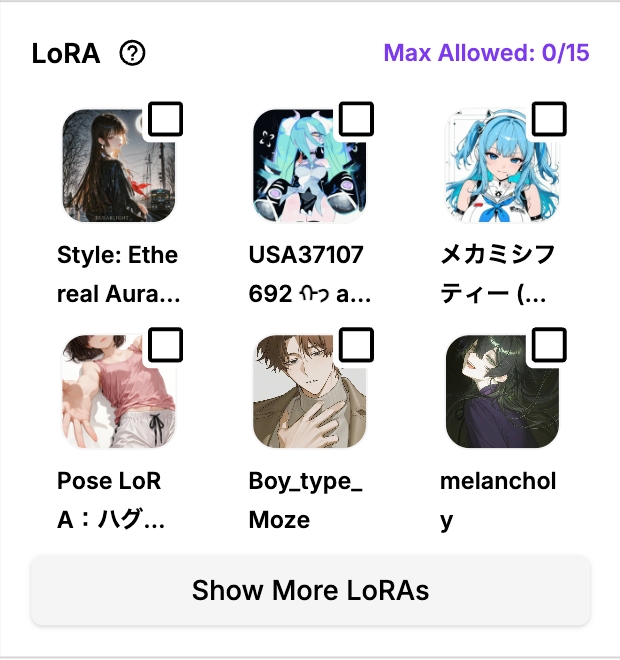
Find the LoRA section on the generation page and click "More LoRA" to open the LoRA browser. You can search by keyword, filter by category, or pick from your favorites.
Add the LoRA
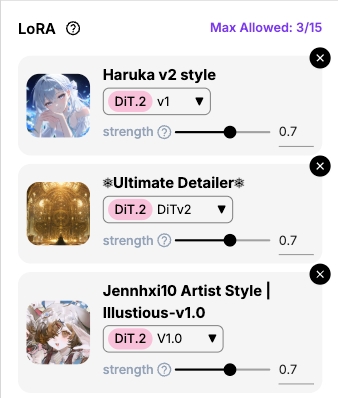
Click a LoRA to add it to your current generation settings. You can adjust an added LoRA's weight, disable it, or remove it at any time. The default weight usually gives good enough results. Note: LoRAs from different architectures aren't interchangeable. For example, a LoRA trained on SDXL won't work with the DiT-based Tsubaki.2.
Add Trigger Words
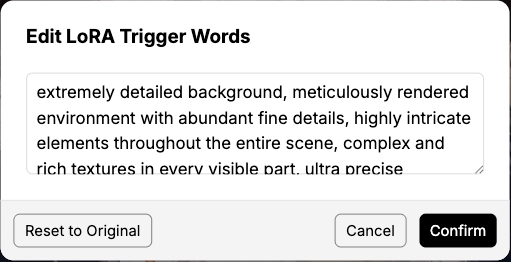
Many LoRAs need trigger words to work reliably. When you select a LoRA, its default trigger words are automatically appended to the end of your prompt, as shown below.

Click them to view and edit the trigger words.
Adjust Weight and Generate
Set an appropriate weight (see below) and hit Generate.
What Is LoRA Weight?
LoRA weight controls how strongly the LoRA affects the image. The rules are simple:
- PixAI's default weight is 0.7 — a good starting point in most cases
- Effect too subtle? → Bump it up (e.g., 0.8, 0.9)
- Effect too strong, image looks broken? → Dial it down (e.g., 0.5, 0.6)
If results still aren't right, adjust in 0.1 increments and observe the changes. If the LoRA author lists a recommended weight, follow that first.
How can I tell if the weight is right?
- Weight too low: Character traits aren't obvious; you can barely see the style
- Weight too high: Distorted facial features, weird outfits, oversaturated images, or blotchy patches of color
If you raise the weight and these problems show up, the weight is probably too high. Lowering by 0.1–0.2 usually fixes it.
What if My LoRA Isn't Working?
If you've added a LoRA but don't see any change, try these in order:
- Check trigger words — make sure you've added the trigger words the LoRA author specified
- Adjust the weight — try a weight in the 0.6–0.9 range
- Reduce the number of LoRAs — if you're using several, keep only one for testing
- Check for prompt conflicts — make sure your prompt doesn't contradict the LoRA (e.g., the LoRA targets a black-haired character but you wrote "blonde hair")

When something's off, the most reliable approach: keep just one LoRA, confirm the trigger words, set weight to 0.7 — start from this baseline and adjust step by step.
Training Your Own LoRA
Beyond using LoRAs others have shared, you can train your own on PixAI — no technical background required, just your image dataset.
Open the Training Page
Click Models in the left navigation to enter the model marketplace.
In the marketplace, click the Train your own LoRA button at the top to start training.
Set Training Parameters
On the training page, you'll see these settings:
Upload Training Images
Upload your training set on the left. A few tips:
- Images should focus on the same subject (e.g., character, scenery)
- More images with varied angles and scenes usually train better
- You need at least 10 images
Choose an Architecture (Model Type)
Pick the model architecture this LoRA targets: SD 1.5, SDXL, DiT.1, or DiT.2. Once trained, the LoRA will only work on models of the matching architecture.
Choose a Category
Pick a category for your LoRA (character, scenery, etc.) — this makes it easier to manage and helps other users find it in the marketplace.
Fill in Trigger Words
Trigger words are the key to making the LoRA fire reliably. Use a description at least 30 characters long to help the AI distinguish your training subject from what the base model already knows.
Tips:
- Character LoRA: character name, source work, appearance traits (hair color, eye color, outfit, etc.)
- Style LoRA: style name, technique highlights, core visual traits
Start Training
Confirm your settings and click Start Training. Training costs credits, and the actual wait depends on current server load. Once done, your LoRA shows up in your personal model list.
Was this page helpful?
🎁 Adopted valid suggestions earn a 5,000 Credit reward!
Model Parameters
How to dial in AI image generation parameters — a full breakdown of aspect ratio, sampling steps, CFG Scale, Seed, VAE, and every other setting.
LoRA Advanced
Advanced LoRA techniques — stacking and combining multiple LoRAs, weight-tuning strategies, and LoRA compatibility across model architectures.