
Edit images
Change an image with a prompt, upscale it, remove the background, split layers, crop it and more.
Select an image node to show its toolbar. The tools work on uploaded and generated images. Each tool makes a new node, so your original image doesn't change.
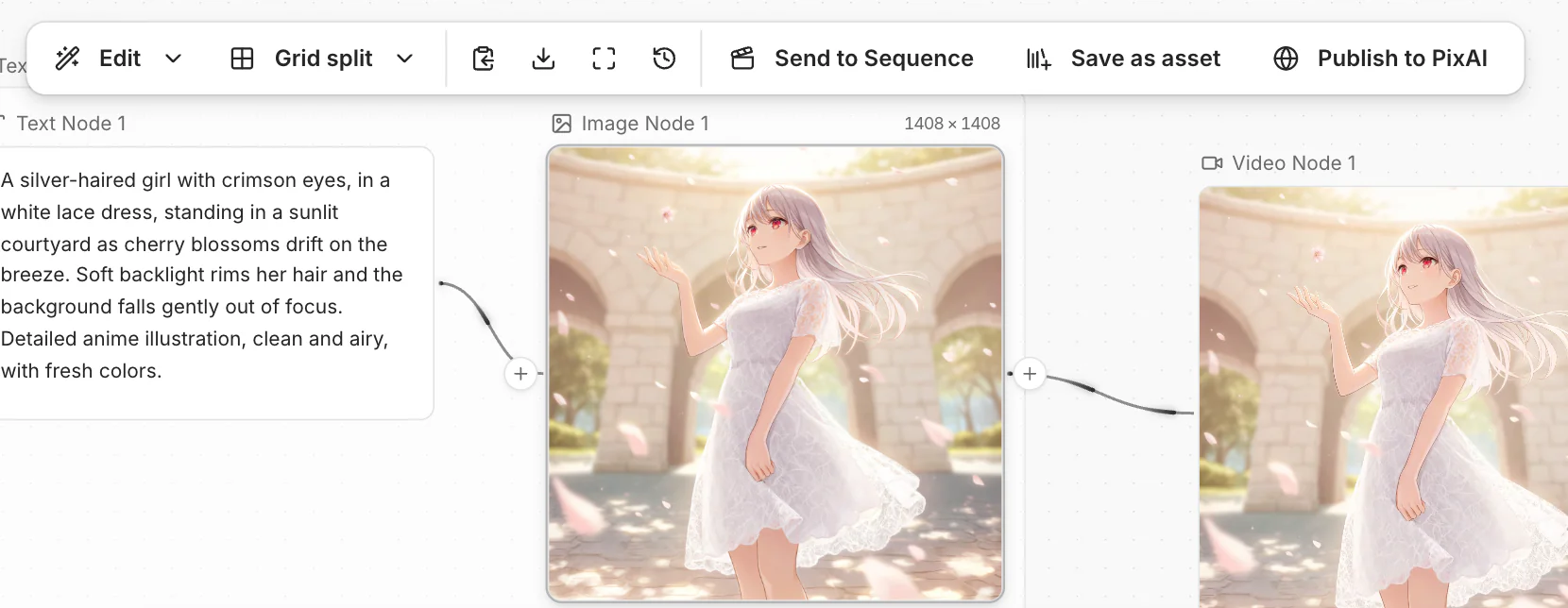
The first button in the toolbar is Edit. Click it to change the image with a prompt. Point to it to see all the editing tools:
| Tool | What it does |
|---|---|
| Edit | Changes the image as your prompt describes. |
| Upscale | Makes the image larger. |
| Remove background | Makes the background transparent. |
| Split layers | Splits the image into transparent layers. |
| Crop | Cuts the image to a frame that you draw. |
| Rotate & mirror | Rotates or flips the image. |
| Mosaic | Hides parts of the image with a mosaic, a blur, a fill or lines. |
Edit with a prompt
Select the image, then click Edit. A new node opens next to it, connected to your image.
Upscale or remove the background
Split layers
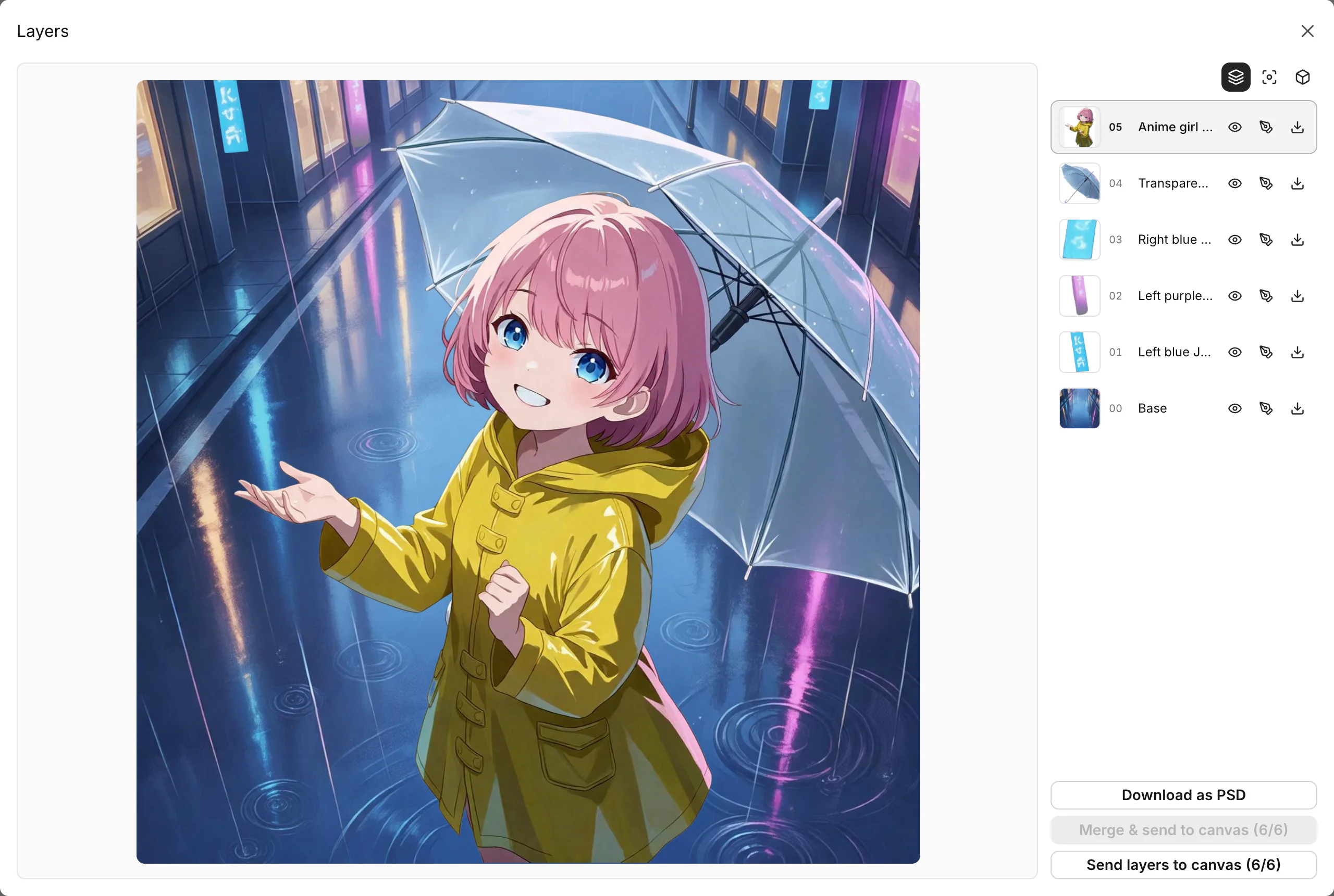
Split one image into transparent layers, for example the character and the background.
Optional: describe what to split, for example "the character and the sign". Leave the prompt empty to split every main element.
When the layers are ready, click Fullscreen to open the Layers view. There you can show or hide each layer, click Download as PSD, or click Send layers to canvas to put each layer on the canvas as its own node.
Crop, rotate and mosaic
Select the image, point to Edit, and click the tool. The result is a new node.
- Crop: choose an aspect ratio, drag the frame, then click Crop.
- Rotate & mirror: click Rotate 90°, Flip horizontal or Flip vertical, then click Save.
- Mosaic: choose a Pattern, paint the area with the Brush, then click Apply.
Grid split
Cut an image into cells, for example to turn a sheet of panels into separate shots.
Copy and download
The toolbar also has Copy image, Download and Fullscreen. To download many images at once, see Organize and download.
Common questions
Does an edit change my original image?
No. Every tool makes a new node. The original node stays as it was.
I don't see the editing tools.
The toolbar shows only when the node has an image. Generate it, or wait for the upload to finish.
Was this page helpful?
🎁 Adopted valid suggestions earn a 5,000 Credit reward!