
Explore the canvas
Find your way around PixAI Studio and make your first image.
Everything you make in Studio lives in a workspace. Each workspace has one canvas, where you add nodes and connect them. The canvas saves automatically.
Open a workspace
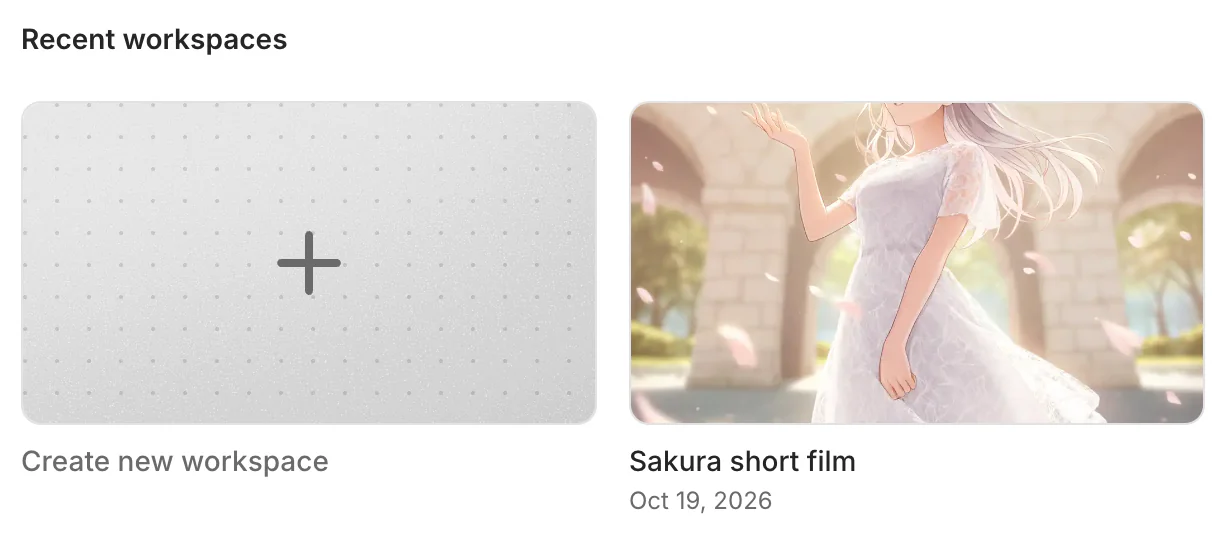
The Studio home page shows Recent workspaces. Click a card to open a workspace, or click Create new workspace to start a new one. To see every workspace, click All workspaces.
You can edit a canvas on a computer only. On a phone, you can view the canvas but not change it.
The parts of the screen

- Header (top): the workspace name, Canvas and Sequence to switch editors, Publish & share, your credits and your account.
- Assets panel (left): This canvas lists the nodes on the canvas. Asset library holds nodes that you saved to reuse. Press Ctrl/Cmd + B to show or hide it.
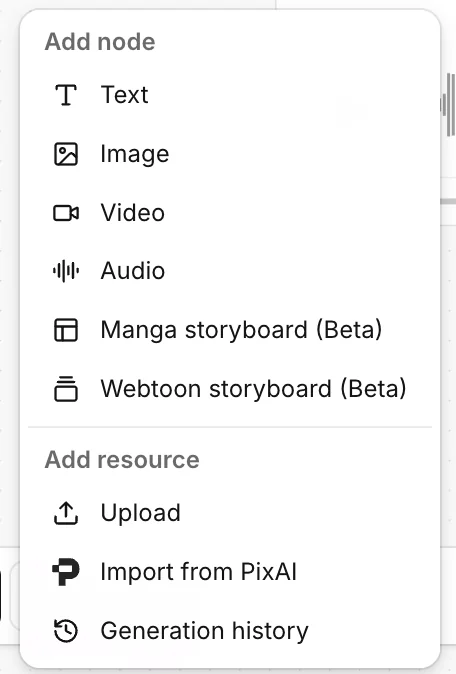
- Dock (bottom): Add node, Templates, Import from PixAI, Generation history, zoom, Undo and Redo, and more.
Add a node
Double-click an empty area of the canvas, or click Add node in the dock. Then select Text, Image, Video or Audio.
On an empty canvas, you can also click a quick-start chip, such as Text to image. It adds a small set of nodes that are already connected.
To add your own files, see Upload and import.
Move around
| To do this | Do this |
|---|---|
| Pan | Scroll, or hold Space and drag |
| Zoom | Ctrl/Cmd + scroll, or pinch on a trackpad |
| Fit all nodes in view | Ctrl/Cmd + 0 |
For more, see Organize and download and Keyboard shortcuts.
Make your first image
Click the node to select it. The prompt bar opens below the node. Describe what you want to see: subject, composition, lighting and style.
Optional: pick another model or change Number of images. The Estimated cost in credits shows next to Generate.
Click Generate, or press Ctrl/Cmd + Enter. When the run finishes, the image appears in the node.
Next, connect your image to a Video node to animate it. See Nodes and connections.
Common questions
Do I need to save?
No. The canvas saves automatically.
My nodes are gone from the view.
Press Ctrl/Cmd + 0 to fit all nodes in view.
Generate is disabled.
Point to Generate to see why. Usually the prompt is empty, or a reference is still generating.
Was this page helpful?
🎁 Adopted valid suggestions earn a 5,000 Credit reward!