
Create a manga storyboard
Plan a manga page with mannequin figures in PixAI Studio, add dialogue, then turn it into a finished, lettered page with Tsubaki.3.
A storyboard is a rough plan of a comic page. The manga storyboard editor makes one for you: it draws the panels (the boxes on the page), gray mannequin figures for your characters, and the spots for speech balloons. You adjust the plan and place it on the canvas. A Tsubaki.3 node then redraws it as a finished page, and a Lettering node writes in the text.
The storyboard editors are in beta. For vertical-scroll comics, see Make a webtoon.
Make your first page
Click Add node in the dock at the bottom of the canvas, then select Manga storyboard (Beta). You can also double-click an empty spot on the canvas.
The editor opens full screen as Manga storyboard · Page 1. A page is already laid out.
In the left column, open Characters. Choose how many characters are on the page (1 to 3). For each one, type a name and describe the look in English, for example silver hair, school uniform.
Open Roll storyboard and click Roll storyboards. Studio makes 6 versions of the page, called candidates. They show in a row above the page. Click one to see it. The number under each candidate is its score, Studio's rating of the page. Higher is better.

Optional: click a panel on the page. In the panel inspector on the right, open Characters and dialogue and type each line. See Add dialogue.
Open Final. Choose Monochrome or Full color, and describe the place in Scene, for example school rooftop at sunset, wire fence, city skyline. These settings go into the prompt of the Tsubaki.3 node.
In the top bar, click Place on canvas and generate. Studio places the storyboard on the canvas and generates the finished page. This spends credits. If the page has dialogue, letter it next.
The rest of this page explains each part in more detail.
The parts of the editor

- Left column: the five steps, from top to bottom: Layout, Characters, Roll storyboard, Display and Final.
- Middle: the page, with the candidates above it.
- Right column: Panels lists every panel by number. Click one to open its inspector, where you change its camera, pose and dialogue. The Top view of the characters is at the bottom.
- Top bar: Undo, Redo, Export, the place buttons and Close.
Pick a page layout
The layout is how the page is cut into panels. Open Layout:
- Paper: the page shape, such as B5/A5 manuscript or 1:1 square.
- Reading direction: Right to left (manga) or Left to right.
- Layout style: a preset for the panels.
| Layout style | What you get |
|---|---|
| Regular · dialogue | Straight lines between panels, for everyday dialogue |
| Standard | A few slanted lines and large panels |
| Action | Many slanted lines and bleeds, for a fast pace |
| Large panels · splash | Large panels and bleeds, for openings and climaxes |
Two terms in this table:
- A gutter is the white space between two panels.
- A bleed is a panel that runs to the edge of the paper, with no white margin.
Use the arrows under Layout to page through layouts of the same style, or click Roll layouts for a new set. Browse layouts shows many layouts at once. Click one to use it.
Edit panels by hand
- Drag a gutter to move it and resize the panels next to it.
- Drag a panel's outer edge to the paper edge to make a bleed.
- Click a panel to select it, then click Split rows or Split columns.
- Press Delete to delete the selected panels.
Picking a new layout discards the edits you made by hand. Press Ctrl/Cmd + Z to undo.
Set up the characters
Under Characters, choose 1, 2 or 3. Character A speaks first. For each character, set:
- Name and height in cm. The height changes how tall the figures look next to each other.
- Appearance: the look, in English. Only the final page uses it. The mannequins stay gray.
With two or more characters, Studio keeps the camera on one side of the characters in every panel. This way each character stays on the same side of the panel, and readers don't get confused.
Arrange the characters in the top view
The Top view shows the floor from above. Dots are characters, and the wedges show what each panel's camera sees.
- Drag a character to move it.
- Drag the small dot in front of a character to turn it.
- Choose Face to face, Side by side or Back to back.
Each panel keeps its shot, and its camera follows the characters.
Roll storyboards
Each roll gives 6 candidates. Each candidate picks a camera and a pose for every panel. Before you roll again, you can steer the result:
- Roll style: Safe for ordinary shots, Balanced, or Bold for unusual angles.
- Mood: the feeling of the page, such as Tension, Comedy or Sadness and loneliness.
- Climax panel: Strong for a close-up from below, or Restrained for a distant shot.
To keep the panels you like, lock them before you roll again.
Change one panel
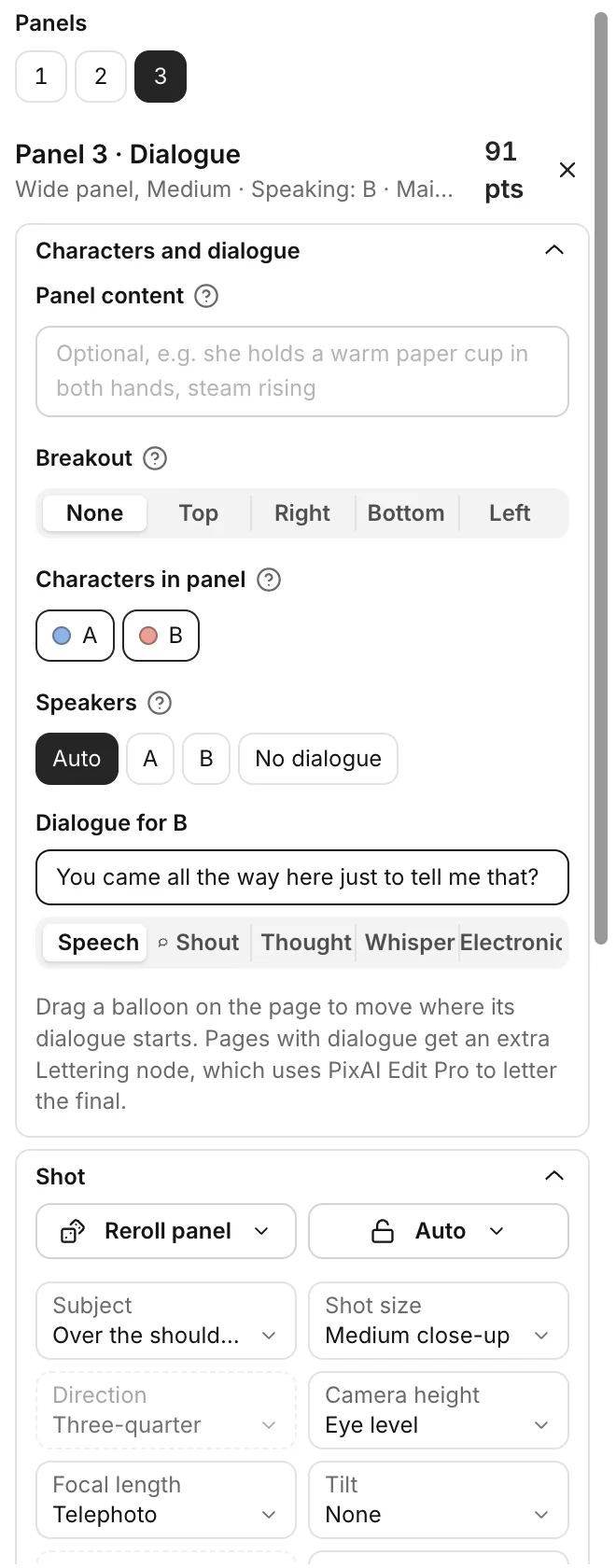
Click a panel on the page, or its number under Panels. The panel inspector opens on the right.
Change the camera
Open Shot. Click a field to see the panel drawn with each option, then click the one you want. The main fields are:
- Shot size: how much of the character shows, from Extreme long (far away) to Extreme close-up (only the face).
- Direction: where the camera sees the character from, such as Front, Side or Back.
- Camera height: from Bird's-eye (looking down from above) to Worm's-eye (looking up from the ground).
Picking any option locks the panel, so the next roll keeps it.
To get new ideas for one panel only, click Reroll panel and choose Reroll all, Camera only or Pose only.
Lock a panel
Click the lock button next to Reroll panel and choose Lock all, Lock camera or Lock pose. Locked panels show a lock icon under Panels, and Roll storyboards leaves them alone.
Change the pose
Open Pose and gaze. For each character, choose a Pose, such as Arms crossed or Run, and a Gaze, which is where the character looks.
Describe what the panel shows
The mannequins only set where the characters stand and face. To add an expression, an action or a held item, open Characters and dialogue and write it in Panel content, in English. For example: she holds a warm paper cup in both hands, steam rising.
In the same group, Breakout lets the main character break out of the panel, so part of the figure crosses one of its borders. Choose which border: Top, Right, Bottom or Left. The Lettering node draws the breakout on the finished page.
Add dialogue
Select a panel and open Characters and dialogue. Under Speakers, choose who talks in this panel, or choose No dialogue.
Each speaker gets a field, such as Dialogue for A. Type the line, then choose the balloon shape:
| Balloon | Use it for |
|---|---|
| Speech | Normal talk |
| Shout | Loud lines, in a spiky balloon |
| Thought | Thoughts, in a cloud balloon |
| Whisper | Quiet lines, with a dashed outline |
| Electronic | A voice from a phone or device |

To move a balloon, drag it on the page.
The storyboard shows empty balloons while Balloon positions is on under Display, so the finished page keeps space for the text. It's on by default. Leave it on if your page has dialogue.
Add sound effects and narration
SFX (sound effects) are sound words drawn into the art, such as BOOM or ゴゴゴ. Open Sound effects and narration and click a type:
- Sound effect: a sound word drawn into the art.
- Big text: a large shout without a balloon.
- Narration box: a square box for the narrator.
- System window: a game-style status window.
Type the text in the field next to the type. On the page, drag the text to move it.
Place it on the canvas
Click one of the buttons in the top bar:
- Place on canvas and generate: places the nodes and generates the finished page right away. This spends credits.
- Place on canvas only: places the nodes but doesn't generate. Use it when you want to add character reference images first.

| Node | What it is |
|---|---|
| Storyboard · Page 1 | The storyboard image. It saves everything you set in the editor. |
| Final · Page 1 | A Tsubaki.3 image node that redraws the storyboard as a finished page. |
| Lettering · Page 1 | Added only when the page has dialogue or other text. |
To try another version of the finished page, generate the Final node again like any Image node. See Generate images.
Letter the finished page
Lettering means writing the dialogue and sound effects onto the art. The Lettering node does this with PixAI Edit Pro. It doesn't run on its own.
Wait until the Final node finishes. If you don't like the art, generate the Final node again.
Select the Lettering node and click Generate. PixAI Edit Pro needs a PixAI membership.
If a line is wrong, edit the Lettering node's prompt and generate again. See Edit images.
Edit a storyboard again
Click Edit storyboard at the top left of the storyboard node. When you're done, click one of these:
- Update storyboard and regenerate: updates the storyboard, the Final node and the Lettering node, and generates again.
- Update storyboard only: updates them, but doesn't generate.
If you rewrote the Final node's prompt yourself, Studio doesn't change that node. Generate it yourself when you're ready.
Export or close
- To download the storyboard itself, click Export and choose PNG (2400 px tall) or SVG (with layers).
- To leave without placing, click Close or press Esc. A new page that you never placed isn't kept.
Common questions
The finished page doesn't look like my characters.
Describe each character's look under Characters. For a closer match, use Place on canvas only, connect character reference images to the Final node, then generate.
Is the text drawn on the storyboard?
No. The storyboard only has empty balloons. The Lettering node writes the words in.
Can I make a second page?
Yes. Add another Manga storyboard (Beta). It opens with the next page number.
Was this page helpful?
🎁 Adopted valid suggestions earn a 5,000 Credit reward!