
Make a webtoon
Plan a vertical-scroll webtoon episode in PixAI Studio, generate it in segments with Tsubaki.3, then preview and download it.
A webtoon is a comic that readers scroll from top to bottom on a phone. The webtoon storyboard editor plans a whole episode: how many panels it has, how tall each one is, and how much space is between them. Studio then generates the episode in parts, so the characters and style stay the same all the way down.
The editor works like the manga editor. Characters, rolls, panels, dialogue and the Final step are the same, so read Create a manga storyboard first. This page covers what is different.
Start an episode
Click Add node in the dock, then select Webtoon storyboard (Beta). The editor opens as Webtoon storyboard · Episode 1.
Use the arrows next to Version to page through versions of the strip, or click Roll for a new set.
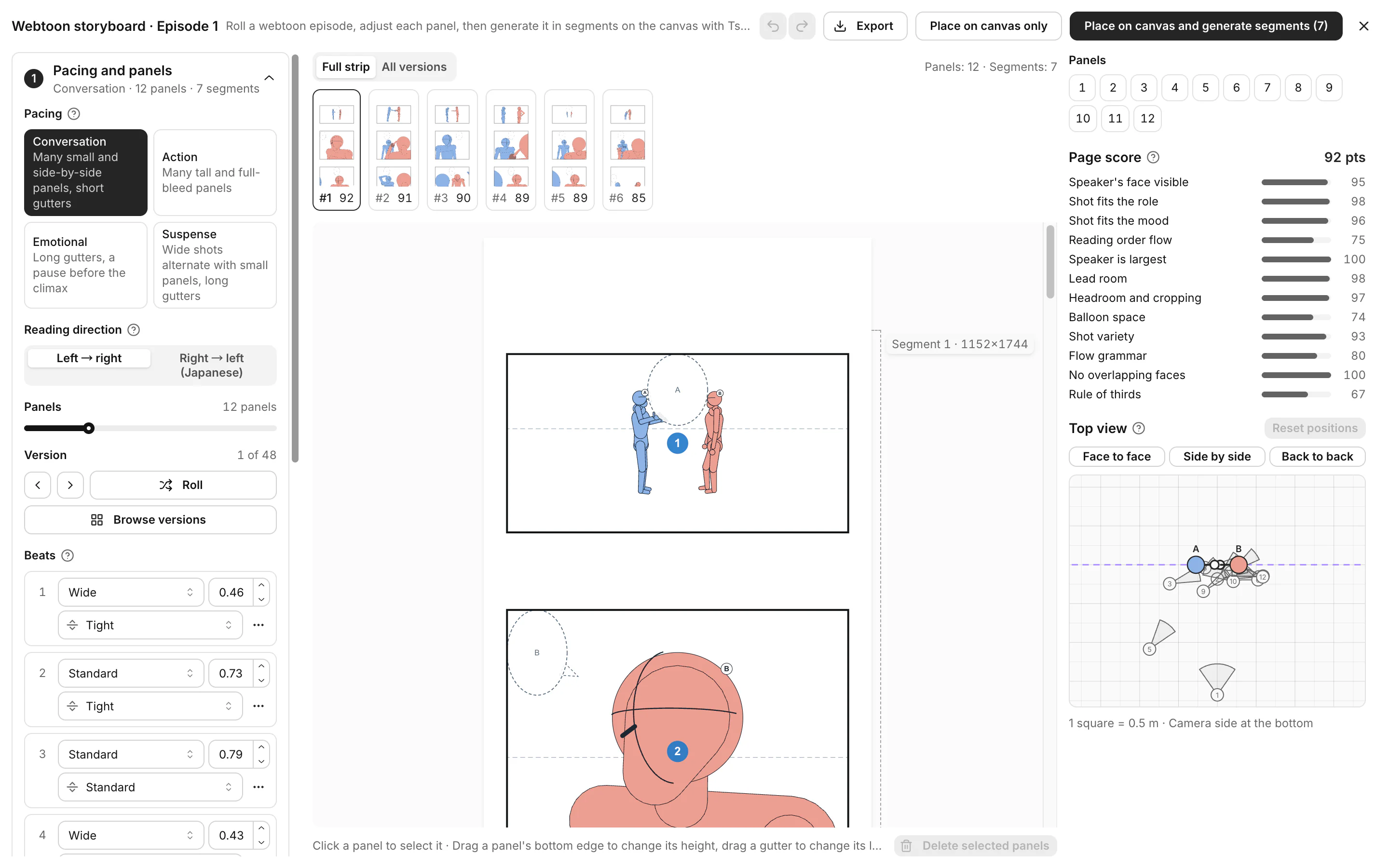
| Pacing | What you get |
|---|---|
| Conversation | Many small and side-by-side panels, short gutters |
| Action | Many tall panels and panels that fill the full width |
| Emotional | Long gutters, a pause before the climax |
| Suspense | Wide shots alternate with small panels, long gutters |
In a webtoon, the gutter is the empty space between two panels. A long gutter makes the reader scroll longer, so it feels like a pause or a scene change.
New episodes start in Full color. You can change it under Final.
Adjust the panels
Each row of the strip is a beat: one panel, or two panels side by side. The Beats list in Pacing and panels shows each beat with its Style, Height and Gutter.
You can also edit on the strip itself:
- Drag a panel's bottom edge to make it taller or shorter.
- Drag the gutter below a panel to make it longer or shorter.
Tip: put the climax about 70% of the way down, with a long gutter before it, so the reader scrolls into a large panel.
Changing the pacing or rolling again discards the beats you edited by hand. Press Ctrl/ Cmd + Z to undo.
Place the episode on the canvas
Tsubaki.3 can't draw a whole strip in one image, so Studio cuts it into segments. The count above the strip shows how many there are, for example Panels: 12 · Segments: 4.
In the top bar, click one of these:
- Place on canvas and generate segments (4): places every segment and generates them in order. Each segment is one generation, so each one spends credits.
- Place on canvas only: places the nodes without generating.
Studio adds one column of nodes for each segment:
| Node | What it is |
|---|---|
| Webtoon · Episode 1 · Segment 1 | The storyboard image for that segment. |
| Final · Episode 1 · Segment 1 | A Tsubaki.3 node that draws the segment. |
| Lettering · Episode 1 · Segment 1 | Added only when the segment has dialogue or other text. |
Each Final node uses the segment before it as a reference, so the characters and colors match. If a segment fails, the segments after it don't generate. Fix it, then generate the rest in order.
Lettering nodes don't run on their own. Generate each one after its Final node is done. See Letter the finished page.
Preview and download the episode
Click Preview webtoon at the top left of any Webtoon · Episode 1 · Segment node. The preview shows the whole episode at phone width. Segments that aren't generated yet show the storyboard.
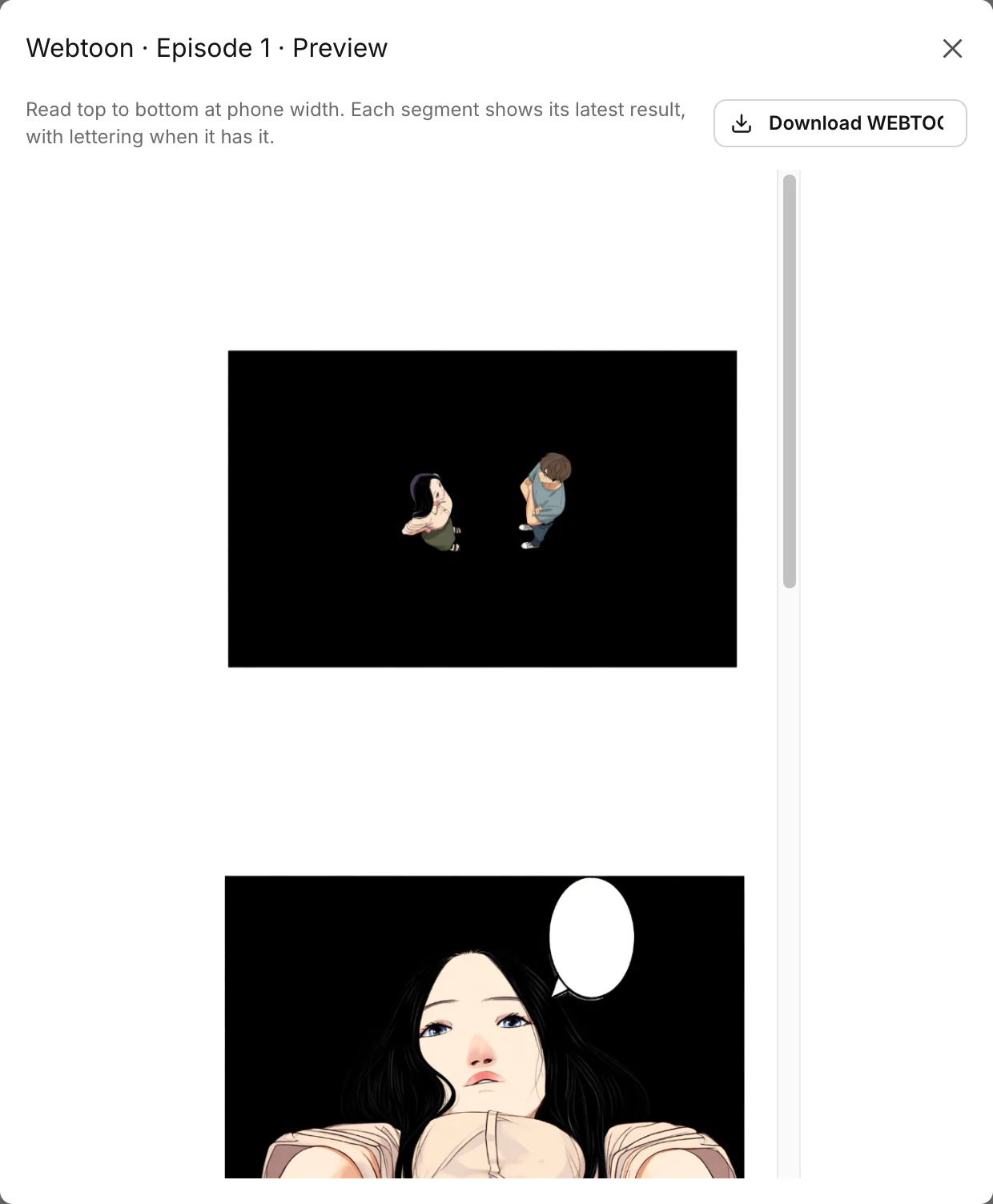
Click Download WEBTOON slices to save the finished episode as a ZIP of images.
Edit the episode again
Click Edit webtoon on any Webtoon · Episode 1 · Segment node. When you're done, click Update storyboard and regenerate segments (4) or Update storyboard only. A Final prompt that you rewrote yourself is kept.
Was this page helpful?
🎁 Adopted valid suggestions earn a 5,000 Credit reward!
Create a manga storyboard
Plan a manga page with mannequin figures in PixAI Studio, add dialogue, then turn it into a finished, lettered page with Tsubaki.3.
Edit in the sequence editor
Put your PixAI Studio images and videos on a timeline, trim and arrange them, and preview the cut in the sequence editor.