
Write text
Write text in a Text node, use it as a prompt for other nodes, or ask a text model to write for you.
A Text node holds text that you write or that a text model writes. Connect it to an Image, Audio or Text node, and its text goes in front of that node's prompt. You can keep one script or description and reuse it across many nodes.
Write text
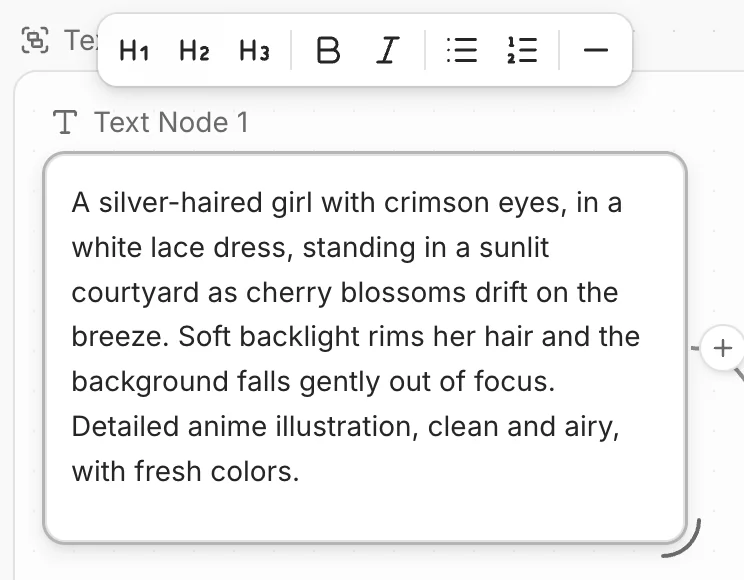
Use text as a prompt
Connect the Text node to an Image, Audio or Text node. See Nodes and connections.
Select the node you connected to. Add to its own prompt if you want, for example a style.
You don't need to mention a Text node with @. Its text is added automatically.
To start fast, click Text to image or Text to speech on an empty Text node. It adds a Text node that is already connected to an Image or Audio node.
Ask a text model
A Text node can also ask a text model to write for you.
Describe the text you want. For example: "Write five short prompts for a fantasy forest scene."
Click Generate, or press Ctrl/Cmd + Enter.
The reply shows in the node. Double-click it to edit it.
To turn a short idea into a full prompt for an image or video model, pick the Prompt Helper model.
Common questions
Will a new run replace my edits?
Yes. A new run replaces the whole text in the node. To keep a version, duplicate the node first.
Can I connect a Text node to a Video node?
You can connect it, but a Video node doesn't use connected text. Use the Text to video chip instead. It turns your text into an image first, then animates that image.
Can I save my text?
Click Download in the node toolbar to save it as a .txt file, or Save as asset to add it to your asset library.
Was this page helpful?
🎁 Adopted valid suggestions earn a 5,000 Credit reward!