
Add audio and export
Add music, voice and sound effects to a PixAI Studio sequence, fade them in and out, and export the sequence as an MP4 video.
Put music, voice and sound effects under your clips, fade them in and out, and then export the sequence as one MP4 video. For the basics of the editor, see Edit in the sequence editor.
Add audio clips
In the sequence editor, drag an Audio node from the Canvas panel onto an Audio track in the Timeline. A new sequence already has one Audio track, Audio 1.
To add another Audio track, click Add track below the tracks and select Audio track.
To make music, voice or sound effects first, see Generate audio.
Sound from video clips
A video with sound brings its sound in as a linked audio clip, right under the picture. Linked clips move, trim and cut together. To edit them one at a time, right-click the video clip and select Separate audio and video. To remove the sound, select Delete audio.
Fade audio
Right-click an audio clip and select one of these:
- Fade in: the clip starts silent and gets louder.
- Fade out: the clip gets quieter until it is silent at its end.
- Crossfade before / Crossfade after: blends this clip into the clip next to it. The two clips must be on the same track and touch, with no gap.
To silence a whole track, click its mute button at the left end of the track.
Export the sequence
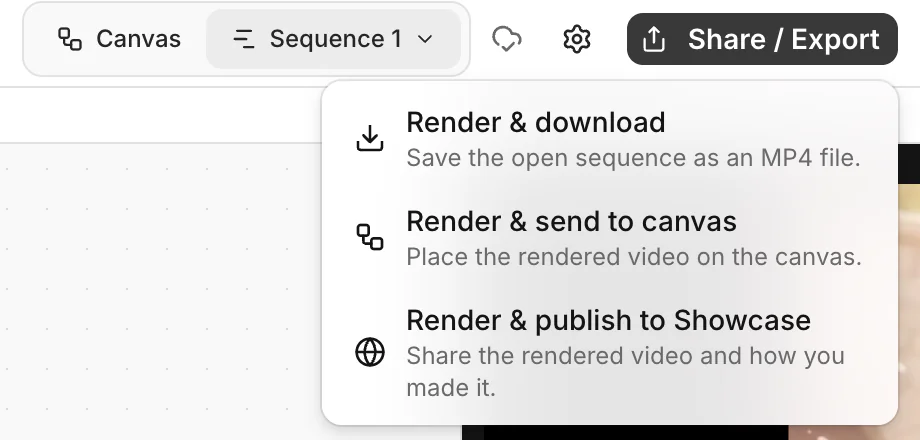
Select one:
- Render & download: saves the video as an MP4 file on your computer.
- Render & send to canvas: places the video on the canvas as a node.
- Render & publish to Showcase: renders the video and opens the form to publish it. See Publish your work.
The Render sequence dialog shows the progress. To stop, click Cancel.
The video is made in your browser. Keep the tab open and in front until the render finishes.
The export uses the size and frame rate in the sequence settings. A sequence can be up to 10 minutes long.
Common questions
Can I change the volume of a clip?
No. You can fade a clip in or out, crossfade two clips, or mute a whole track.
Does exporting cost credits?
No. The render runs in your browser. You pay only for the generations on the canvas.
Was this page helpful?
🎁 Adopted valid suggestions earn a 5,000 Credit reward!