Start from a template
Add a ready-made PixAI Studio workflow to your canvas, swap in your own character image, and generate.
A template is a small, ready-made workflow: input images connected to Image or Video nodes that already have a prompt, a model and settings. Add one to your canvas, put in your own image, and generate.
Add a template to the canvas
Click Templates in the dock at the bottom of the canvas. On an empty canvas, you can also click Templates in the center.

The gallery has two sections:
- Official: image and video workflows, such as One-Click Manga, Three-View Character Sheet or Live Wallpaper.
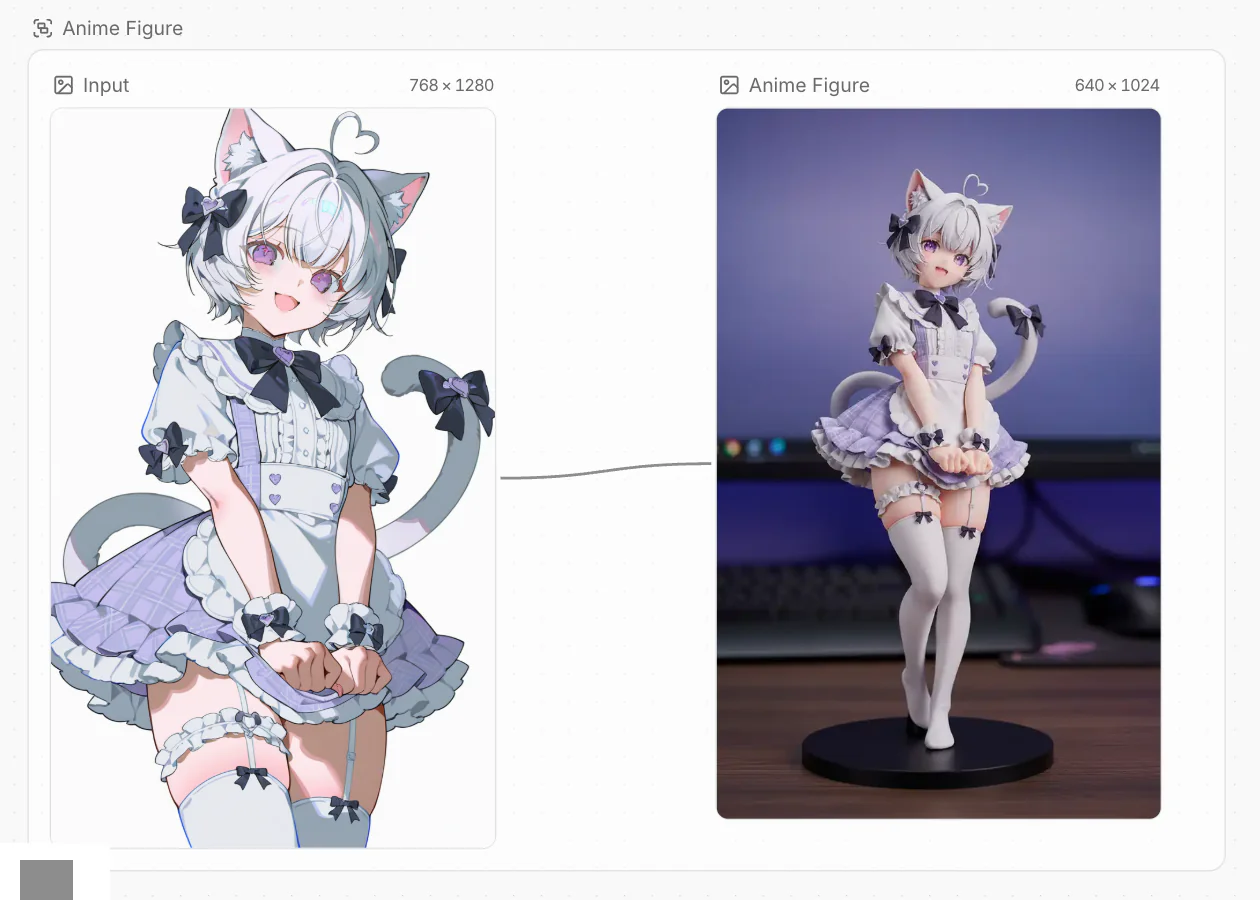
- PixAI Generation Presets: image templates that turn your character into a style or an item, such as Paper Cutout, Anime Figure or Trading Card.
The template's nodes are added near the center of your view, inside a group named after the template. Nothing that is already on the canvas changes.
Use your own image
Most templates come with a sample input image and an example result, so you can see what the template makes. To use your own image:
Select Upload from device, or select Choose from canvas to use an image that is already on this canvas.
The connections stay, so the next generation uses your image. If a template has an empty input node, fill it like any other Image node. See Upload and import.
Generate
Optional: change the prompt, the model or the settings. Keep the @ mentions in the prompt: they point to the connected inputs.
Your result replaces the example result. If a template has more than one step, for example an Image node that feeds a Video node, generate the first step, then the next.
Common questions
Do I pay to add a template?
No. Adding a template doesn't start a generation. You pay only for the generations that you start. See Credits and FAQ.
Does a template replace my canvas?
No. It only adds nodes. To undo it, press Ctrl/Cmd + Z.
Was this page helpful?
🎁 Adopted valid suggestions earn a 5,000 Credit reward!