
Edit in the sequence editor
Put your PixAI Studio images and videos on a timeline, trim and arrange them, and preview the cut in the sequence editor.
The sequence editor turns the media on your canvas into one video. You put images, videos and audio on a timeline, trim and arrange the clips, and play the result. When your cut is ready, export it.
Open the sequence editor
At the top of the canvas, click Sequence in the switch beside Canvas. To go back, click Canvas. Your edits are saved as you work.
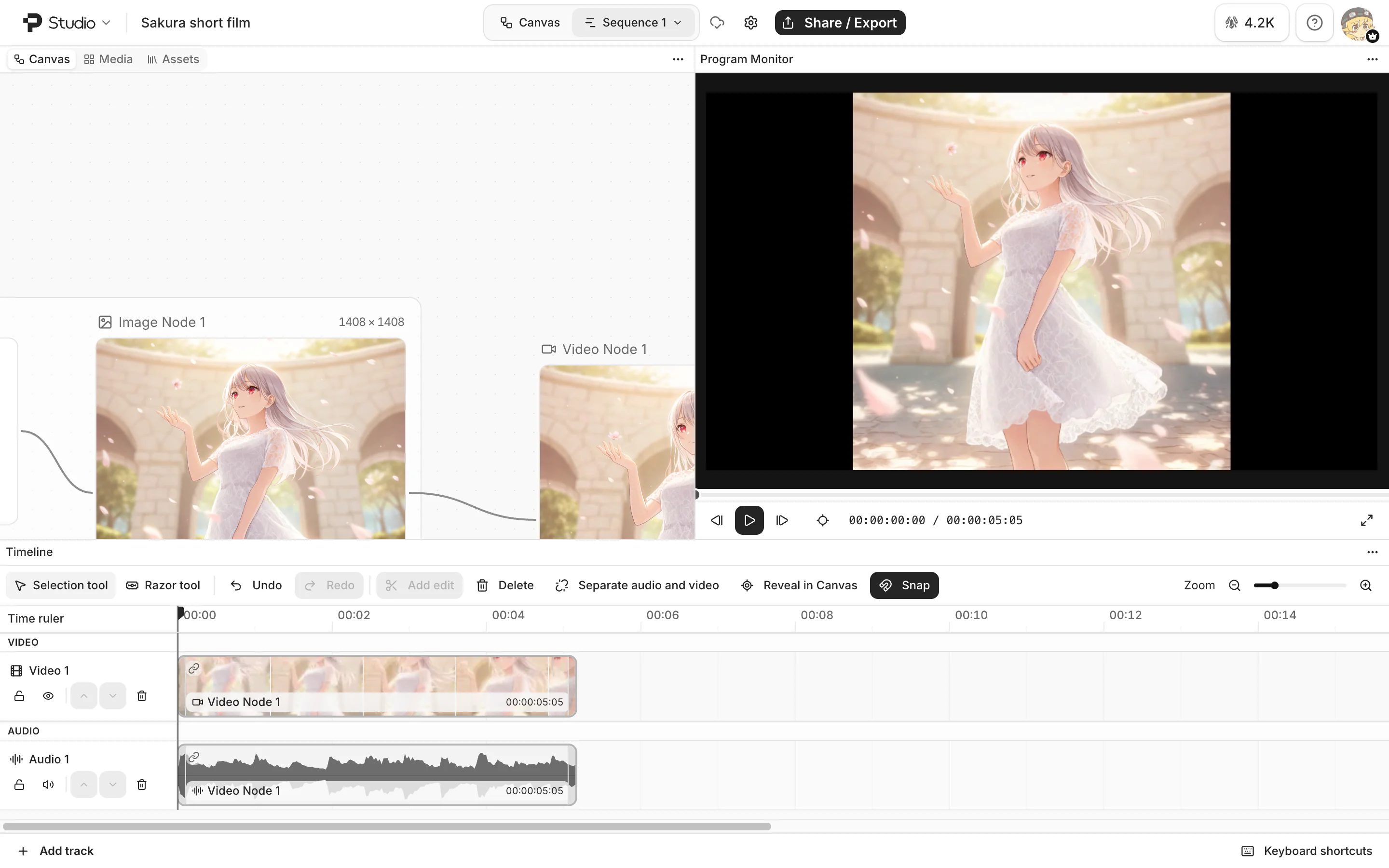
The editor has three panels:
| Panel | What it does |
|---|---|
| Canvas | Shows the nodes of your canvas, so you can drag them onto the timeline. |
| Program Monitor | Plays the sequence. |
| Timeline | Holds the clips on video and audio tracks. Clips play from left to right. |
Add clips
Image, video and audio nodes can become clips. A node must finish generating or uploading first.
Send a node from the canvas
The editor opens and adds the clip at the playhead, the line that marks the current time.
Drag a node onto a track
In the sequence editor, drag a node from the Canvas panel onto a track in the Timeline. Images and videos go on Video tracks. Audio goes on Audio tracks.

An image becomes a 5-second clip. A video keeps its own length, and its sound comes in as a linked audio clip.
To find a node faster, open the Media tab of the Canvas panel. It shows every image, video and audio node as a tile. The Assets tab shows your asset library.
Arrange and trim clips
- Move: drag a clip along its track, or to another track of the same type.
- Trim: drag the left or right edge of a clip. A video or audio clip can't be longer than its source.
- Delete: select the clips and press Delete.
While you drag, clips snap to the playhead and to the edges of other clips. To turn this off, click Snap in the toolbar of the Timeline.
Cut a clip
- At the playhead: move the playhead into the clip, select the clip, and click Add edit (the scissors) in the toolbar. Or press Ctrl/Cmd + B.
- With the razor: press C, then click a clip where you want to cut it. Press V to go back to the Selection tool.
Add a dissolve
A dissolve fades one clip into the next. Right-click a video clip and select Dissolve before or Dissolve after. The two clips must be on the same track and touch, with no gap.
The same menu has Reveal in Canvas, which shows the node that the clip came from.
Play the sequence
- Press Space to play or pause.
- Click or drag in the time ruler above the tracks to move the playhead.
- Press ← or → to go one frame back or forward.
For more keys, see Keyboard shortcuts.
Manage sequences
A canvas can have more than one sequence, for example one for each cut. Click the arrow beside the sequence name at the top to switch sequences, or to select New sequence, Rename sequence or Delete sequence.
Delete sequence can't be undone. The nodes on the canvas don't change.
Change the video size
A new sequence is 1920 × 1080 at 30 fps. To change it, click Sequence settings (the gear) beside the sequence name, choose a Resolution and a Frame rate, then click Review changes and Apply changes. This change can't be undone.
Common questions
Why is Send to Sequence grayed out?
The node is still generating or uploading. Send to Sequence is only on Image and Video nodes. To add audio, drag the Audio node onto an Audio track.
Does editing a clip change the node on the canvas?
No. Trimming, cutting and deleting clips only changes the sequence.
Was this page helpful?
🎁 Adopted valid suggestions earn a 5,000 Credit reward!