
Plan several shots
Set up several cameras on one PixAI Studio 3D stage, capture all the shots at once, and turn them into a consistent set of images.
One scene can give you many shots. Put several cameras on the same 3D stage, say a wide shot, a close-up and a low angle, and capture them all at once. Every shot shows the same characters in the same places, so the images you make from them fit together.
This page assumes you know the basics from Set up a 3D stage.
Add more cameras
Open the Cameras tab and click Add camera. The new camera looks from your current view in the viewport. So first move the view to roughly where you want the camera, then add it.
Each camera keeps its own position, Focal length and Aspect ratio. Under Shots, each camera shows a small preview, its name, and its focal length and aspect ratio, for example 85 mm · 3:4.
- Click a shot's preview to select its camera.
- Give each camera a name that says what the shot is, such as Wide shot or Close-up. Select the camera and type in Name. The captured image gets the same name on the canvas.
- To switch the camera in Camera preview without selecting it, pick it in the list above the preview.
The three cameras on this page capture these shots of one scene:
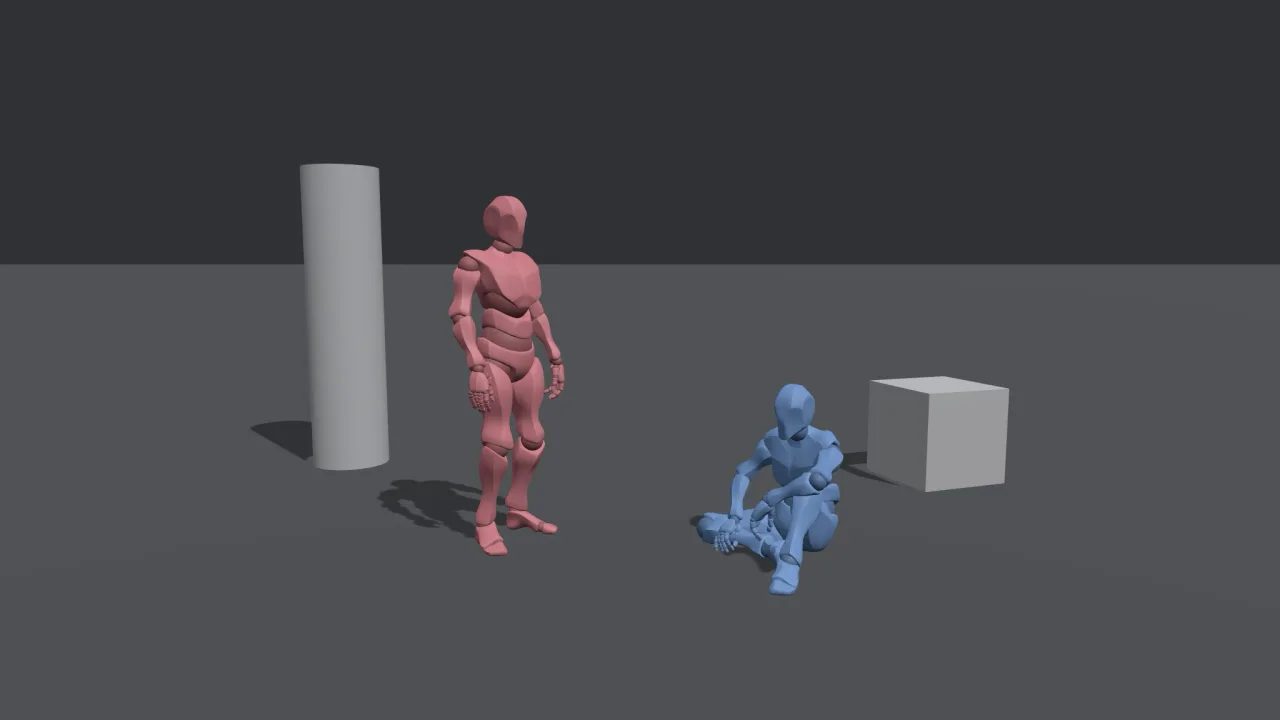
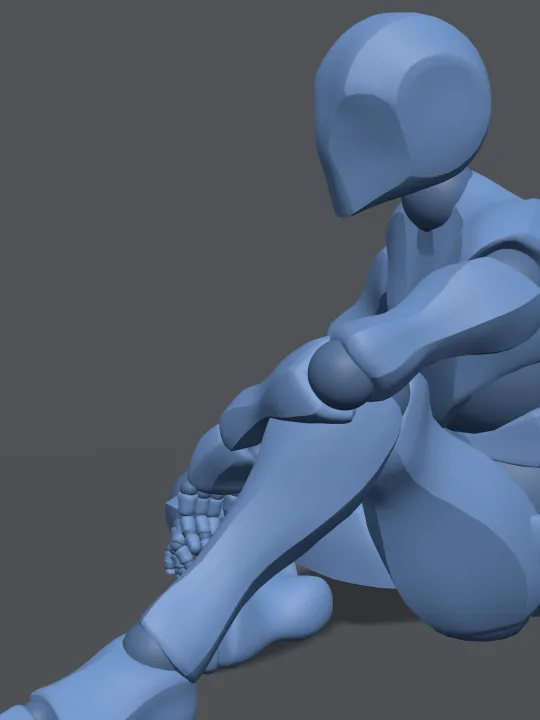
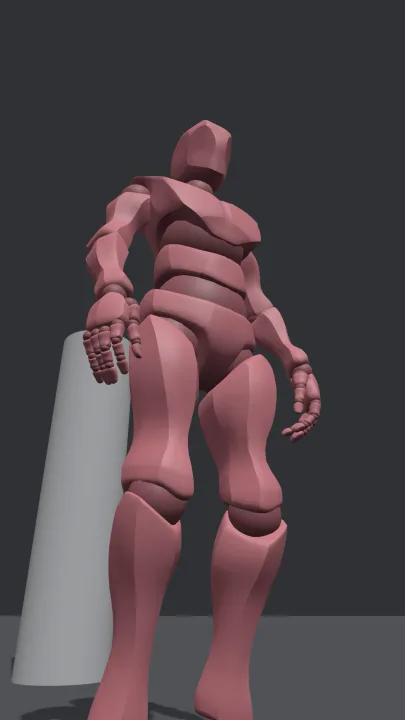
Compose a shot
A few settings change the feel of a shot a lot:
| To get | Try |
|---|---|
| A wide view of the whole scene | A short focal length, such as 24 mm |
| A natural, eye-level look | 35 or 50 mm, with the camera at about eye height |
| A close-up with a calm background | A long focal length, such as 85 or 135 mm, a little farther from the subject |
| A character that looks tall and strong | A low camera that looks up, such as Position Y 0.3, with Aim at on them |
| A tense, tilted frame | A small Roll |
Aim at turns the camera toward a character or a prop, so you can move the camera and then aim it again in one click. Pan, Tilt and Roll under Rotation set the angle by hand.
Match the Aspect ratio to the image you want: 16:9 for a wide scene, 3:4 or 9:16 for a single character.
Capture several shots at once
Under Shots, check the box next to each camera you want.
Click Export 3 shots at the bottom of the panel. The number matches the shots you checked.

Studio shows Added 3 shots to the canvas. Back on the canvas, the shots sit next to the 3D stage in a small stack, each named after its camera and connected to the stage. Drag them apart to work with each one.
To capture only the camera in Camera preview, click Capture there, or press P.
Turn the shots into a set
Give each shot its own Image node, as in Use the shot as a reference. Then:
- Describe the characters the same way in every prompt. Copy the same hair, eye and outfit words into each prompt, so the characters look alike from shot to shot.
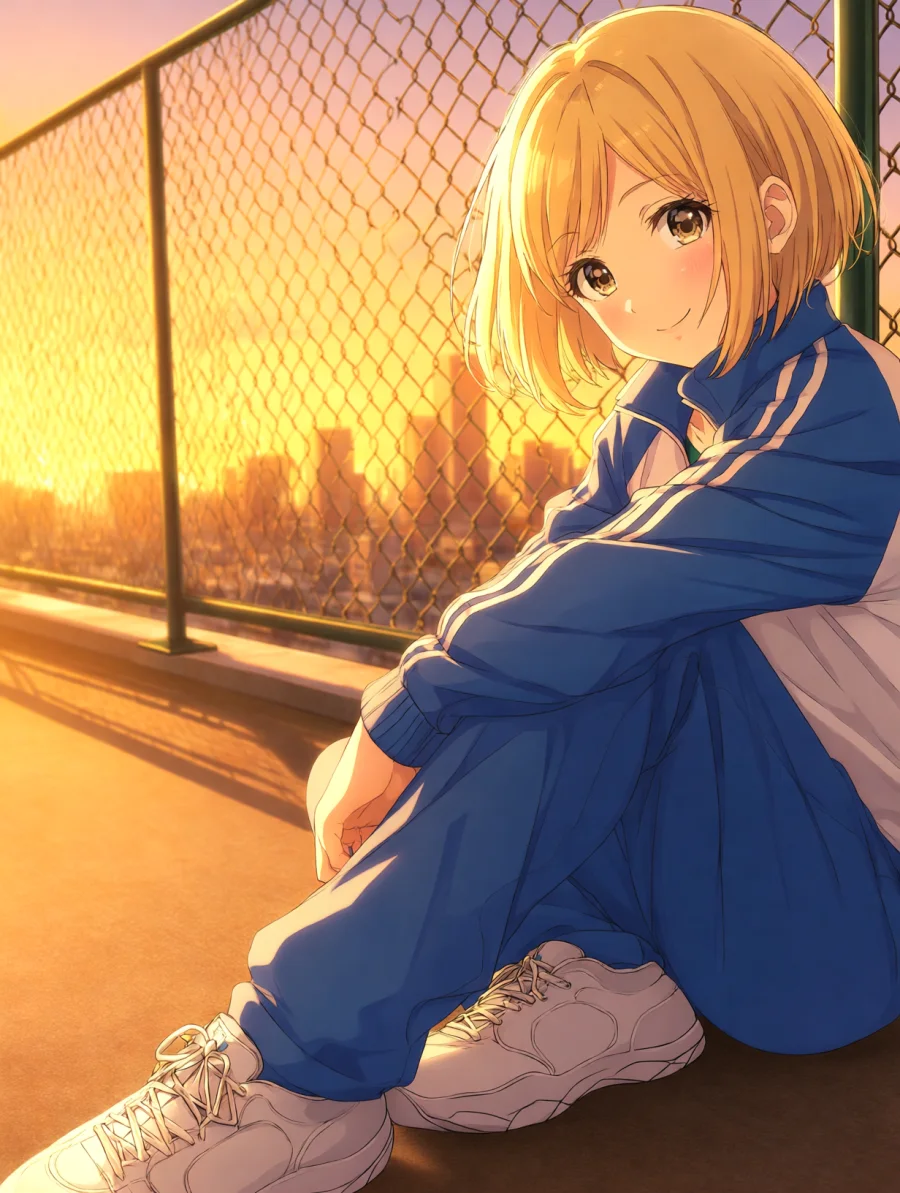
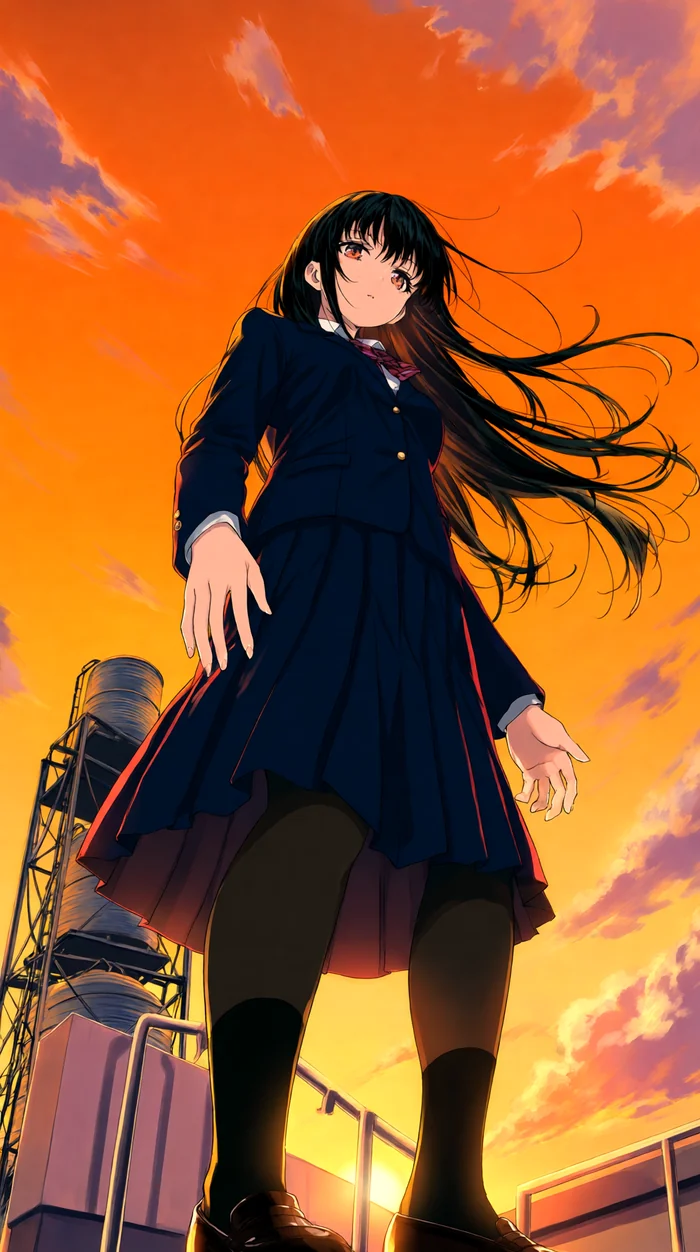
- Say what the shot is. For example,
close-up of …orlow-angle shot looking up at …, plusFollow the reference image for the pose and the camera angle. - Match the aspect ratio of each Image node to its camera.
When a model can't use the shot
Some image models only take reference images of certain shapes or sizes. If a model can't use the shot from the selected camera, a warning appears under Output: These models can't use this shot as a reference image: and the model names. Pick another Aspect ratio for the camera, or use a different model for that shot.
Undo, redo and saving
The stage has its own undo history. Click Undo or Redo in the top bar, or press Ctrl/Cmd + Z and Ctrl/Cmd + Shift + Z.
Changes save automatically. The top bar shows Saving… and then Saved next to the stage name. The scene is saved with the canvas, so it's there the next time you click Enter stage.
View-only canvases
When you open a canvas you can't edit, such as another creator's public canvas, or any canvas on a phone, the 3D stage node shows its latest shot but has no Enter stage button.
Keyboard shortcuts
Click Keyboard shortcuts in the top bar, or press ?, to see the list in the stage.
| Action | Shortcut |
|---|---|
| Move the view | W A S D, Q/E |
| Move faster | Hold Shift |
| Focus on the selected object | F |
| Reset the view | Home |
| Turn character control on or off | C |
| Jump while controlling a character | Space |
| Capture the active camera | P |
| Duplicate | Ctrl/Cmd + D |
| Delete | Delete |
| Undo | Ctrl/Cmd + Z |
| Redo | Ctrl/Cmd + Shift + Z |
| Exit the camera, stop character control, or deselect | Esc |
To walk a character around the stage, see Walk a character with the keyboard.
Was this page helpful?
🎁 Adopted valid suggestions earn a 5,000 Credit reward!
Set up a 3D stage
Pose characters and props on a 3D stage in PixAI Studio, frame the shot with a camera, and use the captured shot as a reference for a new image.
Create a manga storyboard
Plan a manga page with mannequin figures in PixAI Studio, add dialogue, then turn it into a finished, lettered page with Tsubaki.3.