
Set up a 3D stage
Pose characters and props on a 3D stage in PixAI Studio, frame the shot with a camera, and use the captured shot as a reference for a new image.
A 3D stage is a small 3D scene on your canvas. You place mannequin characters and simple props, give each character a pose, and frame the shot with a camera. When you capture the shot, it lands on the canvas as an image. Use that image as a reference, and the model follows your layout, poses and camera angle.

Add a 3D stage
Click Add node in the dock at the bottom of the canvas, then select 3D stage.
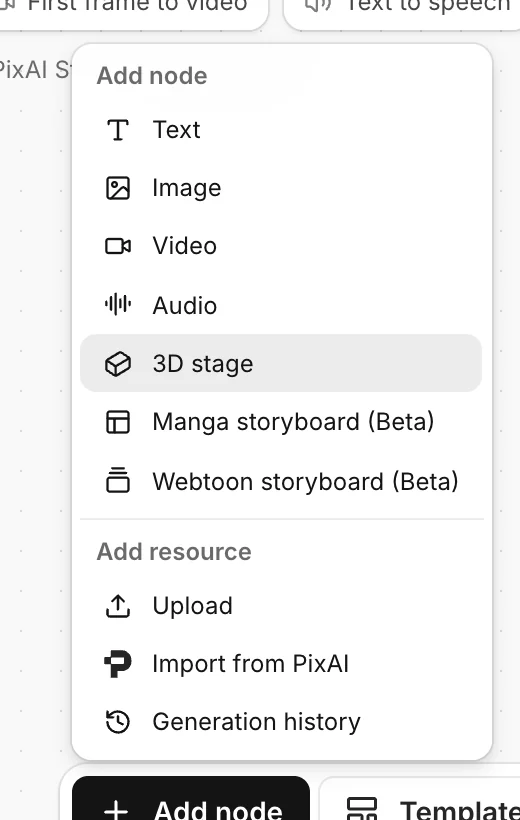
Click Enter stage on the new node. The stage opens full screen.

A new stage isn't empty: it starts with two characters, a cube, a cylinder and Camera 1. Change them or delete them.
The first time, a short tour points out the main parts. Click Next to go through it, or Skip tour.
The parts of the stage

- Left rail: three tabs. Characters and Props add objects and list what is in the scene. Cameras adds cameras and lists your shots.
- Viewport (middle): the scene in 3D. The small buttons at the top right are Reset view and Top view.
- Right column: Camera preview shows what the selected camera sees. Below it are the properties of the selected object.
- Top bar: Back to canvas, the stage name and its save status, Undo, Redo and Keyboard shortcuts.
To look around the scene:
- Drag to orbit, right-drag to pan, and scroll to zoom.
- Press W A S D to fly, and Q/E to go down or up. Hold Shift to move faster.
- Select an object and click Focus to center the view on it.
Add characters and props
- Characters tab: click Add character and pick a pose.
- Props tab: click Add cube, Add sphere, Add cylinder or Add cone. Use props for anything in the scene, such as a desk, a wall or a water tank.
- Or right-click the floor and choose Place character here, Place camera here or a shape.
New objects get names such as Character 3 or Cube 2. To rename one, select it and type in Name. The model doesn't read these names. They help you tell the objects apart.
Pose a character
Select a character, in the viewport or in In this scene. Its properties open on the right.

- Pose: Standing and sitting has Stand, Sit on a chair, Sit on the floor, Kneel and Crouch. Lying has Lie on side, Lie on back, relaxed, Lie on back, straight and Lie face down.
- Facing: the direction the character faces, in degrees.
- Height: from 0.8 m to 2.2 m. Make a child shorter than an adult, for example.
- Color: a color for the mannequin, such as Rose or Blue. Different colors make two characters easier to tell apart in the shot.
If you moved a character into the air, click Drop onto the surface below to put it back on the floor or on a prop.
Move and turn objects

Select an object to show its handles:
- Drag an arrow to move the object along one axis, or a square to move it in a plane.
- Drag the ring to turn it.
- On props, drag the cube handles to scale them.
Point to a handle to see what it does, such as Move along X or Rotate around Y.

Characters only turn around their vertical axis, and they always stay on or above the floor. For exact values, type them in Position, or in Facing for a character.
The buttons at the top of the properties are Focus, Duplicate, Lock and Delete. Lock keeps an object from moving by accident.
Walk a character with the keyboard
You can also move a character like in a game, instead of dragging its handles. This is a quick way to try out where a character should stand.
Select the character. Above its head, click Control character, or press C.
Press W A S D to walk. Hold Shift to run, and press Space to jump.
Press Esc, or click Stop at the top of the viewport, when you're done.
Frame the shot
The camera decides what ends up in the shot. Open the Cameras tab and select a camera. You can also click Add camera to add one that looks from your current view.

- Focal length: a short focal length, such as 24 mm, shows a wide view. A long one, such as 85 mm, zooms in. Type a value from 8 to 400, or click a preset.
- Aspect ratio: the shape of the shot, such as 16:9, 3:4 or 9:16.
- Output: the size of the captured image. Its long side is 2048 pixels.
- Aim at: turns the camera toward a character or a prop.
- Move to current view: moves the camera to where you are looking from in the viewport.
To fine-tune the shot, click Enter camera. Now you look through the camera, with thirds lines over the frame. Drag to aim, use W A S D and Q/E to move, and scroll to change the focal length. Click Exit camera or press Esc when you're done.
Capture the shot
Click Capture under the camera preview. Studio shows Added 1 shot to the canvas.

Click Back to canvas. The shot is an Image node named after the camera, next to the 3D stage and connected to it. The 3D stage node shows the latest shot as its cover.

Capture again after you change the scene, and you get a new image. Earlier shots stay on the canvas.
Use the shot as a reference
The shot shows gray mannequins. To turn it into a finished image, use it as a reference for an Image node:
Point to the shot and click the + on its right, then select Image. The new Image node uses the shot as its reference.
Select the new node. The shot shows as a reference tile in the prompt bar.

Write the prompt. Describe who each mannequin is, what they wear, the place and the style. Tell the model to follow the reference, for example: Follow the reference image for the layout, the poses and the camera angle.
In the settings next to the model, set Aspect ratio to match the camera, then click Generate.

The result keeps the characters where you placed them and the angle of your camera. The mannequins don't decide the look, so you can restyle the same shot as often as you like.
If a character comes out in the wrong place, say where each one is in the prompt, for example "Left: … Right: …". Giving each mannequin a different color in the stage helps, too.
Saving
The stage saves your changes as you work. The top bar shows Saving… and then Saved. To undo a change, click Undo or press Ctrl/Cmd + Z.
To plan several shots of the same scene, see Plan several shots.
Was this page helpful?
🎁 Adopted valid suggestions earn a 5,000 Credit reward!